# Configurar InboxUI con Swift Package Manager
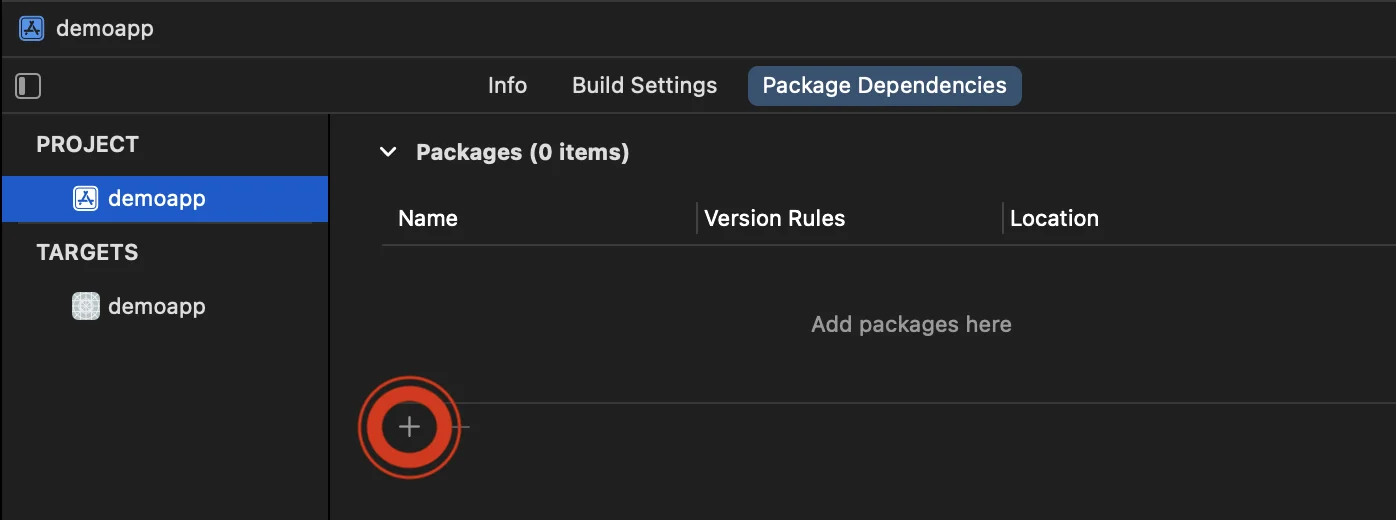
1\. Abra su proyecto en Xcode y vaya a la configuración del proyecto -> Package Dependencies, luego presione el botón '+'.
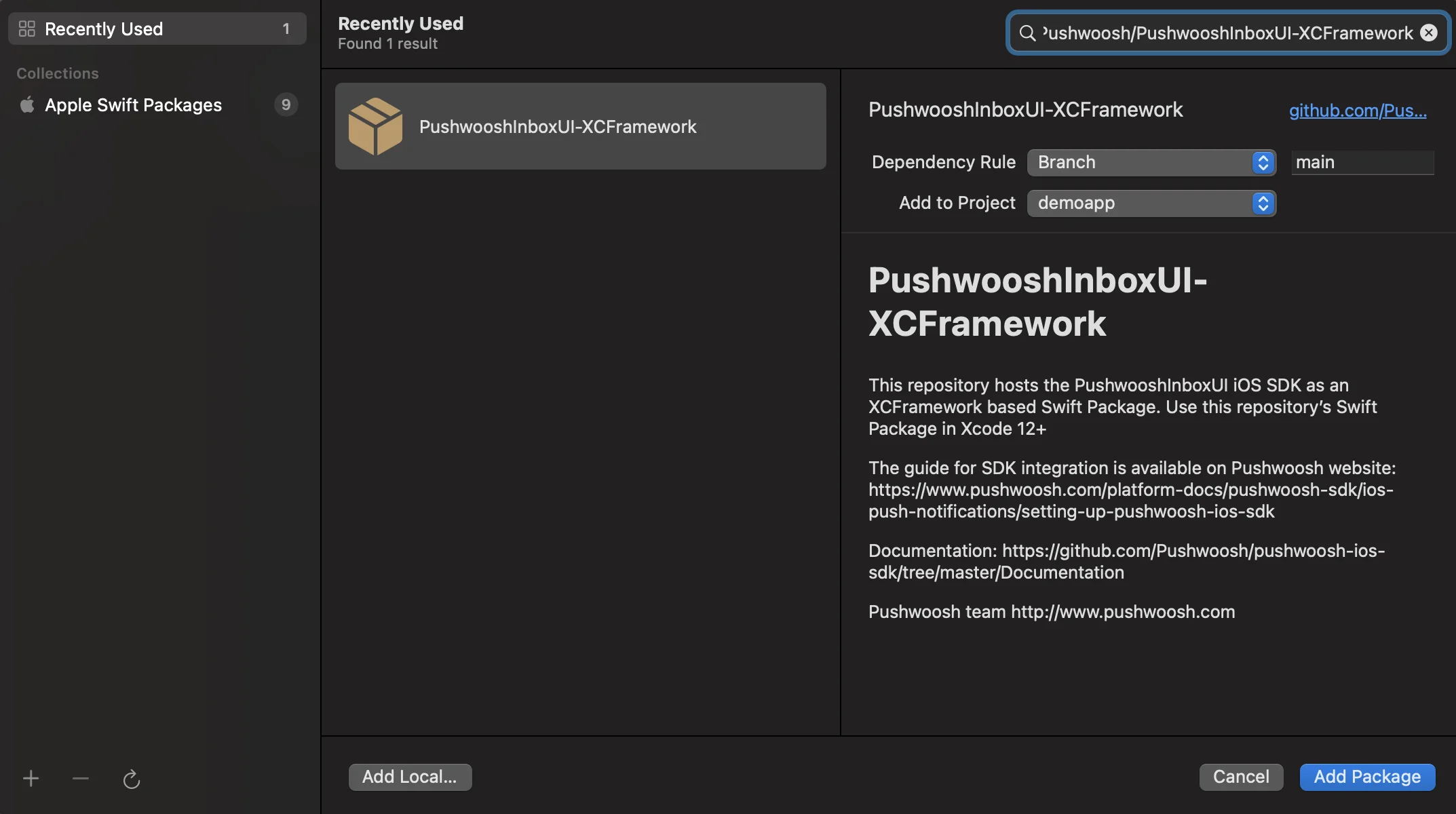
2\. Ingrese la siguiente URL del paquete:
```bash
https://github.com/Pushwoosh/PushwooshInboxUI-XCFramework
```
3\. Configure la 'Dependency Rule' (Regla de Dependencia) en **Branch** y **main**. Luego, haga clic en el botón '**Add Package**' (Añadir Paquete).
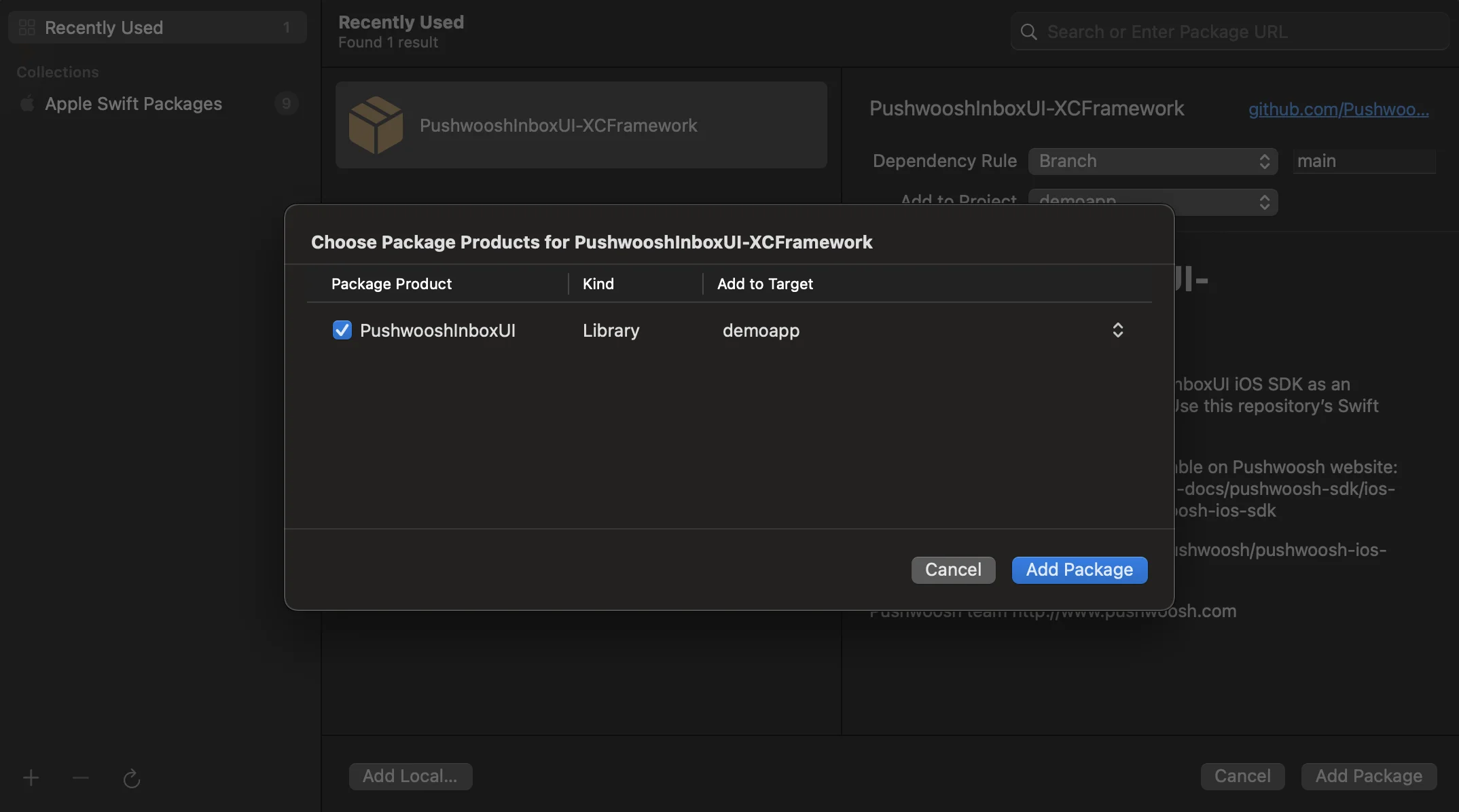
4\. En la siguiente pantalla para elegir su paquete, seleccione el Paquete Pushwoosh y **Add Package** (Añadir Paquete) a su Target principal de la aplicación.
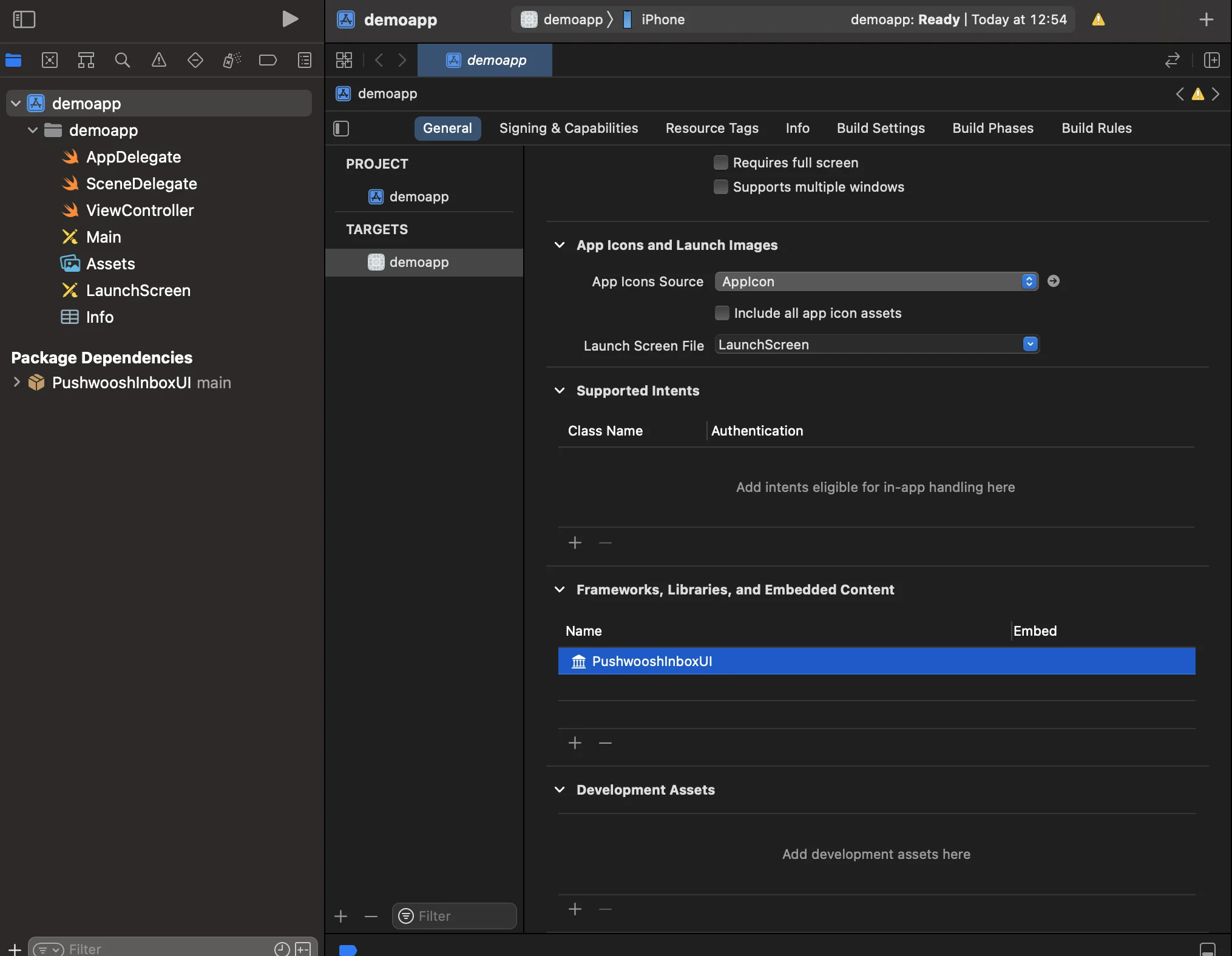
5\. Abra su Target principal de la aplicación y en "Frameworks, Libraries, and Embedded Content" asegúrese de que se haya añadido PushwooshInboxUI.
6\. ¡Eso es todo! Acaba de integrar el SDK de Pushwoosh InboxUI en su proyecto.
## Añadir código de Pushwoosh InboxUI
Para mostrar la UI de Inbox en su aplicación, añada el controlador de vista de Inbox:
```swift
self.navigationController?.pushViewController(PWIInboxUI.createInboxController(with: PWIInboxStyle.default()), animated: true)
```
```objective-c
[self.navigationController pushViewController:[PWIInboxUI createInboxControllerWithStyle:[PWIInboxStyle defaultStyle]] animated:YES];
```
Para que el Inbox coincida con la apariencia de su aplicación, cambie los parámetros de `PWIInboxStyle`. Puede personalizar parámetros como la fuente, el color de fondo, etc.
```swift
//creating a new Inbox style
let inboxStyle = PWIInboxStyle.customStyle(withDefaultImageIcon: UIImage.init(named: "custom_image"),
textColor: UIColor.darkText,
accentColor: UIColor.blue,
font: UIFont.systemFont(ofSize: 17))
inboxStyle?.backgroundColor = UIColor.init(white: 1, alpha: 1)
inboxStyle?.listErrorMessage = NSLocalizedString("Custom error message", comment: "Custom error message")
inboxStyle?.listEmptyMessage = NSLocalizedString("Custom empty message", comment: "Custom empty message")
PWIInboxStyle.setupDefaultStyle(inboxStyle)
```
```objective-c
//creating a new Inbox style
PWIInboxStyle *inboxStyle = [PWIInboxStyle customStyleWithDefaultImageIcon:[UIImage imageNamed:@"custom_image"]
textColor:UIColor.darkTextColor
accentColor:UIColor.blueColor
font:[UIFont systemFontOfSize:17]];
inboxStyle.backgroundColor = [UIColor colorWithWhite:1 alpha:1];
inboxStyle.listErrorMessage = NSLocalizedString(@"Custom error message", @"Custom error message");
inboxStyle.listEmptyMessage = NSLocalizedString(@"Custom empty message", @"Custom empty message");
[PWIInboxStyle setupDefaultStyle:inboxStyle];
```
## Personalización
Para personalizar el estilo de la UI de Inbox, por favor consulte:
Para más detalles, eche un vistazo al [Ejemplo de Inbox](https://github.com/Pushwoosh/pushwoosh-quickstart-ios/tree/main/inbox).
 2\. Ingrese la siguiente URL del paquete:
```bash
https://github.com/Pushwoosh/PushwooshInboxUI-XCFramework
```
3\. Configure la 'Dependency Rule' (Regla de Dependencia) en **Branch** y **main**. Luego, haga clic en el botón '**Add Package**' (Añadir Paquete).
2\. Ingrese la siguiente URL del paquete:
```bash
https://github.com/Pushwoosh/PushwooshInboxUI-XCFramework
```
3\. Configure la 'Dependency Rule' (Regla de Dependencia) en **Branch** y **main**. Luego, haga clic en el botón '**Add Package**' (Añadir Paquete).
 4\. En la siguiente pantalla para elegir su paquete, seleccione el Paquete Pushwoosh y **Add Package** (Añadir Paquete) a su Target principal de la aplicación.
 5\. Abra su Target principal de la aplicación y en "Frameworks, Libraries, and Embedded Content" asegúrese de que se haya añadido PushwooshInboxUI.
 6\. ¡Eso es todo! Acaba de integrar el SDK de Pushwoosh InboxUI en su proyecto.
## Añadir código de Pushwoosh InboxUI
Para mostrar la UI de Inbox en su aplicación, añada el controlador de vista de Inbox:
6\. ¡Eso es todo! Acaba de integrar el SDK de Pushwoosh InboxUI en su proyecto.
## Añadir código de Pushwoosh InboxUI
Para mostrar la UI de Inbox en su aplicación, añada el controlador de vista de Inbox: