# Onsite product recommendations
The Web SDK can show product recommendations on your website: on a product page, in the cart, on a catalog page, or on a 404 page. Products come from the application's [Product catalog](/product/content/product-catalog/). There are two ways to show them:
* **Widget:** add an element with the `data-pw-recommendations` attribute, and the SDK fills it with a grid of products.
* **Headless API:** call `Pushwoosh.recommendations.fetch` and render the products with your own markup.
A live example is the Pushwoosh demo shop at [pushon.pushwoosh.com](https://pushon.pushwoosh.com/). It has a widget block on the 404 page and headless blocks on the product page and in the cart.
## Prerequisites
* Web SDK 3.96.0 or later, loaded from the Pushwoosh CDN as described in the [Web SDK 3.0 guide](/developer/pushwoosh-sdk/web-push-notifications/web-push-sdk-30/#integration). The `web-push-notifications` npm package doesn't include recommendations yet.
* Products in the application's [Product catalog](/product/content/product-catalog/).
* Onsite recommendations turned on for the application. See [Turn on onsite recommendations](#turn-on-onsite-recommendations).
## Turn on onsite recommendations
The feed that serves the blocks is public and doesn't take an API token, so each application opts in separately. Until then, the feed answers with an error and blocks stay empty.
To turn them on in the Control Panel:
1. Go to **Content** → **Product Catalog** for the application.
2. Click **On-site recommendations**.
3. Turn on **Show recommendations on my website**.
4. In **Website domains**, enter the domains of the websites that will show the blocks, one per line. For example, `shop.example.com`.
5. Click **Save**.
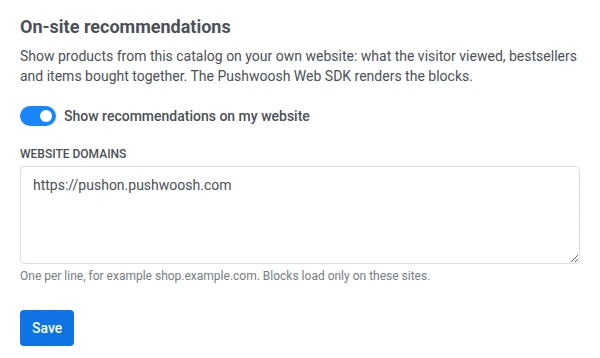 After you save, **Website domains** shows the domains as Pushwoosh stored them: with `https://` added, in lowercase, and without duplicates. Check the list for typos. Blocks load only on the listed websites. If you leave **Website domains** empty, blocks load on any website. The change takes effect within a minute.
If you can't access the Control Panel, ask Pushwoosh support or your Customer Success Manager to turn on onsite recommendations for the application. Include the application code and the domains of your websites.
## Recommendation strategies
| Strategy | What it shows | Needs |
| :---- | :---- | :---- |
| `viewed` | Products this visitor viewed recently. For a signed-in visitor, products viewed under their user ID come first. | Product views sent with [`trackProductView`](#track-product-views). |
| `bestsellers_30d` | The application's best-selling products over the last 30 days. Sold-out products are skipped. | Order events sent to Pushwoosh. |
| `also_bought` | Products that are often bought or viewed together with a given product. Sold-out products are skipped. | Order events or product views, and a product ID in the request. |
When a strategy has nothing to show, the feed serves the fallback strategy instead. The fallback is `bestsellers_30d` by default. Set it to `none` to get an empty answer instead. The answer always tells you which strategy was actually served, so you can change the block's title.
## Track product views
The `viewed` and `also_bought` strategies use product views. On every product page, call `trackProductView` after the SDK is ready:
```javascript
Pushwoosh.push(() => {
Pushwoosh.trackProductView({
id: 'SKU-123',
name: 'Linen shirt',
price: 49.9,
currency: 'USD',
category: 'Shirts',
url: 'https://shop.example.com/linen-shirt',
imageUrl: 'https://shop.example.com/img/linen-shirt.jpg',
});
});
```
Only `id` is required. Use the same product ID as in your Product catalog. The SDK sends a `PW_ProductView` event and skips repeat views of the same product within 30 seconds, so a page reload doesn't count as a second view.
## Add a widget block
Add an element with the `data-pw-recommendations` attribute where the block should appear. The SDK loads the widget only on pages that have such an element.
```html
```
| Attribute | Description |
| :---- | :---- |
| `data-pw-recommendations` | Marks the element as a recommendations block. Required. |
| `data-pw-strategy` | `viewed`, `bestsellers_30d`, or `also_bought`. Defaults to `bestsellers_30d`. |
| `data-pw-fallback` | Strategy to serve when the main one has nothing: `viewed`, `bestsellers_30d`, `also_bought`, or `none`. Defaults to `bestsellers_30d`. |
| `data-pw-limit` | Number of products, from 1 to 12. Defaults to 6. |
| `data-pw-product-id` | The product on screen. Required for `also_bought`. |
| `data-pw-exclude` | Comma-separated product IDs not to show, for example the products already in the cart. Up to 50. |
| `data-pw-block` | Block name. It's added to product links and to click events, so you can tell blocks apart in analytics. |
| `data-pw-title` | Block title. |
| `data-pw-fallback-title` | Title to show when the fallback strategy was served, for example "Popular right now" instead of "You viewed". |
| `data-pw-min-height` | Space to reserve while the block loads, to avoid a layout shift. A number is read as pixels. Any CSS length also works. |
The widget shows each product's image, name, and price, and links to the product page. Product links carry `utm_medium=onsite`. A click on a product sends a `PW_RecommendationClick` event with the block name, the strategy, and the product's position.
When you change any `data-pw-*` attribute, the block loads again. For example, update `data-pw-product-id` when the product on screen changes without a page reload.
### Blocks for typical pages
| Page | Strategy | Attributes to set |
| :---- | :---- | :---- |
| Product page | `also_bought` | `data-pw-product-id` with the product on screen, `data-pw-exclude` with the same ID |
| Cart | `also_bought` | `data-pw-product-id` with a product in the cart, `data-pw-exclude` with all products in the cart |
| Catalog or home page | `bestsellers_30d` | — |
| 404 page | `viewed` | `data-pw-fallback="bestsellers_30d"` and `data-pw-fallback-title`, so first-time visitors see popular products |
### Block states
The widget sets the `data-pw-state` attribute on the block element:
* **`loading`:** products are loading.
* **`ready`:** products are shown.
* **`empty`:** neither the strategy nor the fallback has products. The block stays empty.
* **`error`:** the products didn't load. The block stays empty.
Use the state to hide your own frame or heading around an empty block:
```css
.recommendations-frame:has([data-pw-state="empty"], [data-pw-state="error"]) {
display: none;
}
```
### Style the widget
The widget renders inside a shadow DOM, so your site's CSS doesn't reach its content. Set these custom properties on the block element instead:
| Property | Description | Default |
| :---- | :---- | :---- |
| `--pw-reco-font` | Font family | Inherited from the page |
| `--pw-reco-accent` | Price color | Current text color |
| `--pw-reco-radius` | Corner radius of product images | `8px` |
| `--pw-reco-columns` | Number of grid columns. On screens up to 600px wide, the grid always has 2 columns. | As many as fit |
```css
[data-pw-recommendations] {
--pw-reco-columns: 4;
--pw-reco-radius: 0;
--pw-reco-accent: #337ab7;
}
```
For finer styling, the title, the grid, and each product card are exposed as the `title`, `grid`, and `card` [CSS parts](https://developer.mozilla.org/en-US/docs/Web/CSS/::part), for example `[data-pw-recommendations]::part(card)`.
### Single-page applications
By default, the SDK looks for blocks once, when it's ready. If your site renders blocks later, for example on navigation in a single-page application, set `recommendations.spa` to `true` in the `init` call:
```javascript
Pushwoosh.push(['init', {
applicationCode: 'XXXXX-XXXXX',
// other initialization parameters...
recommendations: {
spa: true,
},
}]);
```
The SDK then keeps watching the page and loads the widget once a block appears.
To keep the widget off even when a page has `data-pw-recommendations` elements, set `recommendations.widget` to `false`. The headless API keeps working.
## Render blocks with your own markup
Use the headless API when the widget's layout doesn't fit your design. Request products with `Pushwoosh.recommendations.fetch` and report clicks with `Pushwoosh.recommendations.trackClick`:
```javascript
Pushwoosh.push(async () => {
const request = {
strategy: 'also_bought',
productId: 'SKU-123',
exclude: ['SKU-123'],
fallback: 'bestsellers_30d',
limit: 4,
block: 'pdp-also-bought',
};
const { items, strategy } = await Pushwoosh.recommendations.fetch(request);
const title = strategy === request.strategy ? 'Bought together' : 'Popular right now';
renderBlock(title, items, (item, index) => {
Pushwoosh.recommendations.trackClick({
block: request.block,
strategy,
productId: item.id,
position: index + 1,
});
});
});
```
`fetch` takes the same parameters as the widget attributes: `strategy`, `fallback`, `limit`, `productId`, `exclude`, and `block`. It returns:
* **`items`:** the products. Each has `id`, `title`, `description`, `image_url`, `url`, `price`, `price_formatted`, `old_price_formatted` (only for a product on sale), `currency`, `category`, and `sku`.
* **`strategy`:** the strategy actually served. It differs from the requested one when the fallback was served, and it's `none` when the answer is empty.
If the request fails, `fetch` throws an error. Catch it and hide the block.
`trackClick` sends the `PW_RecommendationClick` event. It's delivered even when the click opens another page. `position` is the product's place in the block, starting from 1.
## Behavior without consent to communication
If communication with Pushwoosh is disabled for the visitor, for example with `communicationEnabled: false` in the `init` call (see [Manage user consent](/developer/pushwoosh-sdk/web-push-notifications/manage-user-consent/)):
* `trackProductView` and `trackClick` send nothing.
* Blocks still show products, but the request doesn't identify the visitor. The `viewed` strategy has no history to use, so the fallback strategy is served.
Once the visitor enables communication, product views and clicks are tracked again.
After you save, **Website domains** shows the domains as Pushwoosh stored them: with `https://` added, in lowercase, and without duplicates. Check the list for typos. Blocks load only on the listed websites. If you leave **Website domains** empty, blocks load on any website. The change takes effect within a minute.
If you can't access the Control Panel, ask Pushwoosh support or your Customer Success Manager to turn on onsite recommendations for the application. Include the application code and the domains of your websites.
## Recommendation strategies
| Strategy | What it shows | Needs |
| :---- | :---- | :---- |
| `viewed` | Products this visitor viewed recently. For a signed-in visitor, products viewed under their user ID come first. | Product views sent with [`trackProductView`](#track-product-views). |
| `bestsellers_30d` | The application's best-selling products over the last 30 days. Sold-out products are skipped. | Order events sent to Pushwoosh. |
| `also_bought` | Products that are often bought or viewed together with a given product. Sold-out products are skipped. | Order events or product views, and a product ID in the request. |
When a strategy has nothing to show, the feed serves the fallback strategy instead. The fallback is `bestsellers_30d` by default. Set it to `none` to get an empty answer instead. The answer always tells you which strategy was actually served, so you can change the block's title.
## Track product views
The `viewed` and `also_bought` strategies use product views. On every product page, call `trackProductView` after the SDK is ready:
```javascript
Pushwoosh.push(() => {
Pushwoosh.trackProductView({
id: 'SKU-123',
name: 'Linen shirt',
price: 49.9,
currency: 'USD',
category: 'Shirts',
url: 'https://shop.example.com/linen-shirt',
imageUrl: 'https://shop.example.com/img/linen-shirt.jpg',
});
});
```
Only `id` is required. Use the same product ID as in your Product catalog. The SDK sends a `PW_ProductView` event and skips repeat views of the same product within 30 seconds, so a page reload doesn't count as a second view.
## Add a widget block
Add an element with the `data-pw-recommendations` attribute where the block should appear. The SDK loads the widget only on pages that have such an element.
```html
```
| Attribute | Description |
| :---- | :---- |
| `data-pw-recommendations` | Marks the element as a recommendations block. Required. |
| `data-pw-strategy` | `viewed`, `bestsellers_30d`, or `also_bought`. Defaults to `bestsellers_30d`. |
| `data-pw-fallback` | Strategy to serve when the main one has nothing: `viewed`, `bestsellers_30d`, `also_bought`, or `none`. Defaults to `bestsellers_30d`. |
| `data-pw-limit` | Number of products, from 1 to 12. Defaults to 6. |
| `data-pw-product-id` | The product on screen. Required for `also_bought`. |
| `data-pw-exclude` | Comma-separated product IDs not to show, for example the products already in the cart. Up to 50. |
| `data-pw-block` | Block name. It's added to product links and to click events, so you can tell blocks apart in analytics. |
| `data-pw-title` | Block title. |
| `data-pw-fallback-title` | Title to show when the fallback strategy was served, for example "Popular right now" instead of "You viewed". |
| `data-pw-min-height` | Space to reserve while the block loads, to avoid a layout shift. A number is read as pixels. Any CSS length also works. |
The widget shows each product's image, name, and price, and links to the product page. Product links carry `utm_medium=onsite`. A click on a product sends a `PW_RecommendationClick` event with the block name, the strategy, and the product's position.
When you change any `data-pw-*` attribute, the block loads again. For example, update `data-pw-product-id` when the product on screen changes without a page reload.
### Blocks for typical pages
| Page | Strategy | Attributes to set |
| :---- | :---- | :---- |
| Product page | `also_bought` | `data-pw-product-id` with the product on screen, `data-pw-exclude` with the same ID |
| Cart | `also_bought` | `data-pw-product-id` with a product in the cart, `data-pw-exclude` with all products in the cart |
| Catalog or home page | `bestsellers_30d` | — |
| 404 page | `viewed` | `data-pw-fallback="bestsellers_30d"` and `data-pw-fallback-title`, so first-time visitors see popular products |
### Block states
The widget sets the `data-pw-state` attribute on the block element:
* **`loading`:** products are loading.
* **`ready`:** products are shown.
* **`empty`:** neither the strategy nor the fallback has products. The block stays empty.
* **`error`:** the products didn't load. The block stays empty.
Use the state to hide your own frame or heading around an empty block:
```css
.recommendations-frame:has([data-pw-state="empty"], [data-pw-state="error"]) {
display: none;
}
```
### Style the widget
The widget renders inside a shadow DOM, so your site's CSS doesn't reach its content. Set these custom properties on the block element instead:
| Property | Description | Default |
| :---- | :---- | :---- |
| `--pw-reco-font` | Font family | Inherited from the page |
| `--pw-reco-accent` | Price color | Current text color |
| `--pw-reco-radius` | Corner radius of product images | `8px` |
| `--pw-reco-columns` | Number of grid columns. On screens up to 600px wide, the grid always has 2 columns. | As many as fit |
```css
[data-pw-recommendations] {
--pw-reco-columns: 4;
--pw-reco-radius: 0;
--pw-reco-accent: #337ab7;
}
```
For finer styling, the title, the grid, and each product card are exposed as the `title`, `grid`, and `card` [CSS parts](https://developer.mozilla.org/en-US/docs/Web/CSS/::part), for example `[data-pw-recommendations]::part(card)`.
### Single-page applications
By default, the SDK looks for blocks once, when it's ready. If your site renders blocks later, for example on navigation in a single-page application, set `recommendations.spa` to `true` in the `init` call:
```javascript
Pushwoosh.push(['init', {
applicationCode: 'XXXXX-XXXXX',
// other initialization parameters...
recommendations: {
spa: true,
},
}]);
```
The SDK then keeps watching the page and loads the widget once a block appears.
To keep the widget off even when a page has `data-pw-recommendations` elements, set `recommendations.widget` to `false`. The headless API keeps working.
## Render blocks with your own markup
Use the headless API when the widget's layout doesn't fit your design. Request products with `Pushwoosh.recommendations.fetch` and report clicks with `Pushwoosh.recommendations.trackClick`:
```javascript
Pushwoosh.push(async () => {
const request = {
strategy: 'also_bought',
productId: 'SKU-123',
exclude: ['SKU-123'],
fallback: 'bestsellers_30d',
limit: 4,
block: 'pdp-also-bought',
};
const { items, strategy } = await Pushwoosh.recommendations.fetch(request);
const title = strategy === request.strategy ? 'Bought together' : 'Popular right now';
renderBlock(title, items, (item, index) => {
Pushwoosh.recommendations.trackClick({
block: request.block,
strategy,
productId: item.id,
position: index + 1,
});
});
});
```
`fetch` takes the same parameters as the widget attributes: `strategy`, `fallback`, `limit`, `productId`, `exclude`, and `block`. It returns:
* **`items`:** the products. Each has `id`, `title`, `description`, `image_url`, `url`, `price`, `price_formatted`, `old_price_formatted` (only for a product on sale), `currency`, `category`, and `sku`.
* **`strategy`:** the strategy actually served. It differs from the requested one when the fallback was served, and it's `none` when the answer is empty.
If the request fails, `fetch` throws an error. Catch it and hide the block.
`trackClick` sends the `PW_RecommendationClick` event. It's delivered even when the click opens another page. `position` is the product's place in the block, starting from 1.
## Behavior without consent to communication
If communication with Pushwoosh is disabled for the visitor, for example with `communicationEnabled: false` in the `init` call (see [Manage user consent](/developer/pushwoosh-sdk/web-push-notifications/manage-user-consent/)):
* `trackProductView` and `trackClick` send nothing.
* Blocks still show products, but the request doesn't identify the visitor. The `viewed` strategy has no history to use, so the fallback strategy is served.
Once the visitor enables communication, product views and clicks are tracked again.