# Set up InboxUI with Swift Package Manager
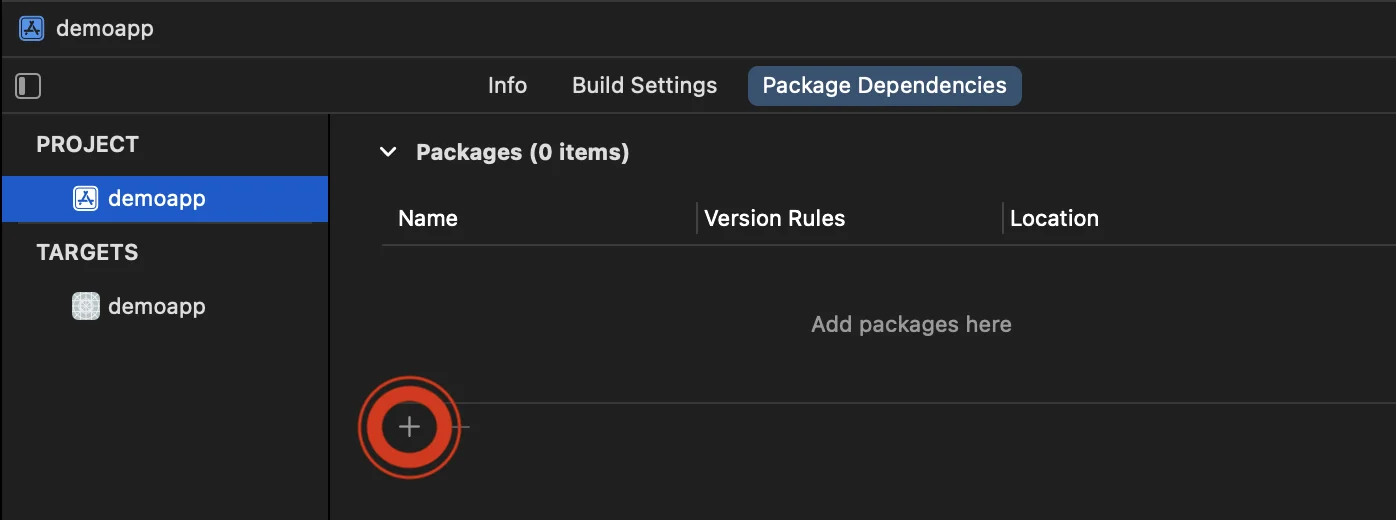
1\. Open your project in Xcode and Navigate to the project's settings -> Package Dependencies, then press '+' button.
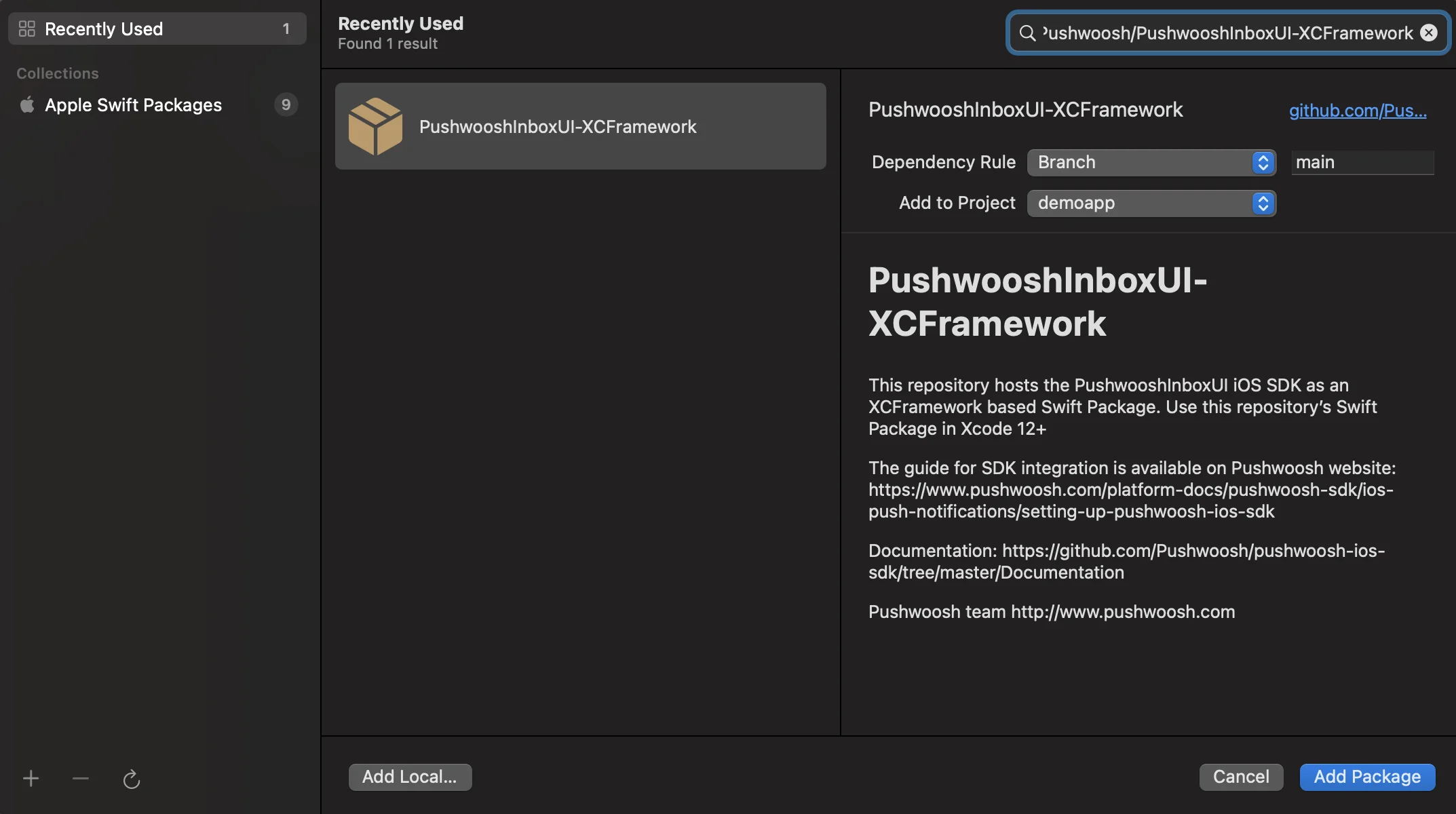
2\. Enter the following Package URL:
```bash
https://github.com/Pushwoosh/PushwooshInboxUI-XCFramework
```
3\. Set up the 'Dependency Rule' to **Branch** and **main**. Then, click '**Add Package**' button.
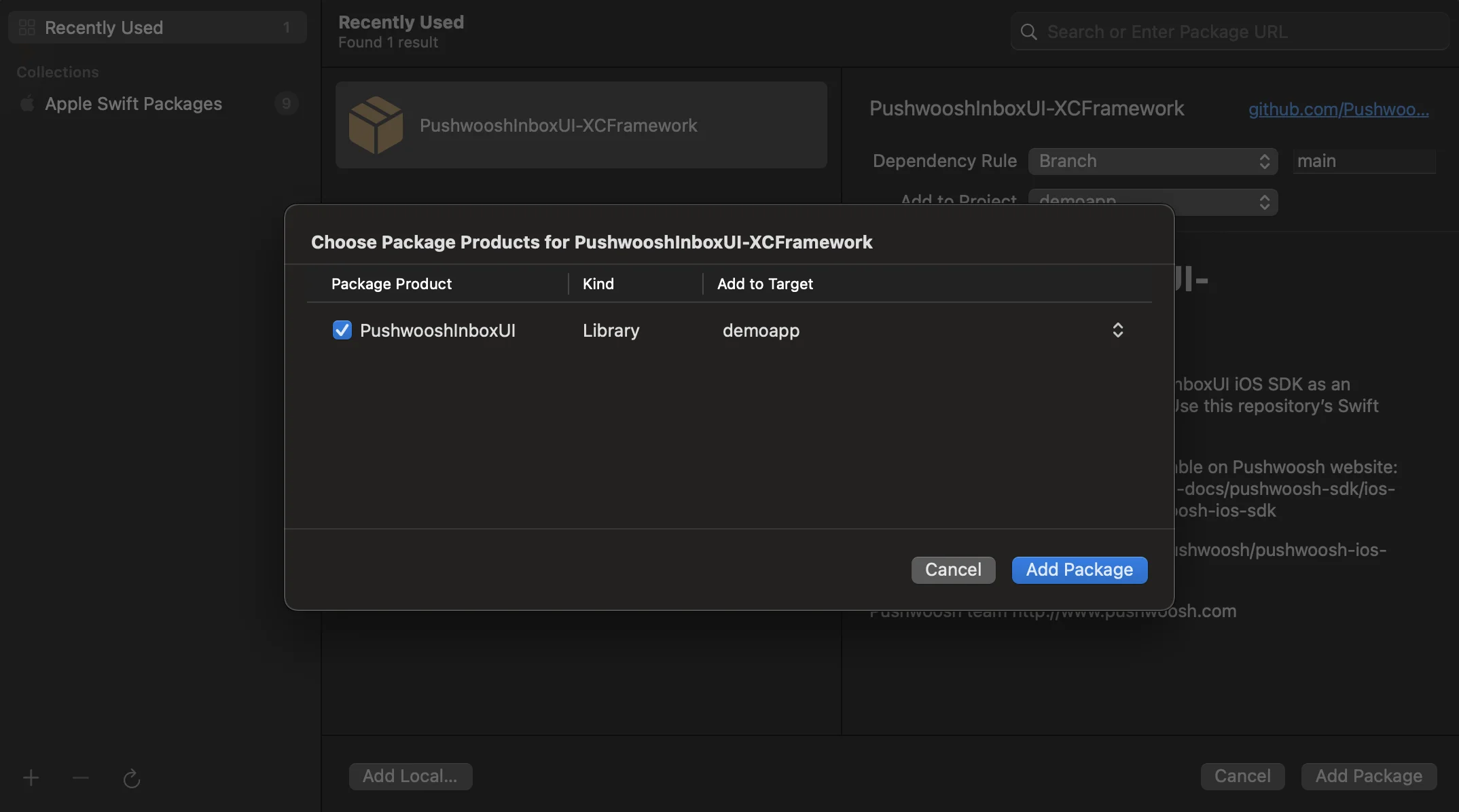
4\. On the next screen to choose your Package, select the Pushwoosh Package and **Add Package** to your main app Target.
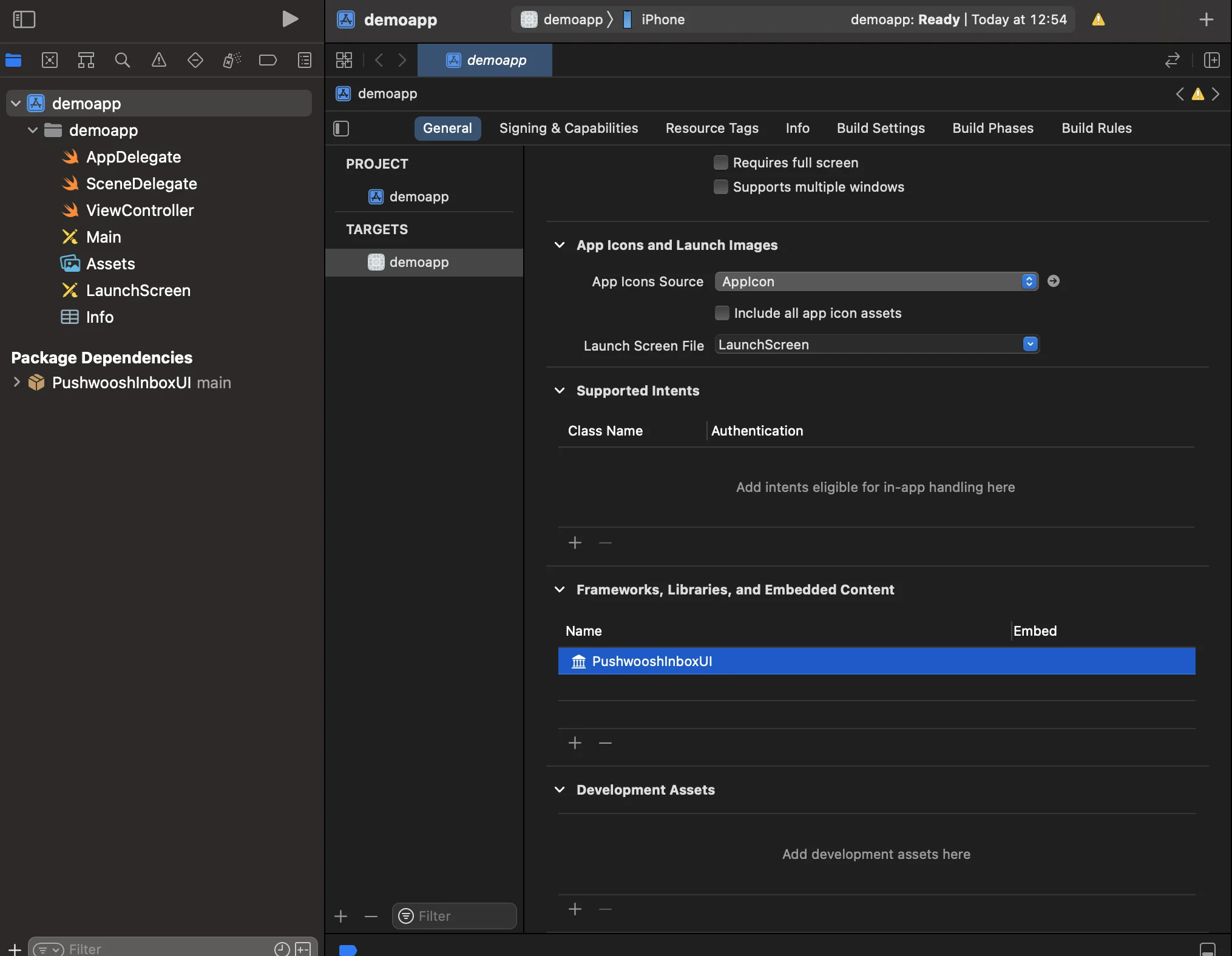
5\. Open your Main App Target and under "Frameworks, Libraries, and Embedded Content" ensure that the PushwooshInboxUI has been added.
6\. That's it! You've just integrated Pushwoosh InboxUI SDK to your project.
## Add Pushwoosh InboxUI code
To show Inbox UI in your app, add Inbox view controller:
```swift
self.navigationController?.pushViewController(PWIInboxUI.createInboxController(with: PWIInboxStyle.default()), animated: true)
```
```objective-c
[self.navigationController pushViewController:[PWIInboxUI createInboxControllerWithStyle:[PWIInboxStyle defaultStyle]] animated:YES];
```
To make the Inbox match your app's appearance, change the parameters of `PWIInboxStyle`. You can customize such parameters as font, background color, etc.
```swift
//creating a new Inbox style
let inboxStyle = PWIInboxStyle.customStyle(withDefaultImageIcon: UIImage.init(named: "custom_image"),
textColor: UIColor.darkText,
accentColor: UIColor.blue,
font: UIFont.systemFont(ofSize: 17))
inboxStyle?.backgroundColor = UIColor.init(white: 1, alpha: 1)
inboxStyle?.listErrorMessage = NSLocalizedString("Custom error message", comment: "Custom error message")
inboxStyle?.listEmptyMessage = NSLocalizedString("Custom empty message", comment: "Custom empty message")
PWIInboxStyle.setupDefaultStyle(inboxStyle)
```
```objective-c
//creating a new Inbox style
PWIInboxStyle *inboxStyle = [PWIInboxStyle customStyleWithDefaultImageIcon:[UIImage imageNamed:@"custom_image"]
textColor:UIColor.darkTextColor
accentColor:UIColor.blueColor
font:[UIFont systemFontOfSize:17]];
inboxStyle.backgroundColor = [UIColor colorWithWhite:1 alpha:1];
inboxStyle.listErrorMessage = NSLocalizedString(@"Custom error message", @"Custom error message");
inboxStyle.listEmptyMessage = NSLocalizedString(@"Custom empty message", @"Custom empty message");
[PWIInboxStyle setupDefaultStyle:inboxStyle];
```
## Customization
To customize Inbox UI style, please refer to:
For more details, take a look at [Inbox Sample](https://github.com/Pushwoosh/pushwoosh-quickstart-ios/tree/main/inbox).
 2\. Enter the following Package URL:
```bash
https://github.com/Pushwoosh/PushwooshInboxUI-XCFramework
```
3\. Set up the 'Dependency Rule' to **Branch** and **main**. Then, click '**Add Package**' button.
2\. Enter the following Package URL:
```bash
https://github.com/Pushwoosh/PushwooshInboxUI-XCFramework
```
3\. Set up the 'Dependency Rule' to **Branch** and **main**. Then, click '**Add Package**' button.
 4\. On the next screen to choose your Package, select the Pushwoosh Package and **Add Package** to your main app Target.
 5\. Open your Main App Target and under "Frameworks, Libraries, and Embedded Content" ensure that the PushwooshInboxUI has been added.
 6\. That's it! You've just integrated Pushwoosh InboxUI SDK to your project.
## Add Pushwoosh InboxUI code
To show Inbox UI in your app, add Inbox view controller:
6\. That's it! You've just integrated Pushwoosh InboxUI SDK to your project.
## Add Pushwoosh InboxUI code
To show Inbox UI in your app, add Inbox view controller: