# Set up InboxKit with Swift Package Manager
*Available since iOS SDK [7.0.40](https://github.com/Pushwoosh/pushwoosh-ios-sdk/releases/tag/7.0.40).*
InboxKit ships as a separate library product inside the `Pushwoosh-XCFramework` Swift package. You need the main SDK to be already integrated; if you are starting from scratch, follow the [Basic integration guide](/developer/pushwoosh-sdk/ios-sdk/setting-up-pushwoosh-ios-sdk-7-0/basic-integration-guide/) first.
## Add the InboxKit package product
1\. Open your project in Xcode and navigate to the project's settings → **Package Dependencies**, then press the **+** button.
2\. Enter the following Package URL:
```bash
https://github.com/Pushwoosh/Pushwoosh-XCFramework
```
3\. Set up the **Dependency Rule** to **Up to Next Major Version** with the latest stable version, then click **Add Package**.
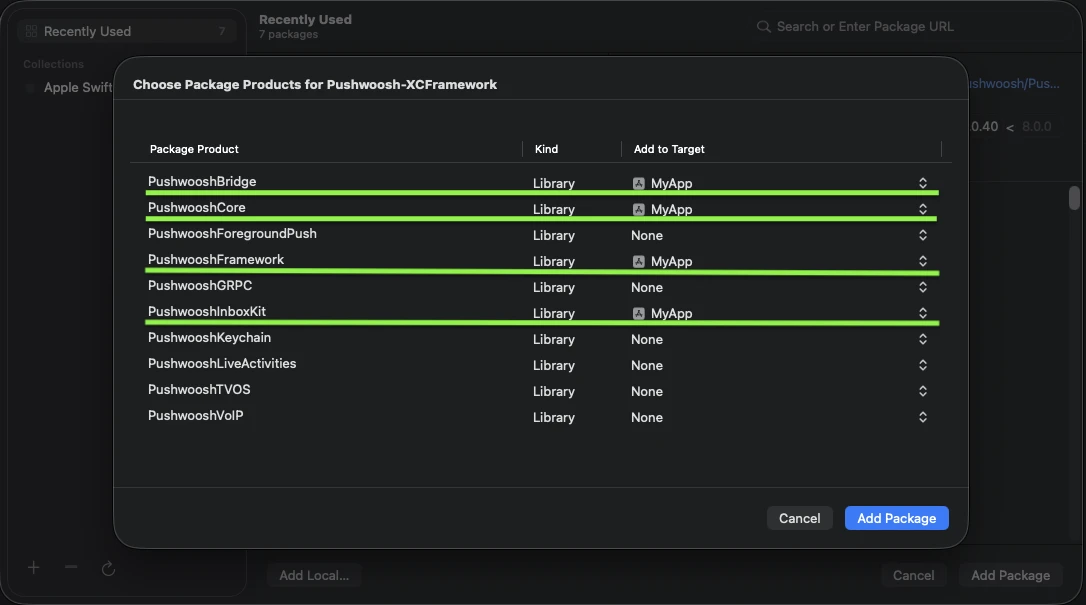
4\. On the package selection screen, choose at least the following products and add them to your main app target:
- **PushwooshFramework** (required)
- **PushwooshCore** (required)
- **PushwooshBridge** (required)
- **PushwooshInboxKit** (the new module)
Add the four highlighted products to your main app target.
5\. Open your main app target and under **Frameworks, Libraries, and Embedded Content**, confirm that `PushwooshInboxKit.xcframework` is listed and embedded.
That's it — InboxKit is now linked alongside the main SDK.
## Show the inbox
Add the inbox controller to any navigation flow. The default configuration is enough to get a working inbox with the three standard cell types:
```swift
import PushwooshInboxKit
let inboxVC = PushwooshInboxKitViewController()
navigationController?.pushViewController(inboxVC, animated: true)
```
```objective-c
@import PushwooshInboxKit;
PushwooshInboxKitViewController *inboxVC = [PushwooshInboxKitViewController new];
[self.navigationController pushViewController:inboxVC animated:YES];
```
## Customize the inbox
In Swift, configure the controller through the `PushwooshInboxKitAttributes` value type. In Objective-C, use the `@objc`-friendly setters on the controller — `PushwooshInboxKitAttributes` is a Swift struct and is not bridged.
```swift
var attributes = PushwooshInboxKitAttributes()
attributes.pullToRefreshEnabled = true
attributes.swipeToDeleteEnabled = true
attributes.pinningEnabled = true
attributes.style.unreadBadgeColor = .systemBlue
attributes.style.titleFont = .systemFont(ofSize: 17, weight: .semibold)
let inboxVC = PushwooshInboxKitViewController(attributes: attributes)
```
```objective-c
PushwooshInboxKitViewController *inboxVC = [PushwooshInboxKitViewController new];
[inboxVC setBackgroundColor:[UIColor systemBackgroundColor]];
[inboxVC setEmptyMessage:@"You have no messages yet"];
```
The `Style` struct exposes all colors, fonts, corner radii and the date formatter used by the default cells. Every value is an Apple semantic color by default, so the inbox reacts to system dark mode automatically.
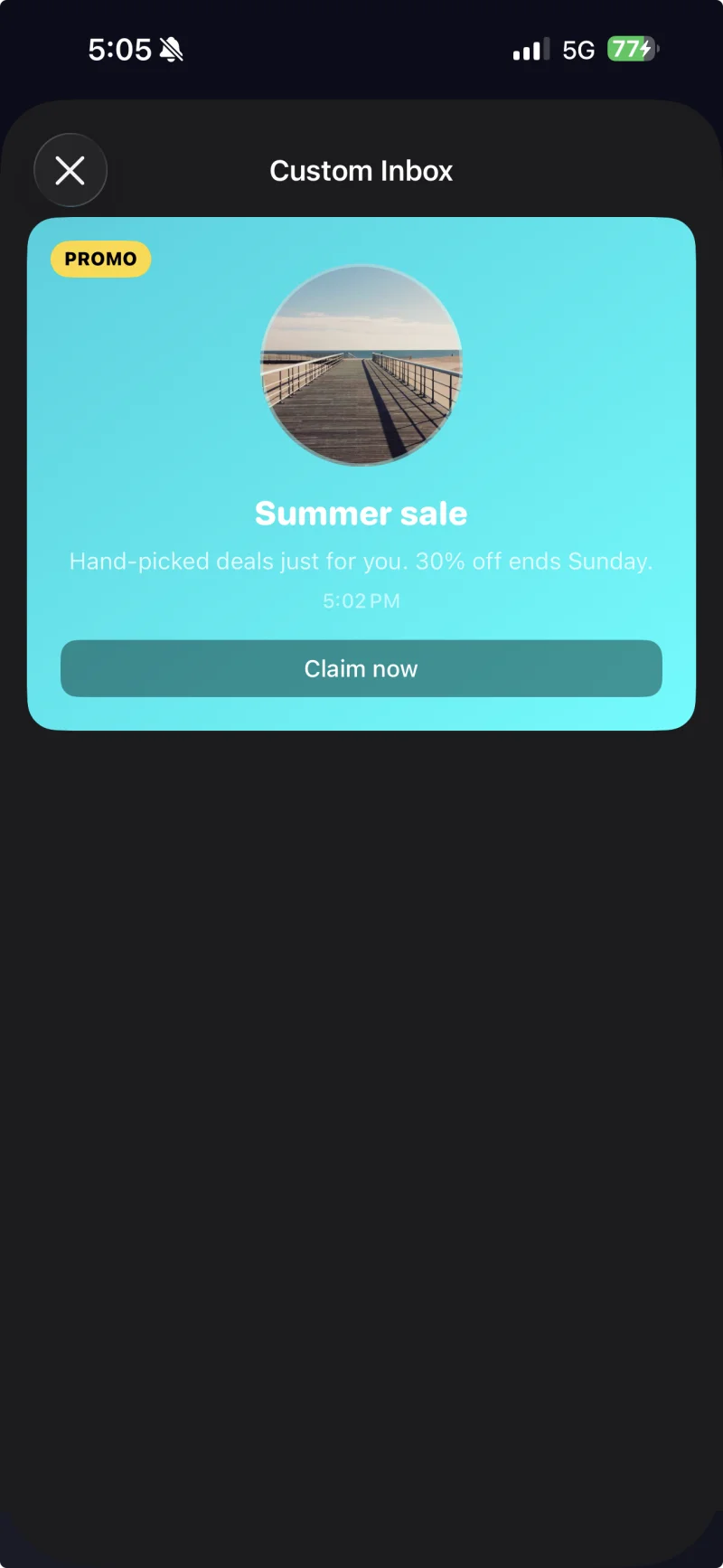
Captioned cell with a custom theme applied through PushwooshInboxKitAttributes.Style.
## Handle taps and refreshes
Conform to `PushwooshInboxKitDelegate` to react to user actions and refresh events. Every method has a default implementation, so you only override what you need:
```swift
final class InboxCoordinator: NSObject, PushwooshInboxKitDelegate {
func inboxKit(_ vc: PushwooshInboxKitViewController,
didSelect message: PWInboxMessageProtocol) -> Bool {
// Return true to let the SDK open the message URL or richmedia.
// Return false if you handled the tap entirely (e.g. routed to a custom screen).
return true
}
func inboxKit(_ vc: PushwooshInboxKitViewController,
didRefreshWith messages: [PWInboxMessageProtocol],
error: Error?) {
// Show your own empty / error state here if needed.
}
}
inboxVC.delegate = inboxCoordinator
```
## Next steps