# Setting up Pushwoosh InboxKit iOS
*Available since iOS SDK [7.0.40](https://github.com/Pushwoosh/pushwoosh-ios-sdk/releases/tag/7.0.40).*
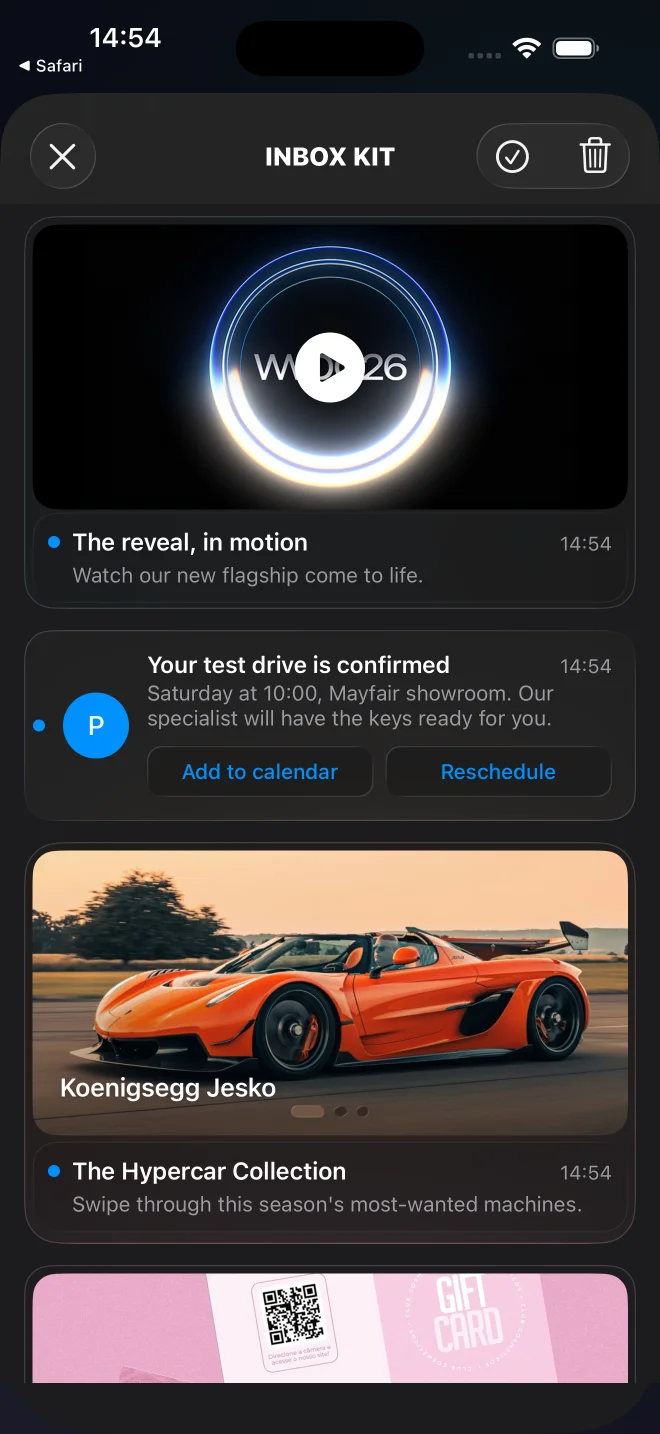
Pushwoosh InboxKit ships a modern UIKit inbox screen on top of the existing inbox backend. Six default cell layouts cover the common content-card shapes — from simple banners to image carousels, inline video, and Apple Wallet passes — inline CTA buttons handle the most common interactions, and the entire surface is open for subclassing if you need a bespoke look.
Default InboxKit feed with banner, captioned, classic, carousel, video, and Apple Wallet cards.
## When to use InboxKit
Use InboxKit for any new iOS integration. It is the recommended replacement for the older Objective-C [PushwooshInboxUI](/developer/pushwoosh-sdk/ios-sdk/setting-up-pushwoosh-inboxui-ios/) module.
InboxKit gives you:
- Six built-in cell types — banner, captioned, classic, carousel, video, and Apple Wallet — selected per message via the payload's `displayType`, or forced from code via `attributes.forceCellKind`. See [Card types](#card-types) for the full list. (The Apple Wallet card is iOS-only.)
- Inline CTA buttons with a typed `PushwooshInboxButtonAction` enum (`openURL`, `dismiss`, `markRead`, `custom`). The SDK handles the first three automatically; your delegate routes `custom` to your own logic.
- Pinning support: messages with `actionParams["pinned"] == true` float to the top of the feed and render a pin glyph.
- Swipe-to-delete, pull-to-refresh, automatic mark-as-read on disappear — all toggleable via `PushwooshInboxKitAttributes`.
- Persistent storage: deletes and read state survive a process restart even if the network call has not been acknowledged yet.
- An open `PushwooshInboxCell` base class for fully custom layouts.
The server contract is unchanged — the same Pushwoosh inbox backend, payloads, and dashboard tooling work as before.
## Choose your integration method
- [**Set up InboxKit with Swift Package Manager**](/developer/pushwoosh-sdk/ios-sdk/setting-up-pushwoosh-inboxkit-ios/set-up-inboxkit-with-swift-package-manager/) — recommended for new projects.
- [**Set up InboxKit with CocoaPods**](/developer/pushwoosh-sdk/ios-sdk/setting-up-pushwoosh-inboxkit-ios/set-up-inboxkit-with-cocoapods/) — for projects already using CocoaPods.
## Card types
InboxKit picks a cell layout per message. The default resolver reads `displayType` from the push payload — put it inside the `data` object, which the SDK delivers under `actionParams`. When `displayType` is missing, the resolver falls back to a heuristic: image + no title → banner, image + title → captioned, otherwise classic. To force one layout for the whole feed from code, set `attributes.forceCellKind`.
Each rich layout degrades gracefully: if the required payload is absent or malformed, the card falls back to `classic` rather than rendering an empty placeholder (and a `WARN` is logged).
| `displayType` | Layout | Required payload field | Degrades to |
|---|---|---|---|
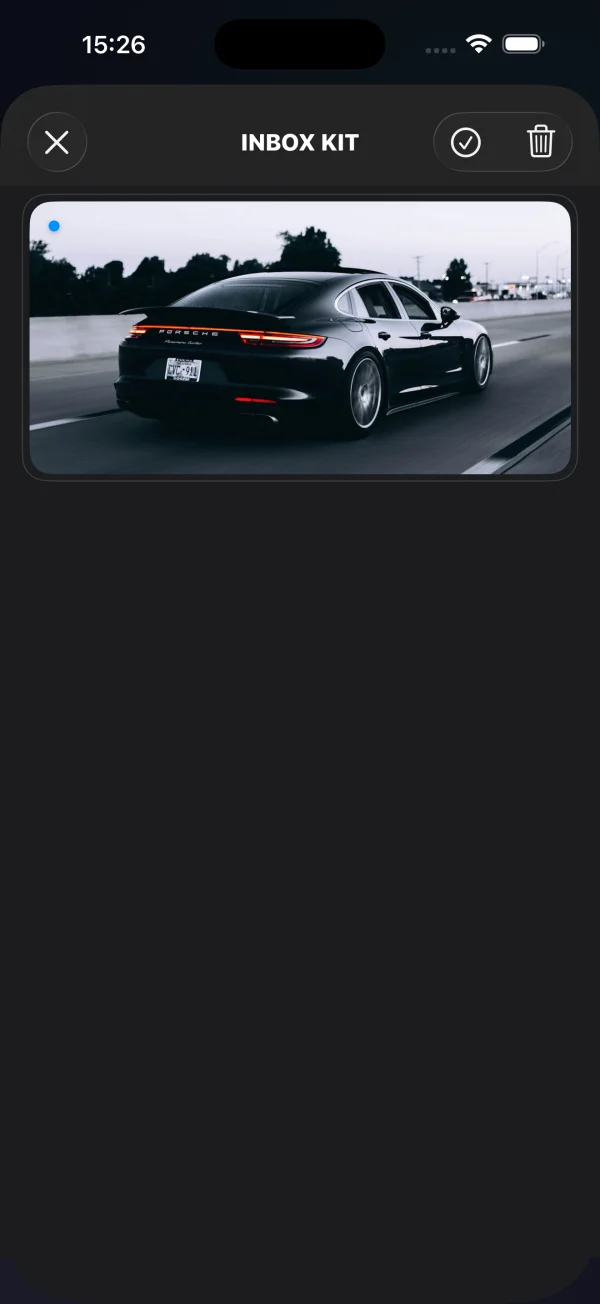
| `banner` | Full-bleed image, no text | image (`inbox_image` or `data.image`) | `classic` when no image |
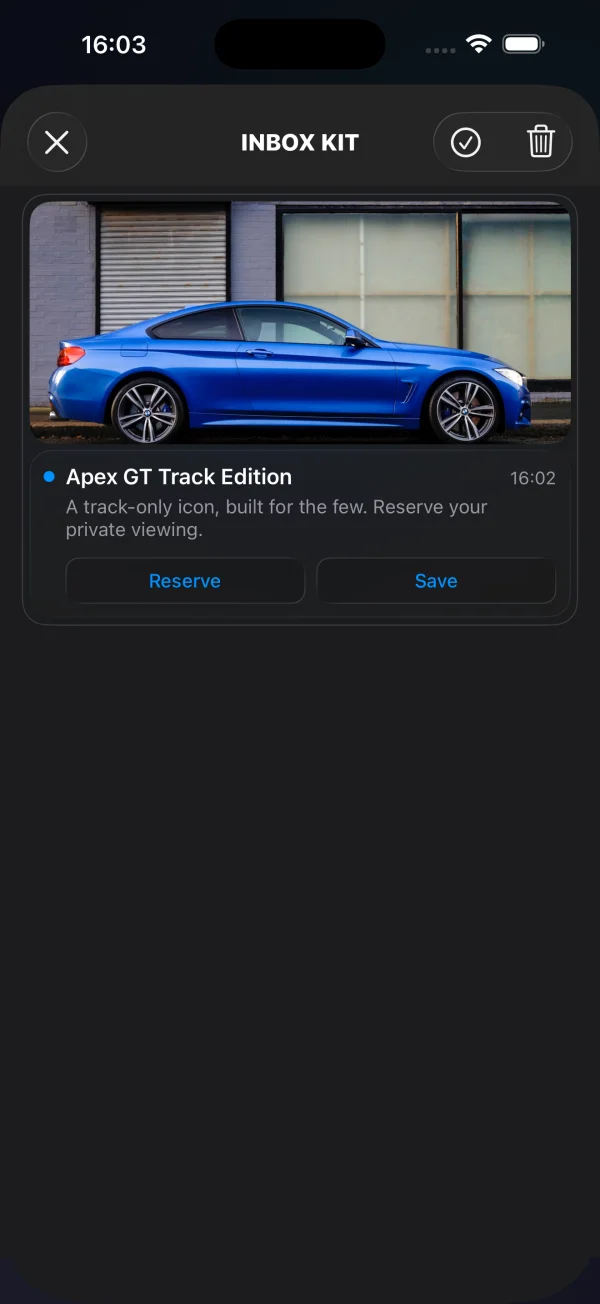
| `captioned` | Image on top, title + body below | image (`inbox_image` or `data.image`) | `classic` when no image |
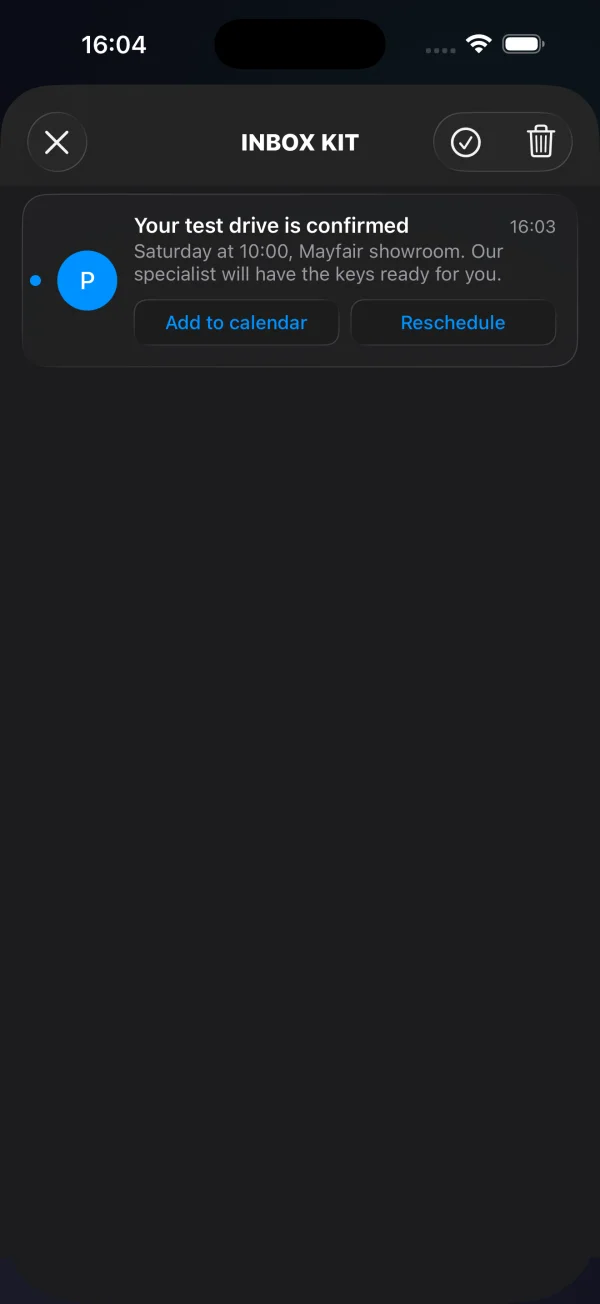
| `classic` | Coloured initial avatar + title + body | — | — |
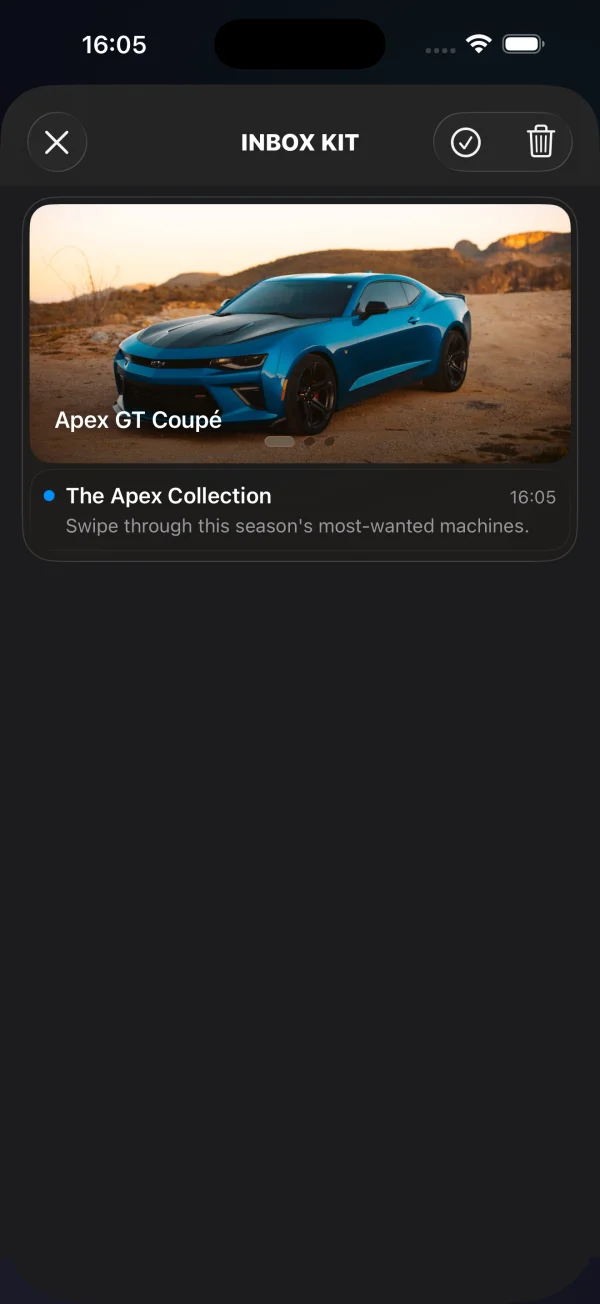
| `carousel` | Swipeable multi-image gallery | `data.carousel` (array of slides) | `classic` when no slides |
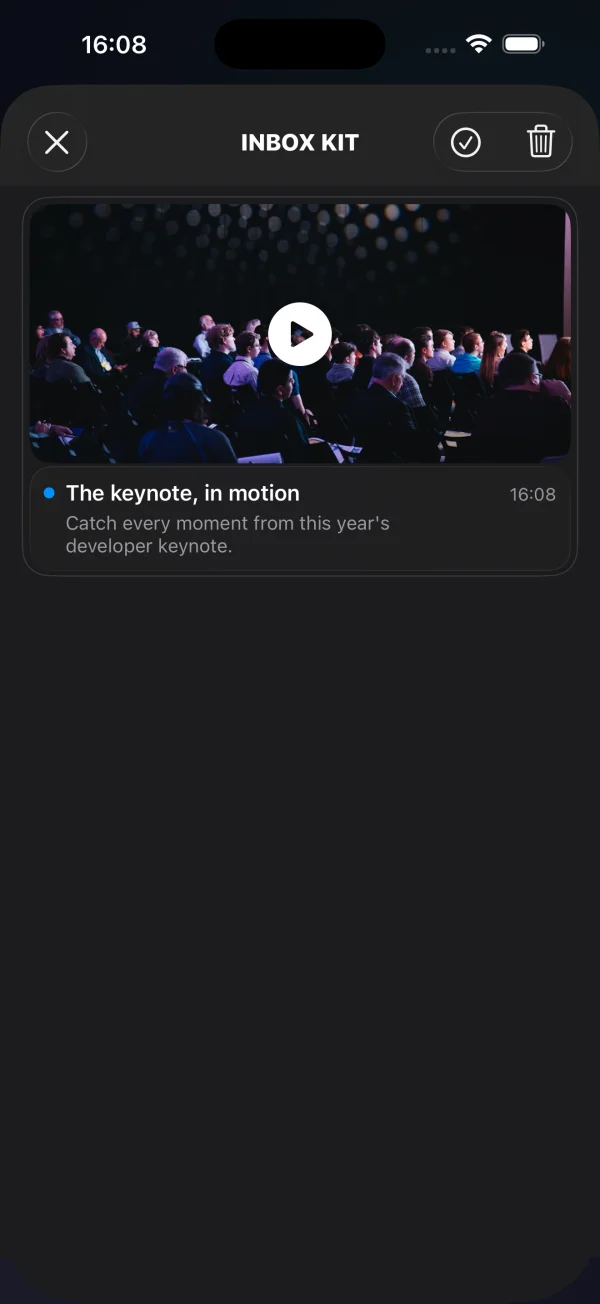
| `video` | Poster with play badge, full-screen player on tap | `data.video` (`url` + optional `poster`) | `classic` when no descriptor |
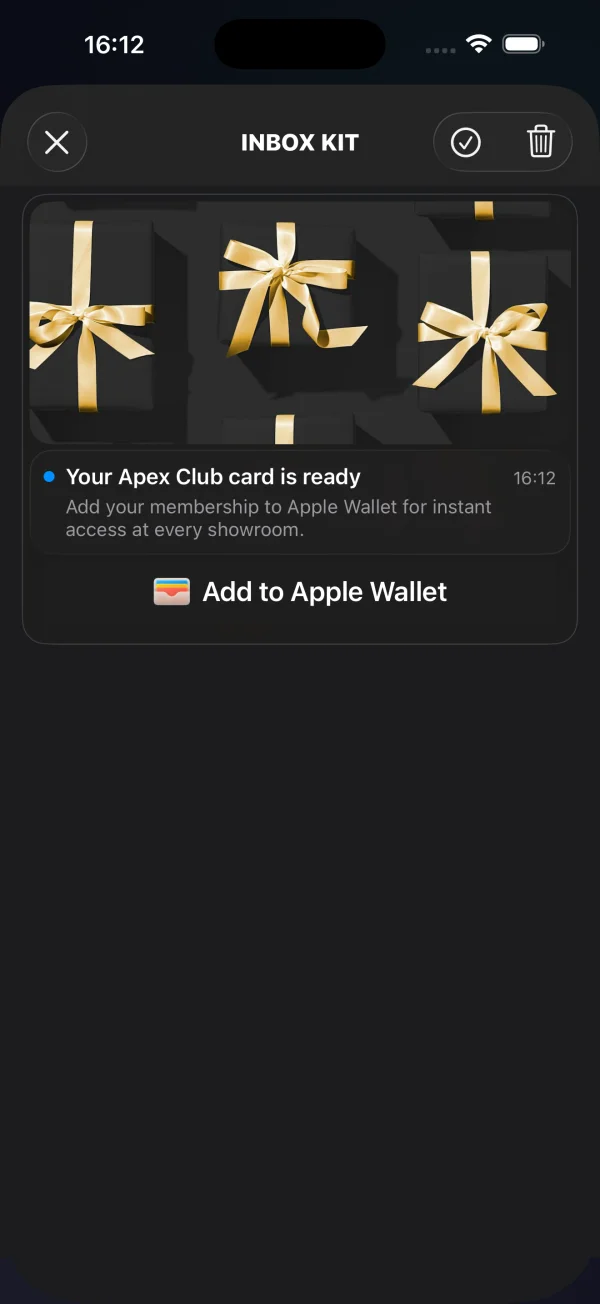
| `wallet` | "Add to Apple Wallet" button (iOS only) | `data.wallet` (`.pkpass` URL) | `classic` when no pass URL |
{/* TODO(screenshot): replace each placeholder below with a per-card screenshot. Suggested filenames: setting-up-pushwoosh-inboxkit-ios-card-banner.webp, -captioned.webp, -classic.webp, -carousel.webp, -video.webp, -wallet.webp — then swap each
Banner, captioned, and classic cards are driven by the standard message fields (image, title, body) plus the optional `buttons` array — see [Add inline CTA buttons](#add-inline-cta-buttons). The carousel, video, and Apple Wallet cards carry extra structured data inside `data`, documented below.
### Carousel card
A carousel renders several images from a single message — a swipeable gallery with optional per-slide captions and tap destinations. Slides live in `data.carousel`. Each slide needs an `image`; `title` (caption overlay) and `url` (deep link opened on tap) are optional. A slide without an image is dropped; a tap on a slide with no `url` falls through to the message's default row action.
```json title="POST https://api.pushwoosh.com/json/1.3/createMessage"
{
"request": {
"application": "XXXXX-XXXXX",
"auth": "API_TOKEN",
"notifications": [{
"send_date": "now",
"ios_title": "New arrivals",
"content": "Swipe through this week's drops",
"inbox_days": 7,
"data": {
"displayType": "carousel",
"carousel": [
{ "image": "https://cdn.example.com/inbox/1.jpg", "title": "New in", "url": "myapp://product/1" },
{ "image": "https://cdn.example.com/inbox/2.jpg", "title": "On sale", "url": "myapp://product/2" },
{ "image": "https://cdn.example.com/inbox/3.jpg" }
]
},
"platforms": [1]
}]
}
}
```
### Video card
A video card shows a poster image with a play badge; tapping it opens a full-screen player (sound on, even with the silent switch engaged). The descriptor lives in `data.video`: `url` is required and must be an `http`/`https` stream or file; `poster` is an optional preview image.
```json title="POST https://api.pushwoosh.com/json/1.3/createMessage"
{
"request": {
"application": "XXXXX-XXXXX",
"auth": "API_TOKEN",
"notifications": [{
"send_date": "now",
"ios_title": "Watch the reveal",
"content": "Tap to play",
"inbox_days": 7,
"data": {
"displayType": "video",
"video": {
"url": "https://cdn.example.com/inbox/clip.mp4",
"poster": "https://cdn.example.com/inbox/poster.jpg"
}
},
"platforms": [1]
}]
}
}
```
### Apple Wallet card
The Apple Wallet card shows an optional hero image, title, and body above the official **Add to Apple Wallet** button. Tapping the button downloads the `.pkpass` and presents the system add-passes sheet. Use it to deliver coupons, loyalty cards, tickets, or boarding passes straight from the inbox. The card is iOS / Mac Catalyst only — on other platforms the message renders as a classic card.
The pass URL lives in `data.wallet`, either as a bare string or as an object with a `pass` field. An optional `data.image` adds the hero image. The button hides itself automatically when there is no pass URL or the device cannot add passes.
```json title="POST https://api.pushwoosh.com/json/1.3/createMessage"
{
"request": {
"application": "XXXXX-XXXXX",
"auth": "API_TOKEN",
"notifications": [{
"send_date": "now",
"ios_title": "Your loyalty card is ready",
"content": "Add it to Apple Wallet in one tap",
"inbox_days": 7,
"data": {
"displayType": "wallet",
"image": "https://cdn.example.com/inbox/loyalty.png",
"wallet": "https://passes.example.com/v1/passes/pass.com.example.loyalty/abc123?token=…"
},
"platforms": [1]
}]
}
}
```
The outcome is reported to your delegate:
```swift
extension MyInboxHost: PushwooshInboxKitDelegate {
func inboxKit(_ vc: PushwooshInboxKitViewController,
didAddWalletPassFor message: PWInboxMessageProtocol) {
// The pass is now in the user's Wallet — show a confirmation if you like.
}
func inboxKit(_ vc: PushwooshInboxKitViewController,
didFailToAddWalletPassFor message: PWInboxMessageProtocol,
error: Error?) {
// Download failed — surface a retry, log, etc.
}
}
```
Both callbacks are optional (they carry default empty implementations). A user cancelling the system sheet is neither success nor failure, so no callback fires in that case.
## Accessibility
InboxKit cells are VoiceOver-ready out of the box. Banner, captioned, and classic cards expose their title, body, and date through the underlying labels, and inline CTA buttons read their own titles. The rich cards add explicit semantics:
- **Video** — the poster is exposed as a single button element labelled "Play video" (traits `.button` + `.startsMediaSession`), so VoiceOver announces it as a media control rather than a plain image.
- **Carousel** — each slide is a button element whose accessibility label is the slide's caption, or "Slide" when it has none. The page indicator announces the current position as "*n* of *total*".
- **Apple Wallet** — the **Add to Apple Wallet** button is Apple's standard `PKAddPassButton`, which carries its own localized VoiceOver label.
For UI testing and automation, two stable `accessibilityIdentifier`s are set: `inboxkit.video.play` on the video poster and `inboxkit.wallet.add` on the Wallet button.
## Read custom data from a message
To make a push appear in the inbox, the [Messages API](/developer/api-reference/messages-api/) `createMessage` request must include `inbox_image`, `inbox_date`, or `inbox_days` — without one of those fields the push is delivered as a regular notification and never reaches the inbox feed. Free-form custom data goes under the `data` key, which the SDK delivers to the client as the `u` parameter:
```json title="POST https://api.pushwoosh.com/json/1.3/createMessage"
{
"request": {
"application": "XXXXX-XXXXX",
"auth": "API_TOKEN",
"notifications": [{
"send_date": "now",
"ios_title": "Summer sale",
"content": "30% off everything — limited time only",
"inbox_image": "https://cdn.example.com/inbox/summer.png",
"inbox_days": 7,
"data": {
"displayType": "captioned",
"promo_id": "SUMMER2026",
"screen": "promo_details"
},
"platforms": [1]
}]
}
}
```
The SDK exposes that object on the inbox message through `actionParams`. Read it from the delegate when the user taps the row or an inline CTA:
```swift
extension MyInboxHost: PushwooshInboxKitDelegate {
func inboxKit(_ vc: PushwooshInboxKitViewController,
didSelect message: PWInboxMessageProtocol) -> Bool {
guard let params = message.actionParams as? [String: Any] else { return true }
// The custom `data` object arrives under the "u" key —
// either as a nested dictionary or as a JSON-encoded string,
// depending on how the payload was built upstream.
let custom: [String: Any]? = {
if let dict = params["u"] as? [String: Any] { return dict }
if let raw = params["u"] as? String,
let bytes = raw.data(using: .utf8),
let parsed = try? JSONSerialization.jsonObject(with: bytes) as? [String: Any] {
return parsed
}
return nil
}()
if let promoId = custom?["promo_id"] as? String {
navigateToPromo(promoId)
return false // we handled the tap; SDK should not run the default action
}
return true
}
}
```
The same `actionParams["u"]` lookup works inside `inboxKit(_:didTapButton:onMessage:)` for inline CTA buttons. For the typed CTA cases (`openURL`, `dismiss`, `markRead`) the SDK already performs the default action — return `true` to keep that behavior, or `false` to suppress it and run your own.
## Add inline CTA buttons
A message can carry up to three inline call-to-action buttons. Buttons live alongside other custom data inside `data` as a `buttons` array. The SDK auto-renders them inside the captioned and classic cells:
```json title="POST https://api.pushwoosh.com/json/1.3/createMessage"
{
"request": {
"application": "XXXXX-XXXXX",
"auth": "API_TOKEN",
"notifications": [{
"send_date": "now",
"ios_title": "New promo card",
"content": "Tap a button to claim or save",
"inbox_image": "https://cdn.example.com/inbox/promo.png",
"inbox_days": 7,
"data": {
"displayType": "captioned",
"promo_id": "SUMMER2026",
"buttons": [
{ "title": "Claim", "url": "https://example.com/promo/SUMMER2026" },
{ "title": "Read", "action": "markRead" },
{ "title": "Save", "action": "custom", "tag": "save_promo" }
]
},
"platforms": [1]
}]
}
}
```
Each button object has these fields:
| Field | Type | When |
|---|---|---|
| `title` | string | Required. Visible button label. |
| `url` | string | A non-empty parseable URL produces an `openURL` action. The SDK opens it via `UIApplication.shared.open` unless your delegate suppresses it. |
| `action` | string | Explicit action token: `dismiss` (removes the message from the feed), `markRead` (marks the message read), or `custom` (host-handled). Case-insensitive. |
| Anything else | any | When `action` is `custom`, every key on the button object except `title` and `action` is forwarded to your delegate as the custom payload — agree on a key with the marketer (e.g. `tag`) and dispatch on it. |
Resolution priority: explicit `action` token first, then `url` if non-empty, otherwise the button falls into `custom` carrying the full payload (minus `title` and `action`).
Intercept taps from your delegate. The `button.action` property is the typed `PushwooshInboxButtonAction` enum:
```swift
extension MyInboxHost: PushwooshInboxKitDelegate {
func inboxKit(_ vc: PushwooshInboxKitViewController,
didTapButton button: PushwooshInboxButton,
onMessage message: PWInboxMessageProtocol) -> Bool {
switch button.action {
case .openURL(let url):
// Default behavior is fine — let SDK open the URL.
return true
case .dismiss, .markRead:
// SDK handles both. Return false if you want to override.
return true
case .custom(let payload):
// Marketer-defined custom button. Dispatch on a key you agreed on.
if let tag = payload["tag"] as? String {
switch tag {
case "save_promo":
saveCurrentPromoLocally(message: message)
default:
break
}
}
return true // ignored for custom — SDK never runs a default action here
}
}
}
```