# iOS push stories
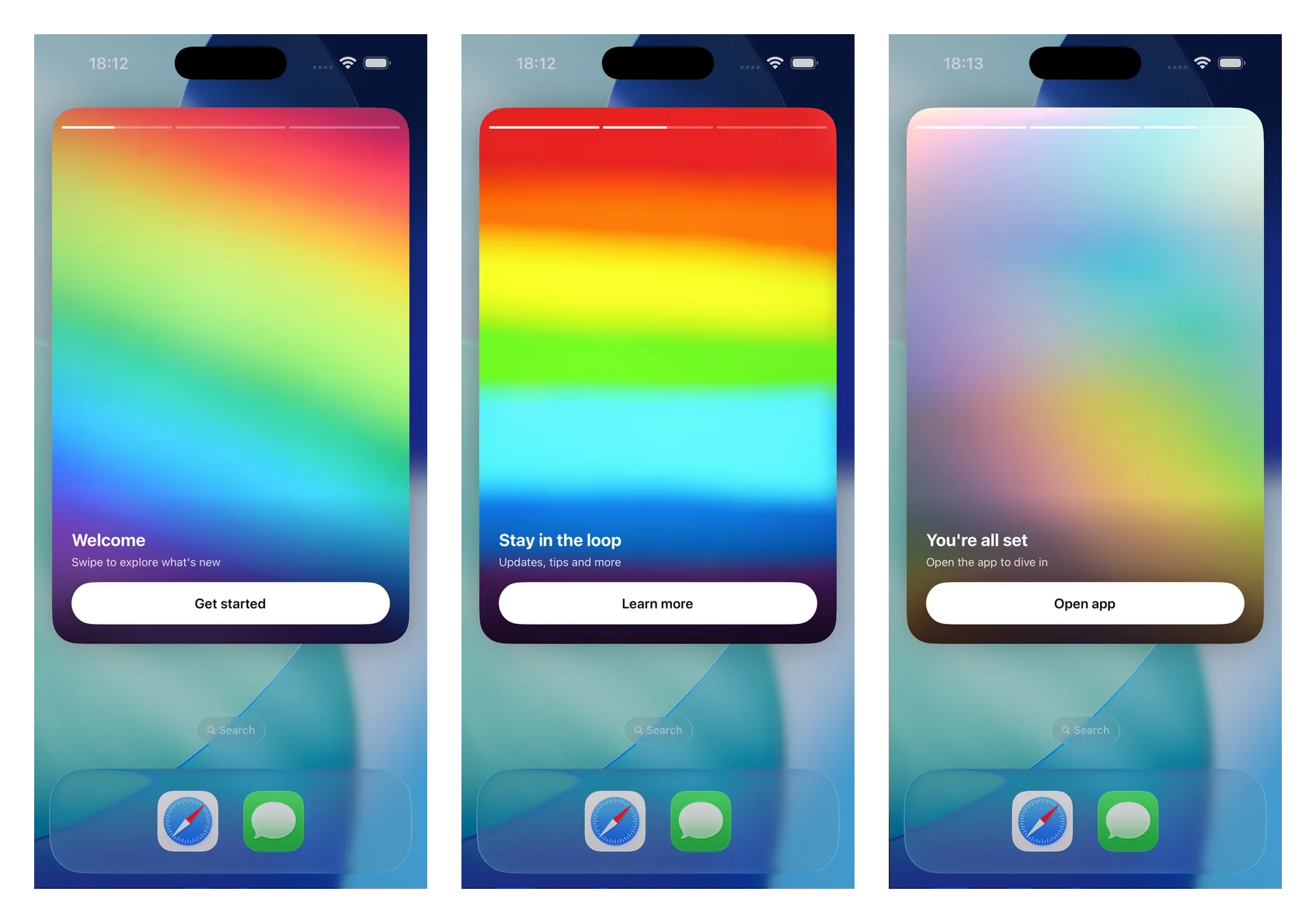
Push stories turn an expanded push notification into a full-screen, Instagram-style stories experience: full-bleed images, top progress bars, auto-advancing pages, tap-to-navigate, and a button with a deep link. They are rendered by a Notification Content Extension using the standalone `PushwooshNotificationUI` module — you subclass one view controller and the SDK handles parsing, image loading, progress, timing, navigation, and deep links.
Available since version 7.0.46.
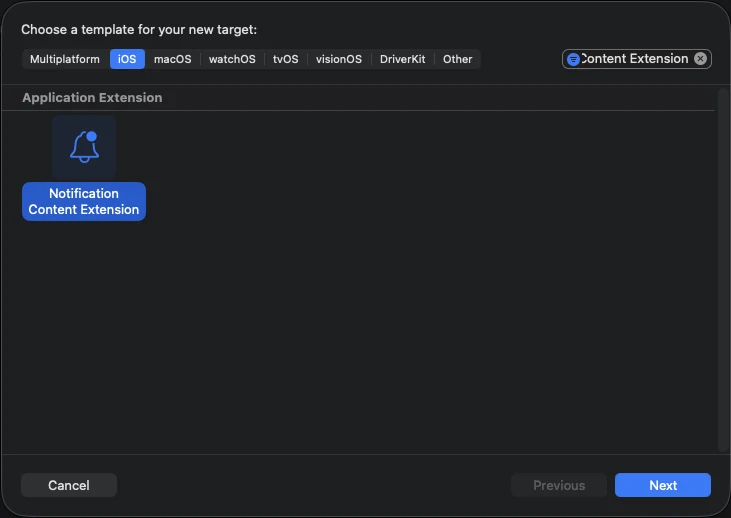
## 1. Add a Notification Content Extension
In Xcode, choose **File > New > Target…**, select **Notification Content Extension**, and name it (for example **StoriesContentExtension**).
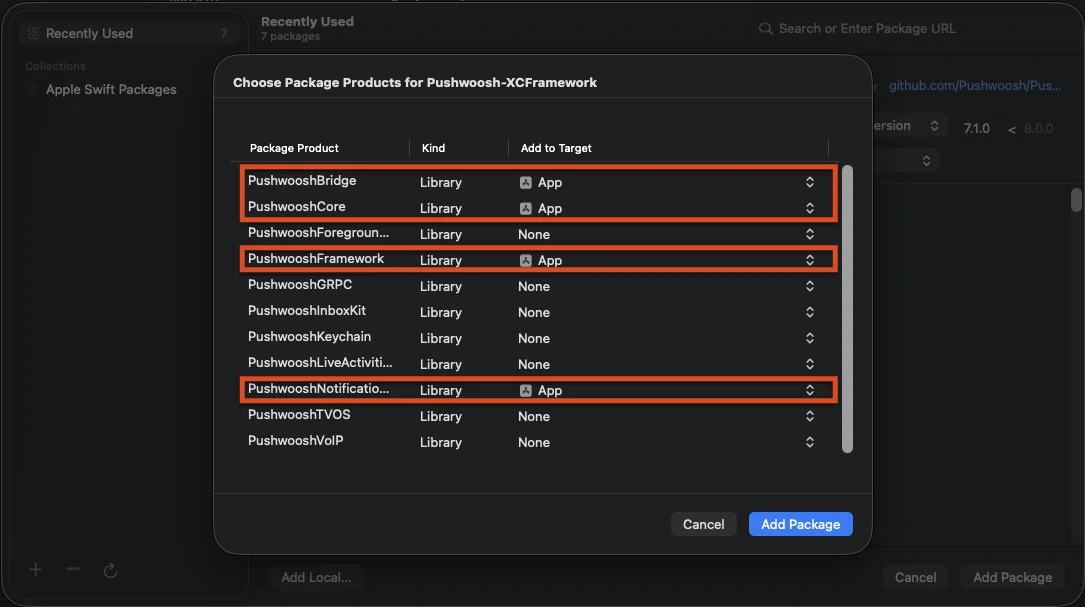
## 2. Add the PushwooshNotificationUI module
`PushwooshNotificationUI` is a standalone module with no other Pushwoosh dependencies, so it stays small inside the extension process. Add it to the **content extension target** (not the app target).
**Swift Package Manager**
**CocoaPods**
```ruby
target 'StoriesContentExtension' do
use_frameworks!
pod 'PushwooshXCFramework/PushwooshNotificationUI'
end
```
## 3. Subclass the stories view controller
Replace the generated `NotificationViewController` body with a subclass of `PushwooshStoriesViewController`. That is the whole integration.
```swift
import PushwooshNotificationUI
class NotificationViewController: PushwooshStoriesViewController {}
```
## 4. Configure the extension Info.plist
In the content extension's **Info.plist**, set the following keys under `NSExtension > NSExtensionAttributes`:
```xml
UNNotificationExtensionCategoryPW_STORIESUNNotificationExtensionUserInteractionEnabledUNNotificationExtensionDefaultContentHiddenUNNotificationExtensionInitialContentSizeRatio1.5
```
## 5. Send a push stories notification
Send a notification whose category is `PW_STORIES` and whose custom data carries a `pw_stories` block. Use the dedicated `ios_category_custom` field for the category and the `data` field for the stories payload.
```json
{
"request": {
"application": "APPLICATION_CODE",
"auth": "API_ACCESS_TOKEN",
"notifications": [
{
"send_date": "now",
"content": "Tap to explore",
"ios_title": "Push Stories",
"ios_category_custom": "PW_STORIES",
"ios_root_params": {
"aps": {
"mutable-content": 1
}
},
"data": {
"pw_stories": {
"pages": [
{
"image": "https://example.com/story-1.jpg",
"duration": 5.0,
"link": "yourapp://page1",
"button_title": "Get started",
"title": "Welcome",
"subtitle": "Swipe to explore what's new"
},
{
"image": "https://example.com/story-2.jpg",
"duration": 4.0,
"link": "yourapp://page2",
"button_title": "Learn more",
"title": "Stay in the loop",
"subtitle": "Updates, tips and more"
}
]
}
}
}
]
}
}
```
Each page supports the following fields. Only `image` is required; the rest are optional.
| Field | Description |
|-------|-------------|
| `image` | URL of the full-screen image for the page. |
| `duration` | Seconds the page stays on screen before auto-advancing. Defaults to about 5 seconds. |
| `link` | Deep link opened when the page button is tapped. |
| `button_title` | Title of the page button. |
| `title` | Title text overlaid on the page. |
| `subtitle` | Subtitle text overlaid on the page. |
## Customization
Override properties on your subclass to adjust the experience. All have sensible defaults.
```swift
import PushwooshNotificationUI
class NotificationViewController: PushwooshStoriesViewController {
override var storyAspectRatio: CGFloat { 1.5 } // keep in sync with InitialContentSizeRatio
override var hapticsEnabled: Bool { true }
override var longPressToPauseEnabled: Bool { true }
override var crossfadesBetweenPages: Bool { true }
override var loopsAfterLastPage: Bool { false }
}
```
| Property | Default | Description |
|----------|---------|-------------|
| `storyAspectRatio` | `1.5` | Aspect ratio (height ÷ width) of the stories area. Keep it in sync with `UNNotificationExtensionInitialContentSizeRatio`. |
| `hapticsEnabled` | `false` | Play a light tactile tap on tap-zone navigation. |
| `longPressToPauseEnabled` | `false` | Press and hold pauses the current page; lifting resumes. |
| `crossfadesBetweenPages` | `false` | Cross-dissolve between pages instead of cutting hard. Falls back to an instant change when Reduce Motion is on. |
| `loopsAfterLastPage` | `false` | Restart from the first page after the last one finishes. |
| `appGroupIdentifier` | `nil` | App Group shared with a Notification Service Extension for media pre-cache (see below). |
You can also override `showDefaultContent(for:)` to customize the fallback shown when the payload is missing or malformed (by default it shows the alert body).
### Media pre-cache
For an instant, offline first frame, share an App Group between your Content Extension and a Notification Service Extension. Override `appGroupIdentifier` on the stories controller, then pre-download the media from your Service Extension's `didReceive(_:withContentHandler:)`:
```swift
import PushwooshNotificationUI
PushwooshStoriesMediaPrefetcher.prefetch(
userInfo: request.content.userInfo,
appGroupIdentifier: "group.com.example.app"
) {
contentHandler(bestAttemptContent)
}
```
Enable the **App Groups** capability on both extensions with the same group identifier, and send `mutable-content: 1` so the Service Extension runs. Without an App Group, media is cached in the extension's `tmp` directory instead.
### Lifecycle and analytics callbacks
Set `storiesDelegate` to observe story events — page impressions, button taps, completion, and fallback. Conform to `PushwooshStoriesDelegate`; every method is optional, so implement only the ones you need.
```swift
import PushwooshNotificationUI
class NotificationViewController: PushwooshStoriesViewController, PushwooshStoriesDelegate {
override func viewDidLoad() {
super.viewDidLoad()
storiesDelegate = self
}
func storiesViewController(_ controller: PushwooshStoriesViewController, didStartWithPageCount pageCount: Int) {}
func storiesViewController(_ controller: PushwooshStoriesViewController, didShow page: StoryPage, at index: Int) {}
func storiesViewController(_ controller: PushwooshStoriesViewController, didTapActionFor page: StoryPage, at index: Int) {}
func storiesViewControllerDidFinish(_ controller: PushwooshStoriesViewController) {}
func storiesViewControllerDidShowFallback(_ controller: PushwooshStoriesViewController) {}
}
```
| Callback | When it fires |
|----------|----------------|
| `didStartWithPageCount:` | A valid stories payload was parsed and playback is about to begin. |
| `didShow:at:` | A page became visible. Use it for per-page impressions. |
| `didTapActionFor:at:` | The user tapped the call-to-action button. |
| `storiesViewControllerDidFinish:` | The last page finished playing. |
| `storiesViewControllerDidShowFallback:` | The payload was missing or malformed and the fallback content was shown. |
The `StoryPage` passed to the callbacks exposes the page's `imageURL`, `duration`, `link`, `buttonTitle`, `title`, and `subtitle`.
### Navigation
Tap the right third of the screen to go to the next page and the left third to go back. Horizontal swipe is intentionally not used, because it conflicts with the system's notification-dismiss gesture. Tapping the page button opens its deep link and dismisses the notification.
## References
 ## 1. Add a Notification Content Extension
In Xcode, choose **File > New > Target…**, select **Notification Content Extension**, and name it (for example **StoriesContentExtension**).
## 1. Add a Notification Content Extension
In Xcode, choose **File > New > Target…**, select **Notification Content Extension**, and name it (for example **StoriesContentExtension**).
 ## 2. Add the PushwooshNotificationUI module
`PushwooshNotificationUI` is a standalone module with no other Pushwoosh dependencies, so it stays small inside the extension process. Add it to the **content extension target** (not the app target).
**Swift Package Manager**
## 2. Add the PushwooshNotificationUI module
`PushwooshNotificationUI` is a standalone module with no other Pushwoosh dependencies, so it stays small inside the extension process. Add it to the **content extension target** (not the app target).
**Swift Package Manager**
 **CocoaPods**
```ruby
target 'StoriesContentExtension' do
use_frameworks!
pod 'PushwooshXCFramework/PushwooshNotificationUI'
end
```
## 3. Subclass the stories view controller
Replace the generated `NotificationViewController` body with a subclass of `PushwooshStoriesViewController`. That is the whole integration.
**CocoaPods**
```ruby
target 'StoriesContentExtension' do
use_frameworks!
pod 'PushwooshXCFramework/PushwooshNotificationUI'
end
```
## 3. Subclass the stories view controller
Replace the generated `NotificationViewController` body with a subclass of `PushwooshStoriesViewController`. That is the whole integration.