# MAUI Dotnet
* [**Module source**](https://github.com/Pushwoosh/pushwoosh-dotnet)
* [**Download sample**](https://github.com/Pushwoosh/pushwoosh-dotnet/tree/main/Sample)
### SDK integration
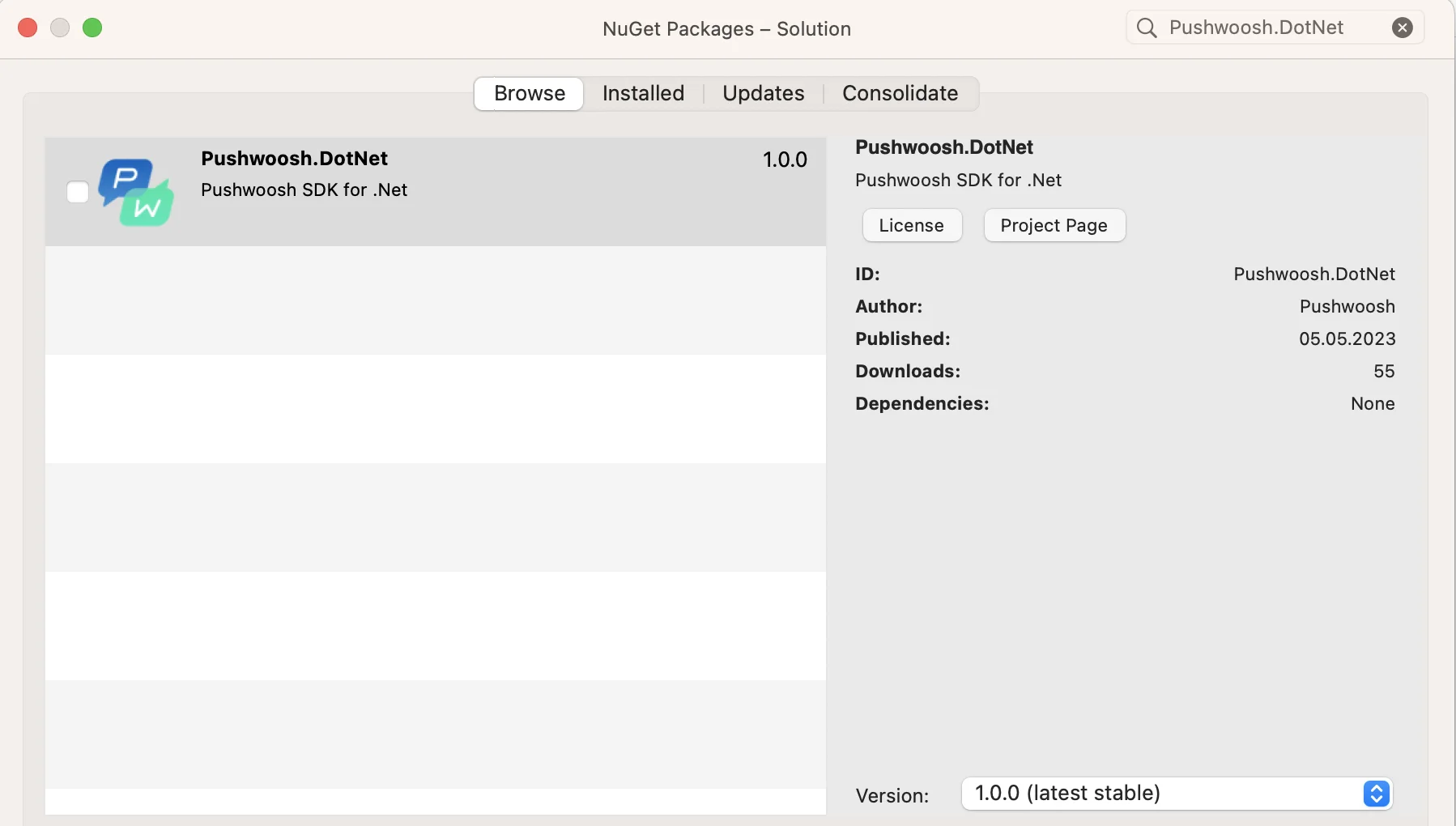
**1.** Add **Pushwoosh.DotNet** Nuget package to both Android and iOS projects:
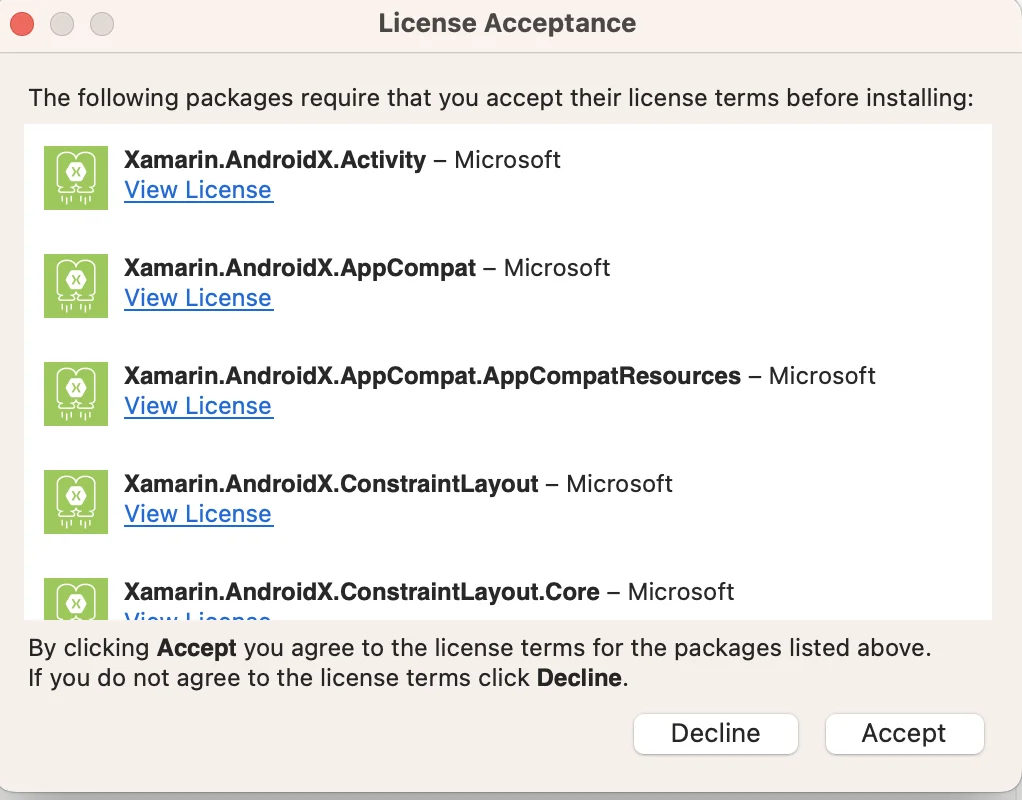
 **2.** Accept licenses for transitive Android dependencies if required:
 **3.** Configure your project in [Firebase Console](https://console.firebase.google.com/u/0/).
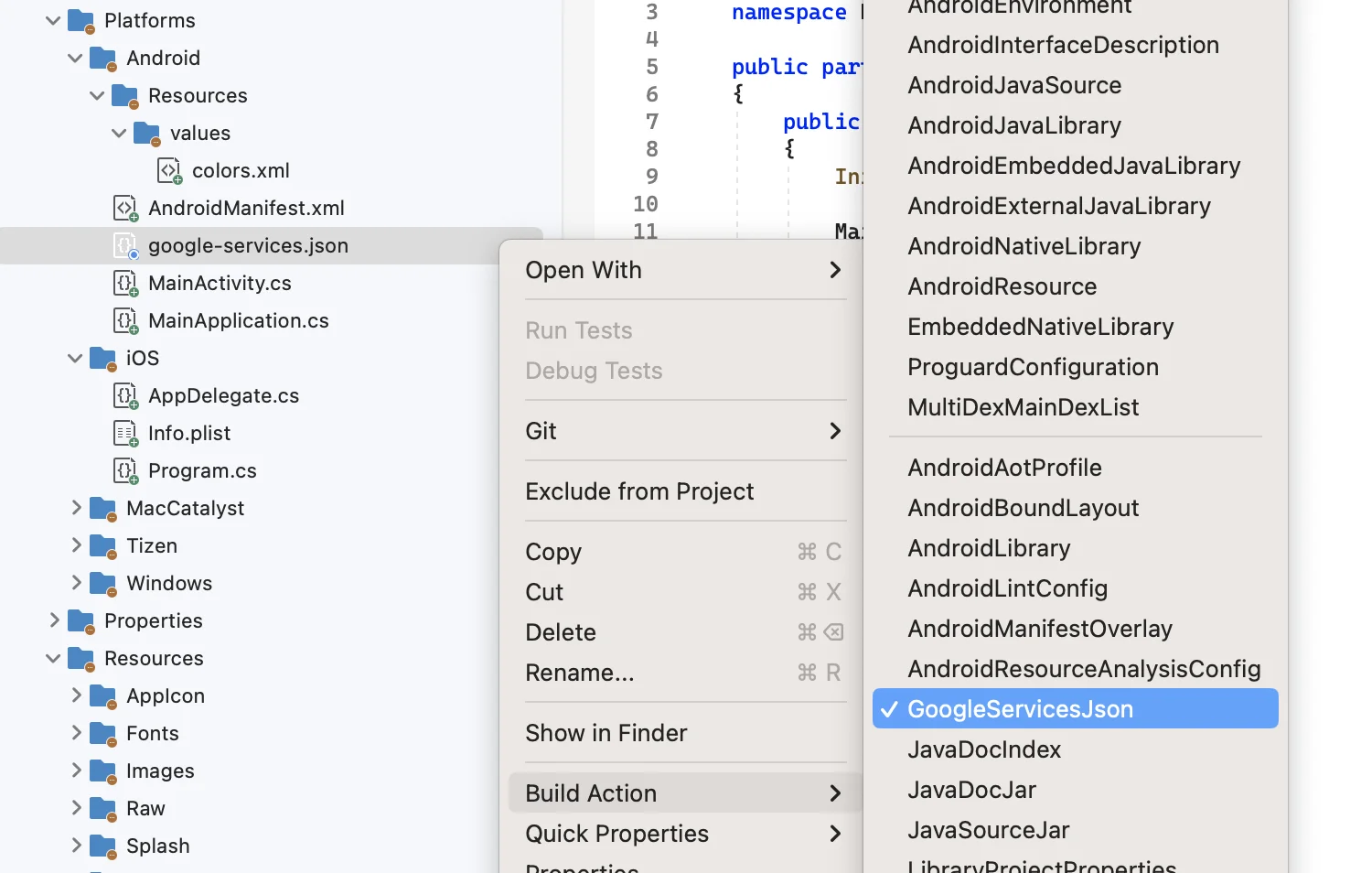
**4.** Add **google-services.json** to the root of your Android platform directory. Set **GoogleServicesJson** build action for this file:
**3.** Configure your project in [Firebase Console](https://console.firebase.google.com/u/0/).
**4.** Add **google-services.json** to the root of your Android platform directory. Set **GoogleServicesJson** build action for this file:
 **5.** Add the following lines before declaring namespace in your **MainActivity.cs** (**XXXXX-XXXXX** here is your Pushwoosh Application ID):
```csharp
[assembly: MetaData("com.pushwoosh.appid", Value = "XXXXX-XXXXX")]
[assembly: MetaData("com.pushwoosh.senderid", Value = "@string/fcm_sender_id")]
```
**6.** In your **MainActivity.cs** override `OnCreate()` method and call `PushManager.Init();` after `base.OnCreate(savedInstanceState);`
```csharp
using Pushwoosh.Android;
...
public class MainActivity : MauiAppCompatActivity
{
protected override void OnCreate(Bundle savedInstanceState)
{
base.OnCreate(savedInstanceState);
PushManager.Init();
}
}
```
**7.** In your Android project, find the **Resources/values/strings.xml** file or create it. Add your Sender ID string there:
```txt
YOUR_SENDER_ID
```
**8.** In your `AndroidManifest.xml`, add the following:
```xml
```
> **Important:** Make sure the [Device API token](/developer/api-reference/api-access-token/#device-api-token) has access to the correct application in your Pushwoosh Control Panel. [Learn more](/developer/api-reference/api-access-token/#edit-token)
**9.** Make the following changes in the **AppDelegate.cs** of your iOS project:
In the beginning of the `FinishedLaunching` method, put the following line: \
`PushManager.Init();`
Add these methods to the **AppDelegate** (`MauiUIApplicationDelegate` class does not export these methods by default, so you have to do it manually):
```csharp
[Export("application:didReceiveRemoteNotification:fetchCompletionHandler:")]
public void DidReceiveRemoteNotification(UIKit.UIApplication application, NSDictionary userInfo, Action completionHandler)
{
PushManager.Instance.ReceivedRemoteNotification(userInfo);
}
[Export("application:didRegisterForRemoteNotificationsWithDeviceToken:")]
public void RegisteredForRemoteNotifications(UIKit.UIApplication application, NSData deviceToken)
{
PushManager.Instance.RegisteredForRemoteNotifications(deviceToken);
}
[Export("application:didFailToRegisterForRemoteNotificationsWithError:")]
public void FailedToRegisterForRemoteNotifications(UIKit.UIApplication application, NSError error)
{
PushManager.Instance.FailedToRegisterForRemoteNotifications(error);
}
```
**10.** In the **Info.plist**, change the **Pushwoosh\_APPID** value to your Pushwoosh Application Code. You can find it in your Control Panel:\
**5.** Add the following lines before declaring namespace in your **MainActivity.cs** (**XXXXX-XXXXX** here is your Pushwoosh Application ID):
```csharp
[assembly: MetaData("com.pushwoosh.appid", Value = "XXXXX-XXXXX")]
[assembly: MetaData("com.pushwoosh.senderid", Value = "@string/fcm_sender_id")]
```
**6.** In your **MainActivity.cs** override `OnCreate()` method and call `PushManager.Init();` after `base.OnCreate(savedInstanceState);`
```csharp
using Pushwoosh.Android;
...
public class MainActivity : MauiAppCompatActivity
{
protected override void OnCreate(Bundle savedInstanceState)
{
base.OnCreate(savedInstanceState);
PushManager.Init();
}
}
```
**7.** In your Android project, find the **Resources/values/strings.xml** file or create it. Add your Sender ID string there:
```txt
YOUR_SENDER_ID
```
**8.** In your `AndroidManifest.xml`, add the following:
```xml
```
> **Important:** Make sure the [Device API token](/developer/api-reference/api-access-token/#device-api-token) has access to the correct application in your Pushwoosh Control Panel. [Learn more](/developer/api-reference/api-access-token/#edit-token)
**9.** Make the following changes in the **AppDelegate.cs** of your iOS project:
In the beginning of the `FinishedLaunching` method, put the following line: \
`PushManager.Init();`
Add these methods to the **AppDelegate** (`MauiUIApplicationDelegate` class does not export these methods by default, so you have to do it manually):
```csharp
[Export("application:didReceiveRemoteNotification:fetchCompletionHandler:")]
public void DidReceiveRemoteNotification(UIKit.UIApplication application, NSDictionary userInfo, Action completionHandler)
{
PushManager.Instance.ReceivedRemoteNotification(userInfo);
}
[Export("application:didRegisterForRemoteNotificationsWithDeviceToken:")]
public void RegisteredForRemoteNotifications(UIKit.UIApplication application, NSData deviceToken)
{
PushManager.Instance.RegisteredForRemoteNotifications(deviceToken);
}
[Export("application:didFailToRegisterForRemoteNotificationsWithError:")]
public void FailedToRegisterForRemoteNotifications(UIKit.UIApplication application, NSError error)
{
PushManager.Instance.FailedToRegisterForRemoteNotifications(error);
}
```
**10.** In the **Info.plist**, change the **Pushwoosh\_APPID** value to your Pushwoosh Application Code. You can find it in your Control Panel:\
 **11.** In `Info.plist`, set the:
- `Pushwoosh_API_TOKEN` key to the [Pushwoosh Device API Token](/developer/api-reference/api-access-token/#device-api-token)
> **Important:** Be sure to give the token access to the right app in your Pushwoosh Control Panel. [Learn more](/developer/api-reference/api-access-token/#edit-token)
**12.** In the cross-platform part of **App.xaml.cs**, add the registration to `onStart` method:
```csharp
using PushwooshSDK.DotNet.Core;
...
public partial class App : Application
{
...
protected override void OnStart()
{
base.OnStart();
PushManager.Instance.Register();
}
}
```
> **Note for Windows users:**
>When building you may encounter an issue related to the length of the file path.
>This is due to the combined length of the directories used by Visual Studio and the file paths within the Pushwoosh SDK exceeding Windows >maximum path length limitation of 260 characters.
>To resolve this issue, enable the LongPathsEnabled setting in the Windows Registry.
### Share your feedback with us
Your feedback helps us create a better experience, so we would love to hear from you if you have any issues during the SDK integration process. If you face any difficulties, please do not hesitate to share your thoughts with us [via this form](https://docs.google.com/forms/d/e/1FAIpQLSd\_0b8jwn-V\_JmoPLIxIFYbHACCQhrzidOZV3ELywoQPXRSxw/viewform).
**11.** In `Info.plist`, set the:
- `Pushwoosh_API_TOKEN` key to the [Pushwoosh Device API Token](/developer/api-reference/api-access-token/#device-api-token)
> **Important:** Be sure to give the token access to the right app in your Pushwoosh Control Panel. [Learn more](/developer/api-reference/api-access-token/#edit-token)
**12.** In the cross-platform part of **App.xaml.cs**, add the registration to `onStart` method:
```csharp
using PushwooshSDK.DotNet.Core;
...
public partial class App : Application
{
...
protected override void OnStart()
{
base.OnStart();
PushManager.Instance.Register();
}
}
```
> **Note for Windows users:**
>When building you may encounter an issue related to the length of the file path.
>This is due to the combined length of the directories used by Visual Studio and the file paths within the Pushwoosh SDK exceeding Windows >maximum path length limitation of 260 characters.
>To resolve this issue, enable the LongPathsEnabled setting in the Windows Registry.
### Share your feedback with us
Your feedback helps us create a better experience, so we would love to hear from you if you have any issues during the SDK integration process. If you face any difficulties, please do not hesitate to share your thoughts with us [via this form](https://docs.google.com/forms/d/e/1FAIpQLSd\_0b8jwn-V\_JmoPLIxIFYbHACCQhrzidOZV3ELywoQPXRSxw/viewform).