# Integrating Cordova Huawei plugin
## Integrate Cordova plugin
Integrate Cordova plugin into your project following the steps described in the [Integrating Cordova Plugin](/developer/pushwoosh-sdk/cross-platform-frameworks/cordova/integrating-cordova-plugin/).
## Configure Huawei via AppGallery Connect
1. Go to [AppGallery Connect -> Projects List](https://developer.huawei.com/consumer/en/service/josp/agc/index.html#/myProject) and select a project to configure.
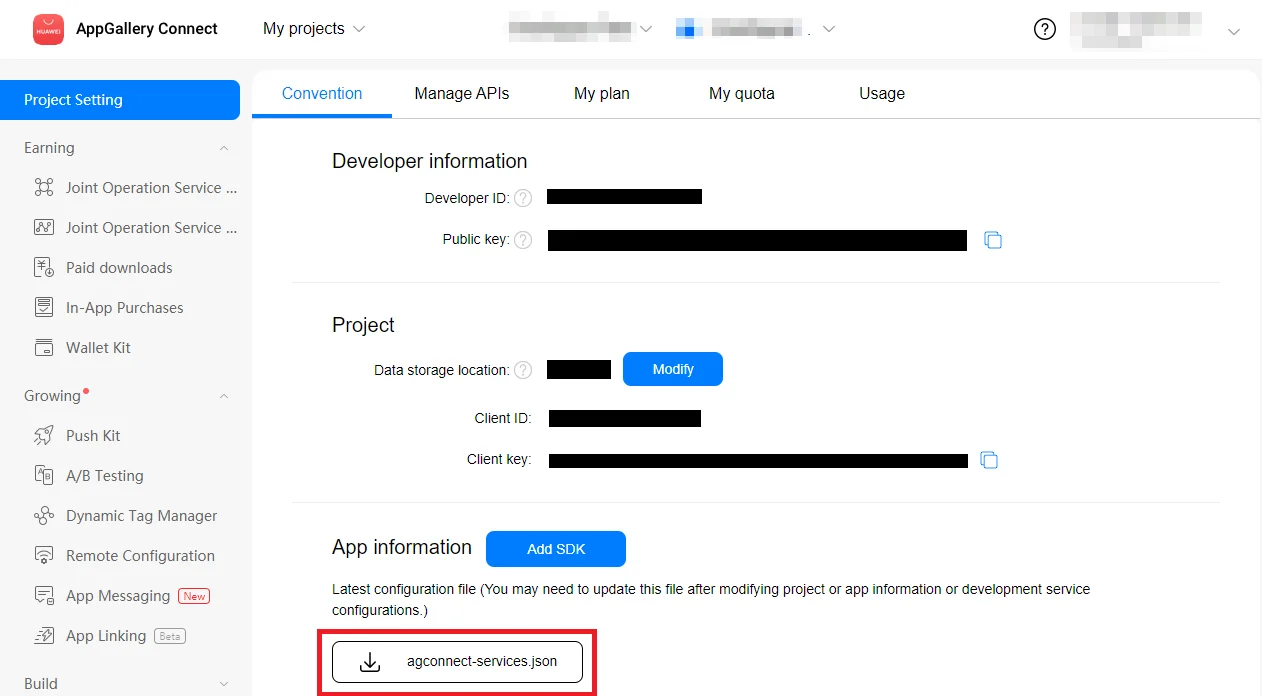
2. Press **agconnect-services.json** in the App information section to download a configuration file.
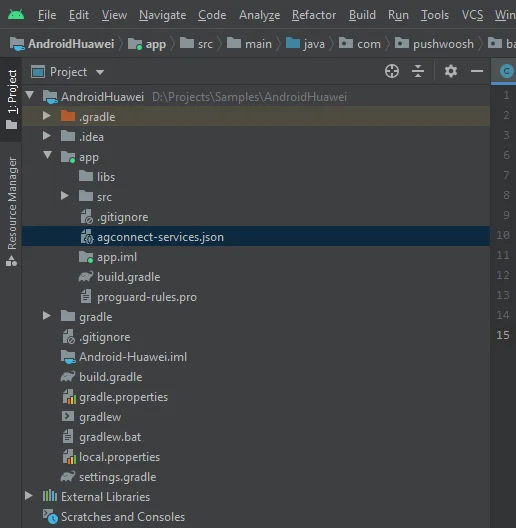
 3. Put the downloaded file into your Android Studio project (`YOUR_PROJECT/app/agconnect-services.json`).
 ## Generate Signing certificate fingerprint
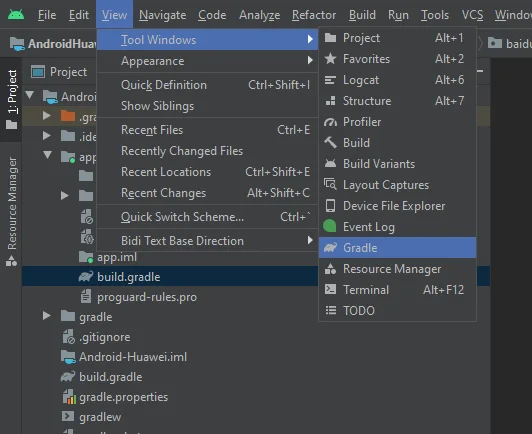
1. In Android Studio, go to View > Tool Windows > Gradle.
## Generate Signing certificate fingerprint
1. In Android Studio, go to View > Tool Windows > Gradle.
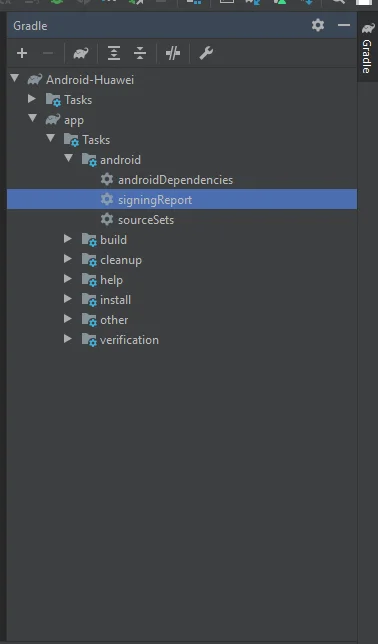
 2. In the window opened, go to app > Tasks > android > signingReport.
 3. Copy SHA-256 from your release keystore.
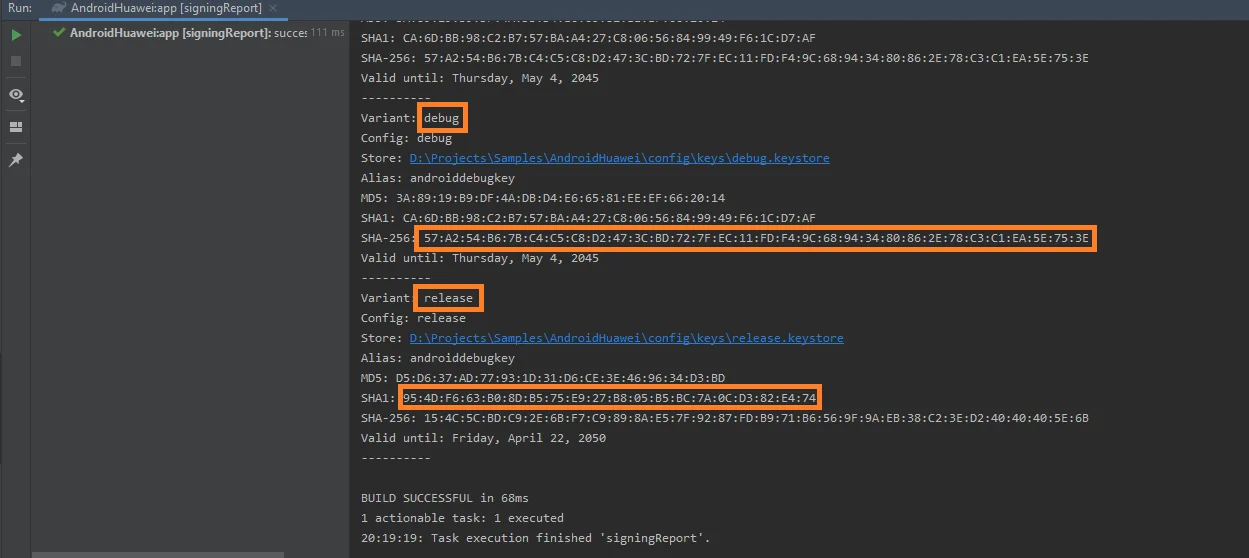 You can also add the SHA-256 from your debug keystore for testing purposes.
4. Select your project in [AppGallery Connect Project List](https://developer.huawei.com/consumer/en/service/josp/agc/index.html#/myProject).
5. Paste the SHA-256 into the **SHA-256 certificate fingerprint** field.
Please be aware that fingerprint processing may take up to 10 minutes.
## Configure Huawei in Pushwoosh
Follow the guide to configure the Huawei platform for your Pushwoosh project: [Configure Huawei](/developer/first-steps/connect-messaging-services/huawei-configuration/).
Add the **agconnect-services.json** to **android/app**.
## Add Huawei repo
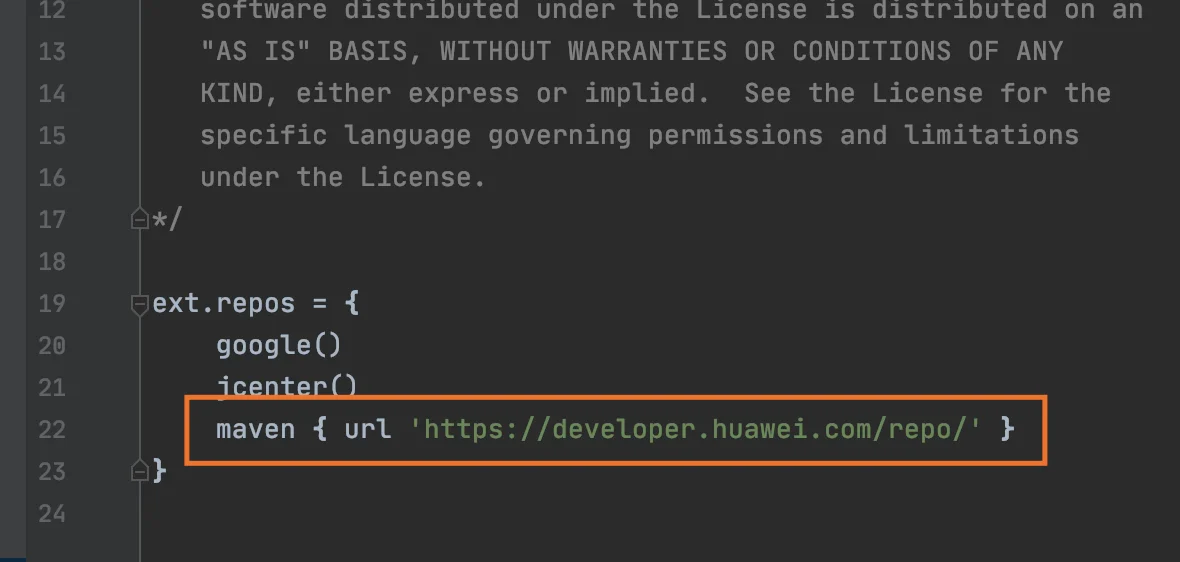
Add the [maven repository](https://developer.huawei.com/repo/) to your project's **android/repositories.gradle** and **android/app/repositories.gradle** files.
You can also add the SHA-256 from your debug keystore for testing purposes.
4. Select your project in [AppGallery Connect Project List](https://developer.huawei.com/consumer/en/service/josp/agc/index.html#/myProject).
5. Paste the SHA-256 into the **SHA-256 certificate fingerprint** field.
Please be aware that fingerprint processing may take up to 10 minutes.
## Configure Huawei in Pushwoosh
Follow the guide to configure the Huawei platform for your Pushwoosh project: [Configure Huawei](/developer/first-steps/connect-messaging-services/huawei-configuration/).
Add the **agconnect-services.json** to **android/app**.
## Add Huawei repo
Add the [maven repository](https://developer.huawei.com/repo/) to your project's **android/repositories.gradle** and **android/app/repositories.gradle** files.
 ## Add dependencies
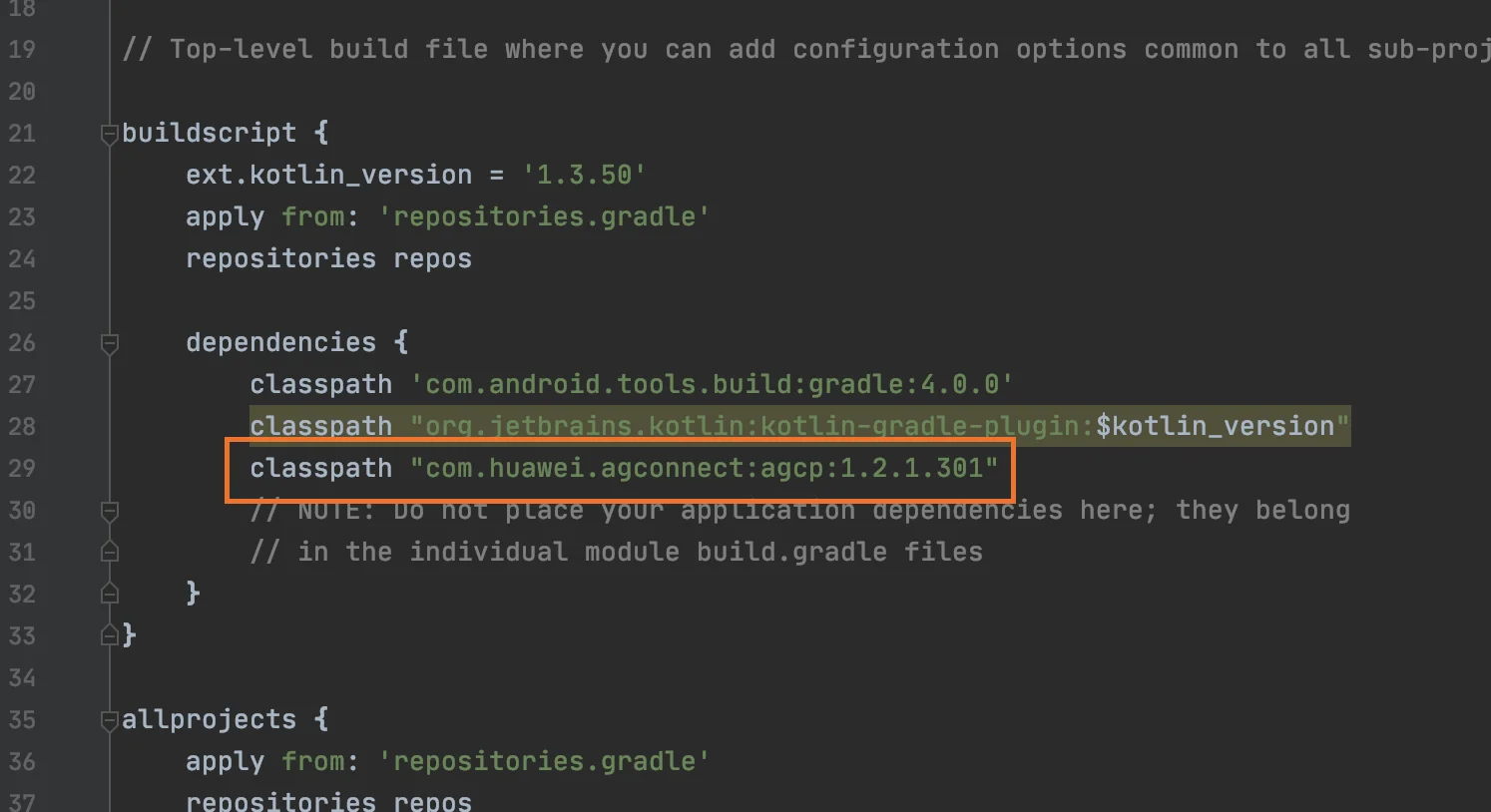
1. Add **classpath "com.huawei.agconnect:agcp:1.2.1.301"** to the **android/build.gradle** file of **buildScript/dependencies**.
## Add dependencies
1. Add **classpath "com.huawei.agconnect:agcp:1.2.1.301"** to the **android/build.gradle** file of **buildScript/dependencies**.
 2. Add **apply plugin: 'com.huawei.agconnect'** and **implementation "com.huawei.hms:push:6.1.0.300** to **android/app/build.gradle.**
## Enable push notifications
In your JavaScript code, add **enableHuaweiPushNotifications** before executing **onDeviceReady:**
```javascript
var pushNotification = cordova.require("pushwoosh-cordova-plugin.PushNotification");
pushNotification.enableHuaweiPushNotifications();
pushNotification.onDeviceReady({
projectid: "GOOGLE_PROJECT_ID",
appid: "PUSHWOOSH_APP_ID",
serviceName: ""
});
```
## Share your feedback with us
Your feedback helps us create a better experience, so we would love to hear from you if you have any issues during the SDK integration process. If you face any difficulties, please do not hesitate to share your thoughts with us [via this form](https://docs.google.com/forms/d/e/1FAIpQLSd\_0b8jwn-V\_JmoPLIxIFYbHACCQhrzidOZV3ELywoQPXRSxw/viewform).
2. Add **apply plugin: 'com.huawei.agconnect'** and **implementation "com.huawei.hms:push:6.1.0.300** to **android/app/build.gradle.**
## Enable push notifications
In your JavaScript code, add **enableHuaweiPushNotifications** before executing **onDeviceReady:**
```javascript
var pushNotification = cordova.require("pushwoosh-cordova-plugin.PushNotification");
pushNotification.enableHuaweiPushNotifications();
pushNotification.onDeviceReady({
projectid: "GOOGLE_PROJECT_ID",
appid: "PUSHWOOSH_APP_ID",
serviceName: ""
});
```
## Share your feedback with us
Your feedback helps us create a better experience, so we would love to hear from you if you have any issues during the SDK integration process. If you face any difficulties, please do not hesitate to share your thoughts with us [via this form](https://docs.google.com/forms/d/e/1FAIpQLSd\_0b8jwn-V\_JmoPLIxIFYbHACCQhrzidOZV3ELywoQPXRSxw/viewform).