# Huawei integration
## Requirements
* A [Pushwoosh account](https://go.pushwoosh.com/)
* A [Huawei developer account](https://developer.huawei.com)
* A [Huawei AppGallery Connect project](https://developer.huawei.com/consumer/en/service/josp/agc/index.html#/myProject)
* A [Pushwoosh Application](https://go.pushwoosh.com/cp/applications) with [configured Huawei platform](/developer/first-steps/connect-messaging-services/huawei-configuration/) and its code in format **XXXXX-XXXXX**
* [Android Studio](https://developer.android.com/studio)
* A Huawei device with Huawei Mobile Services installed
## Integration
### Get agconnect-services.json
**1.** Go to [AppGallery Connect -> Projects List](https://developer.huawei.com/consumer/en/service/josp/agc/index.html#/myProject) and select a project to configure.
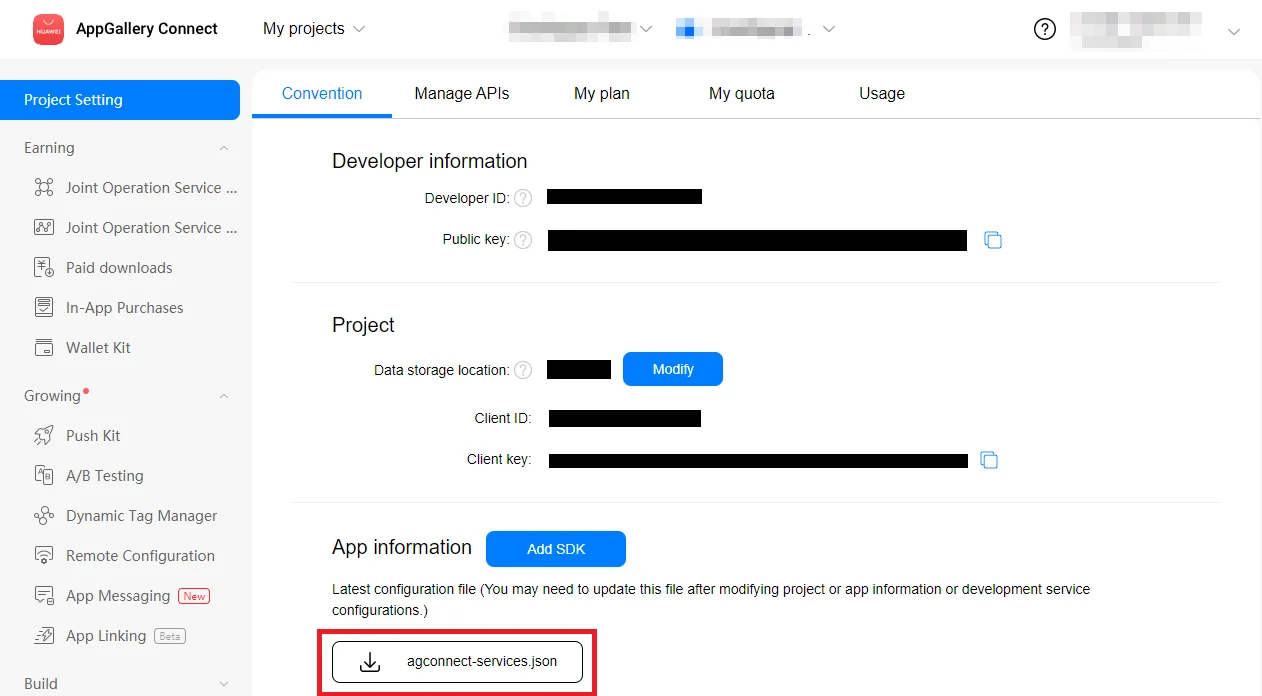
**2.** Press **agconnect-services.json** in the App information section to download a configuration file.
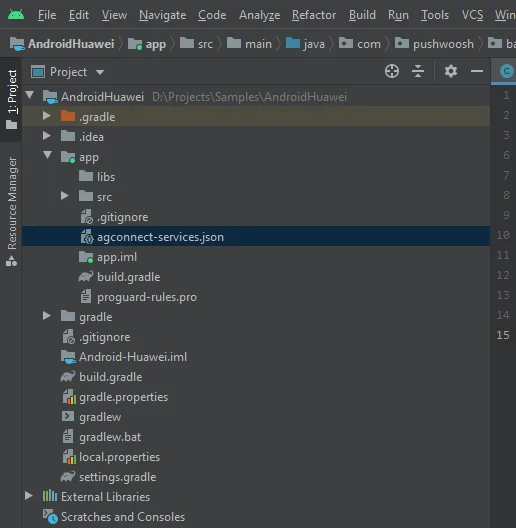
**3.** Put the downloaded file into your Android Studio project (YOUR\_PROJECT/app/agconnect-services.json).
### Generate Signing Certificate Fingerprint
Follow [Generating a Signing Certificate Fingerprint](https://developer.huawei.com/consumer/en/doc/development/HMS-Guides/Preparations#h2-1575707383351) to generate a signing certificate fingerprint.
### Add the `pushwoosh-huawei` module
Add the `pushwoosh-huawei` module to your app-level `build.gradle`:
```
implementation 'com.pushwoosh:pushwoosh-huawei:6.+'
```
Replace "+" with the current version of Pushwoosh: [https://github.com/Pushwoosh/pushwoosh-android-sdk/releases/latest](https://github.com/Pushwoosh/pushwoosh-android-sdk/releases/latest)
### Add Huawei dependencies
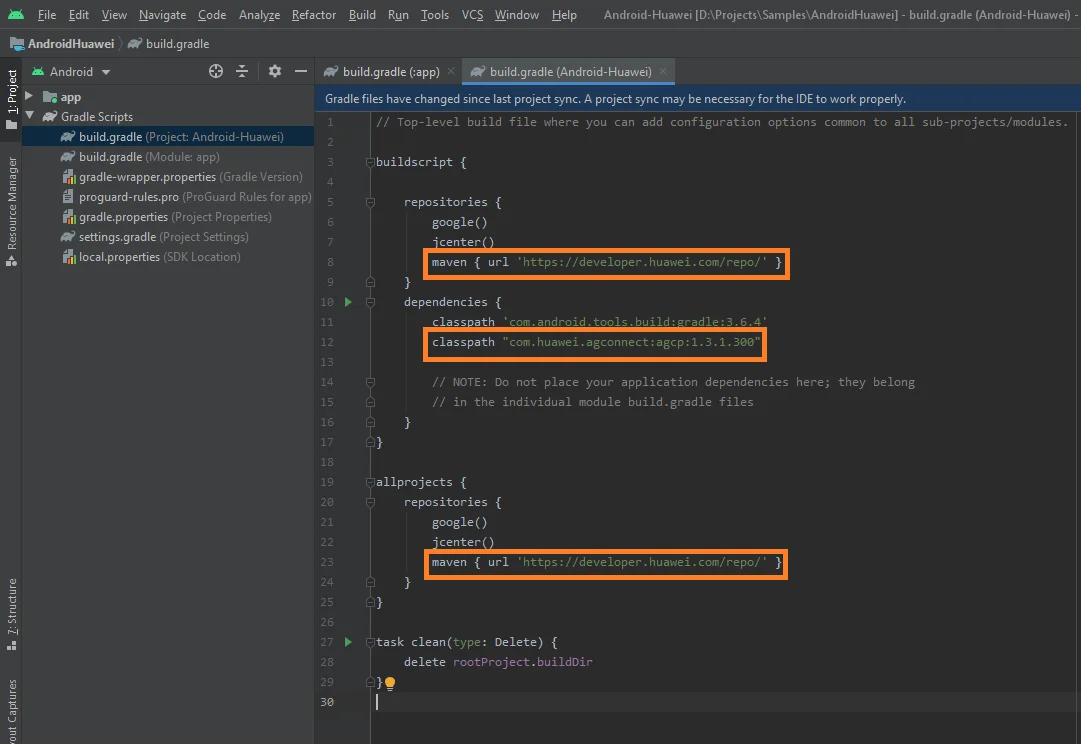
**1.** Add `maven {url 'https://developer.huawei.com/repo/'}` to your **root-level** `build.gradle (Project)` under `buildscript { repositories }` and `allprojects { repositories }`.
**2.** Add `classpath 'com.huawei.agconnect:agcp:1.3.1.300'` under `buildscript { dependencies }`.
Make sure all the following three lines added to your **root-level** `build.gradle`:
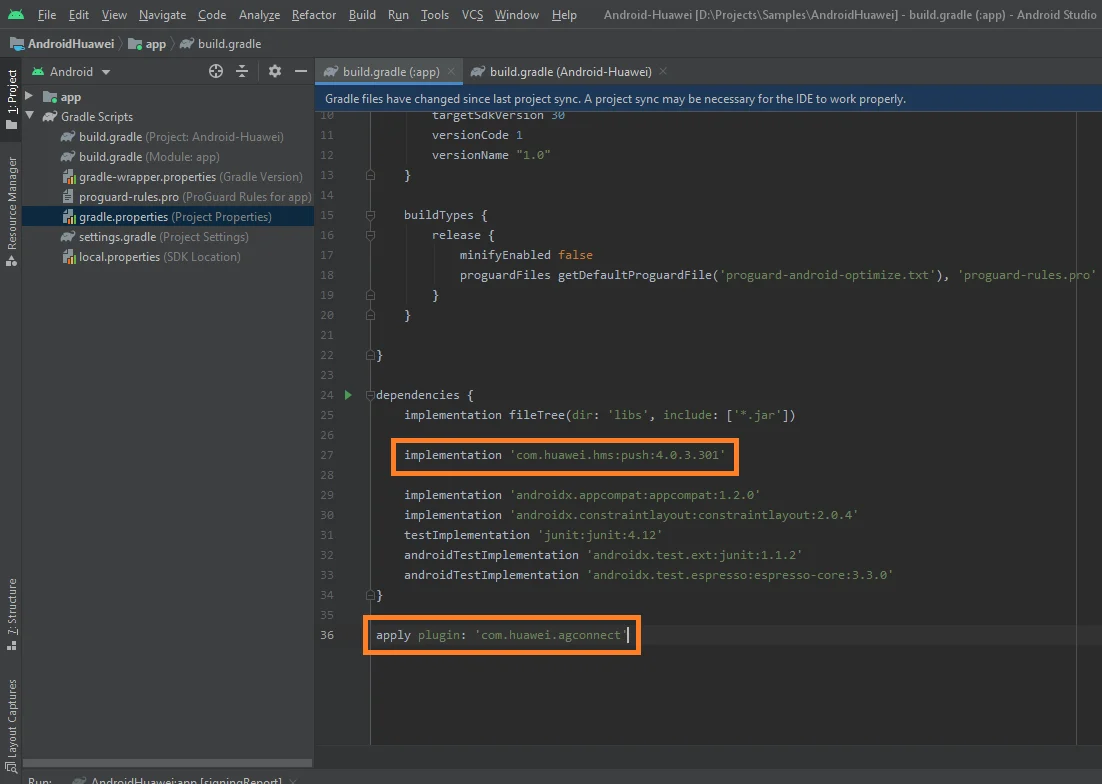
**3.** Add `implementation 'com.huawei.hms:push:6.1.0.300'` to your **app-level** `build.gradle` (app/build.gradle) under the `dependencies` section.
**4.** Add `apply plugin: 'com.huawei.agconnect'` to the very bottom of the **app-level** `build.gradle` file.
Make sure there are two following lines in your **app-level** `build.gradle`:
### Subscribe to push notifications
```
Pushwoosh.getInstance().registerForPushNotifications();
```
## Share your feedback with us
Your feedback helps us create a better experience, so we would love to hear from you if you have any issues during the SDK integration process. If you face any difficulties, please do not hesitate to share your thoughts with us [via this form](https://docs.google.com/forms/d/e/1FAIpQLSd\_0b8jwn-V\_JmoPLIxIFYbHACCQhrzidOZV3ELywoQPXRSxw/viewform).
## Next steps
 **3.** Put the downloaded file into your Android Studio project (YOUR\_PROJECT/app/agconnect-services.json).
 ### Generate Signing Certificate Fingerprint
Follow [Generating a Signing Certificate Fingerprint](https://developer.huawei.com/consumer/en/doc/development/HMS-Guides/Preparations#h2-1575707383351) to generate a signing certificate fingerprint.
### Add the `pushwoosh-huawei` module
Add the `pushwoosh-huawei` module to your app-level `build.gradle`:
```
implementation 'com.pushwoosh:pushwoosh-huawei:6.+'
```
Replace "+" with the current version of Pushwoosh: [https://github.com/Pushwoosh/pushwoosh-android-sdk/releases/latest](https://github.com/Pushwoosh/pushwoosh-android-sdk/releases/latest)
### Add Huawei dependencies
**1.** Add `maven {url 'https://developer.huawei.com/repo/'}` to your **root-level** `build.gradle (Project)` under `buildscript { repositories }` and `allprojects { repositories }`.
**2.** Add `classpath 'com.huawei.agconnect:agcp:1.3.1.300'` under `buildscript { dependencies }`.
Make sure all the following three lines added to your **root-level** `build.gradle`:
### Generate Signing Certificate Fingerprint
Follow [Generating a Signing Certificate Fingerprint](https://developer.huawei.com/consumer/en/doc/development/HMS-Guides/Preparations#h2-1575707383351) to generate a signing certificate fingerprint.
### Add the `pushwoosh-huawei` module
Add the `pushwoosh-huawei` module to your app-level `build.gradle`:
```
implementation 'com.pushwoosh:pushwoosh-huawei:6.+'
```
Replace "+" with the current version of Pushwoosh: [https://github.com/Pushwoosh/pushwoosh-android-sdk/releases/latest](https://github.com/Pushwoosh/pushwoosh-android-sdk/releases/latest)
### Add Huawei dependencies
**1.** Add `maven {url 'https://developer.huawei.com/repo/'}` to your **root-level** `build.gradle (Project)` under `buildscript { repositories }` and `allprojects { repositories }`.
**2.** Add `classpath 'com.huawei.agconnect:agcp:1.3.1.300'` under `buildscript { dependencies }`.
Make sure all the following three lines added to your **root-level** `build.gradle`:
 **3.** Add `implementation 'com.huawei.hms:push:6.1.0.300'` to your **app-level** `build.gradle` (app/build.gradle) under the `dependencies` section.
**4.** Add `apply plugin: 'com.huawei.agconnect'` to the very bottom of the **app-level** `build.gradle` file.
Make sure there are two following lines in your **app-level** `build.gradle`:
**3.** Add `implementation 'com.huawei.hms:push:6.1.0.300'` to your **app-level** `build.gradle` (app/build.gradle) under the `dependencies` section.
**4.** Add `apply plugin: 'com.huawei.agconnect'` to the very bottom of the **app-level** `build.gradle` file.
Make sure there are two following lines in your **app-level** `build.gradle`:
 ### Subscribe to push notifications
```
Pushwoosh.getInstance().registerForPushNotifications();
```
## Share your feedback with us
Your feedback helps us create a better experience, so we would love to hear from you if you have any issues during the SDK integration process. If you face any difficulties, please do not hesitate to share your thoughts with us [via this form](https://docs.google.com/forms/d/e/1FAIpQLSd\_0b8jwn-V\_JmoPLIxIFYbHACCQhrzidOZV3ELywoQPXRSxw/viewform).
## Next steps
### Subscribe to push notifications
```
Pushwoosh.getInstance().registerForPushNotifications();
```
## Share your feedback with us
Your feedback helps us create a better experience, so we would love to hear from you if you have any issues during the SDK integration process. If you face any difficulties, please do not hesitate to share your thoughts with us [via this form](https://docs.google.com/forms/d/e/1FAIpQLSd\_0b8jwn-V\_JmoPLIxIFYbHACCQhrzidOZV3ELywoQPXRSxw/viewform).
## Next steps