# Windows configuration
## WNS authentication
First, authenticate your application with Windows Push Notification Service according to the Microsoft Dev Center guide [here](https://msdn.microsoft.com/en-us/library/windows/apps/hh465407.aspx).
## Pushwoosh configuration
1. In your Pushwoosh project, navigate to **Configure Platforms** and click **Connect** next to **Windows**.
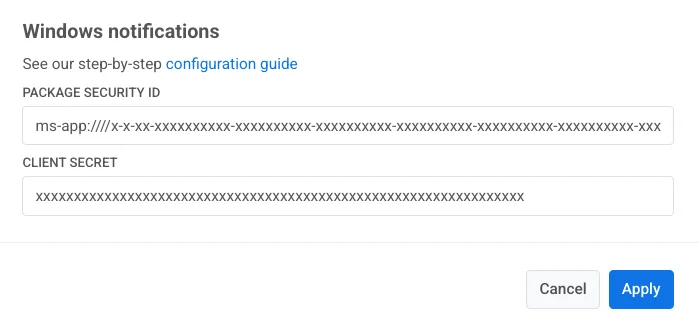
2. Specify your **Package Security ID** and **Client Secret** in the configuration window and click **Save**.
## Templates
Check out these Windows Templates:
[Windows Tile Template](http://msdn.microsoft.com/en-us/library/windows/apps/hh761491.aspx)
[Windows Toast Template](http://msdn.microsoft.com/en-us/library/windows/apps/hh761494.aspx)
[Windows Badge Template](http://msdn.microsoft.com/en-us/library/windows/apps/hh779719.aspx)
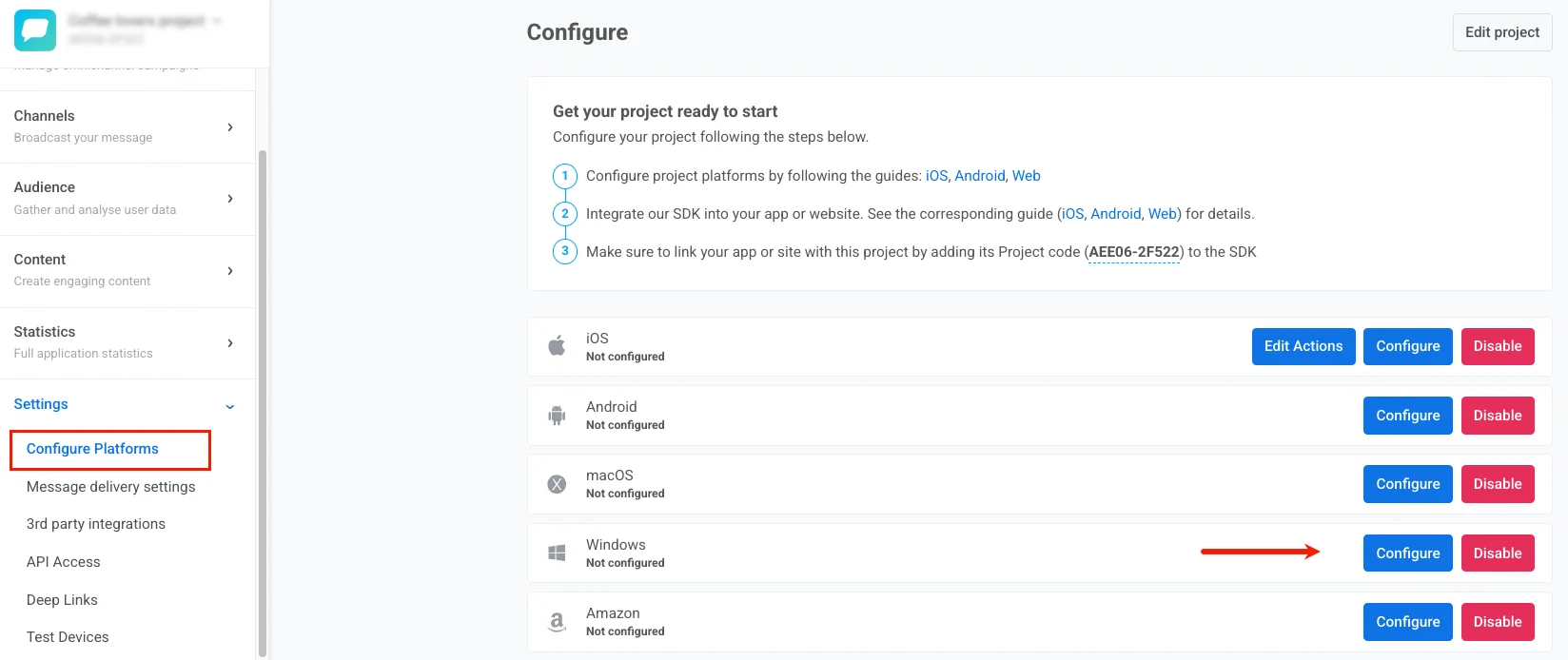 2. Specify your **Package Security ID** and **Client Secret** in the configuration window and click **Save**.
 ## Templates
Check out these Windows Templates:
[Windows Tile Template](http://msdn.microsoft.com/en-us/library/windows/apps/hh761491.aspx)
[Windows Toast Template](http://msdn.microsoft.com/en-us/library/windows/apps/hh761494.aspx)
[Windows Badge Template](http://msdn.microsoft.com/en-us/library/windows/apps/hh779719.aspx)
## Templates
Check out these Windows Templates:
[Windows Tile Template](http://msdn.microsoft.com/en-us/library/windows/apps/hh761491.aspx)
[Windows Toast Template](http://msdn.microsoft.com/en-us/library/windows/apps/hh761494.aspx)
[Windows Badge Template](http://msdn.microsoft.com/en-us/library/windows/apps/hh779719.aspx)