# VoIP certificate configuration for iOS
Upload your VoIP certificate in the Control Panel so that Pushwoosh can deliver VoIP push notifications to your iOS app. After you complete the steps below, you can send incoming-call alerts and other VoIP events through Pushwoosh to devices that have your app installed.
## Creating the certificate
Follow the same flow as for a standard APNs certificate:
1. [Generate a certificate request file](/developer/first-steps/connect-messaging-services/ios-configuration/ios-platform-configuration/#generating-a-certificate-request-file) in Keychain Access.
2. Create the certificate in Apple Developer Portal. Under **Services**, choose **VoIP Services Certificate**. See [Create VoIP services certificates](https://developer.apple.com/help/account/certificates/create-voip-services-certificates) in Apple Help.
3. [Export the private key as .p12](/developer/first-steps/connect-messaging-services/ios-configuration/ios-platform-configuration/#exporting-the-private-key-p12) from Keychain Access.
You will need the .p12 file and the private key password when filling the form below.
## Configuring the certificate in the Control Panel
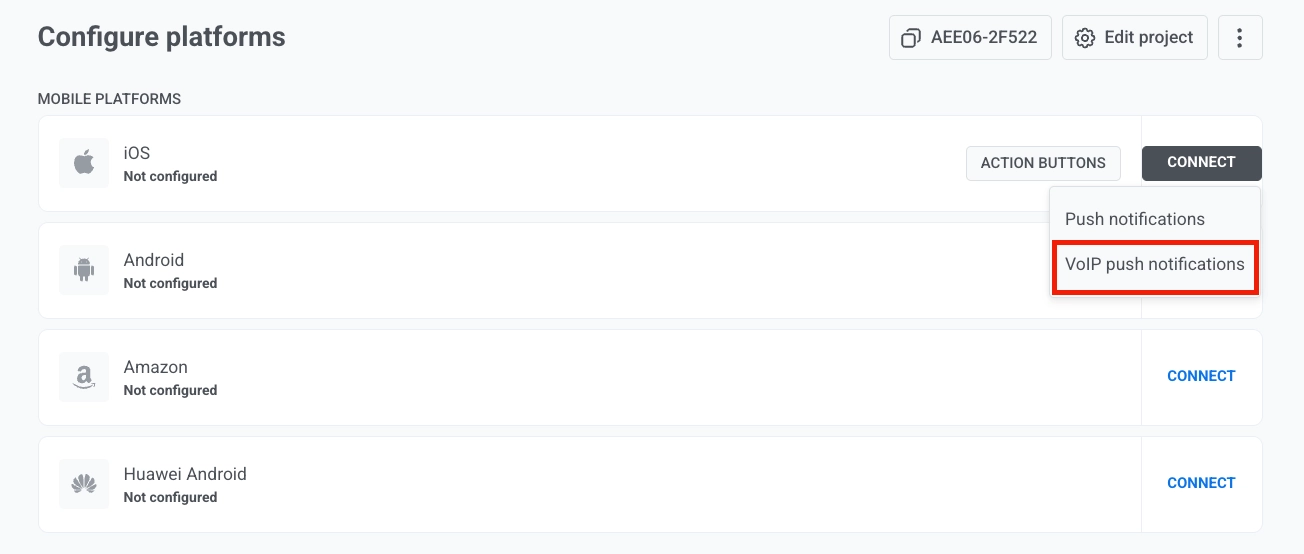
1. Go to **Settings → Configure platforms** in the Control Panel.
2. Find **iOS** in the **Mobile platforms** list and click **Connect** next to it.
3. In the dropdown, select **VoIP push notifications**.
 4. Next to **VoIP certificate file (.p12)**, click the attachment icon and select the .p12 file you exported from Keychain Access.
5. In **Private key password**, enter the password you set when exporting the .p12 file.
6. Under **Gateway**, select **Sandbox** for development and testing, or **Production** for live apps.
4. Next to **VoIP certificate file (.p12)**, click the attachment icon and select the .p12 file you exported from Keychain Access.
5. In **Private key password**, enter the password you set when exporting the .p12 file.
6. Under **Gateway**, select **Sandbox** for development and testing, or **Production** for live apps.
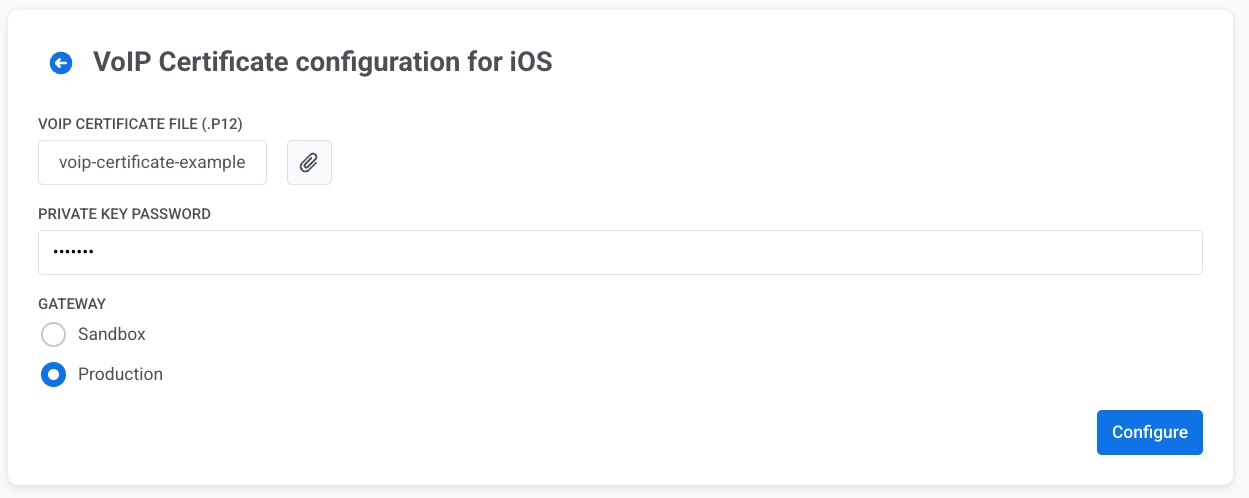 7. Click **Configure** to save the configuration.
Once the configuration is saved, Pushwoosh can deliver VoIP push notifications to your iOS app. To implement receiving and handling VoIP pushes in the app, use the [Pushwoosh VoIP module](/developer/pushwoosh-sdk/ios-sdk/voip-pushes/) and the [Messages API](/developer/api-reference/messages-api/) for sending.
7. Click **Configure** to save the configuration.
Once the configuration is saved, Pushwoosh can deliver VoIP push notifications to your iOS app. To implement receiving and handling VoIP pushes in the app, use the [Pushwoosh VoIP module](/developer/pushwoosh-sdk/ios-sdk/voip-pushes/) and the [Messages API](/developer/api-reference/messages-api/) for sending.