# iOS token-based configuration
For faster communication with APNs, you can configure your iOS project using token-based authentication.
## Obtain an Encryption Key and Key ID from Apple
1. Log in to your Apple Developer account and navigate to the **Keys** section in the left-hand menu. Press **+** to create a new key.
2. In the **Key Description** field, enter a unique name for the key. Then, enable APNs in the **Key Services** section. Click **Continue**.
3. Copy the **Key ID**, which is a 10-character string, and download the **authentication token signing key**, which is a text file with a .p8 file extension.
## Configure the iOS platform in Pushwoosh
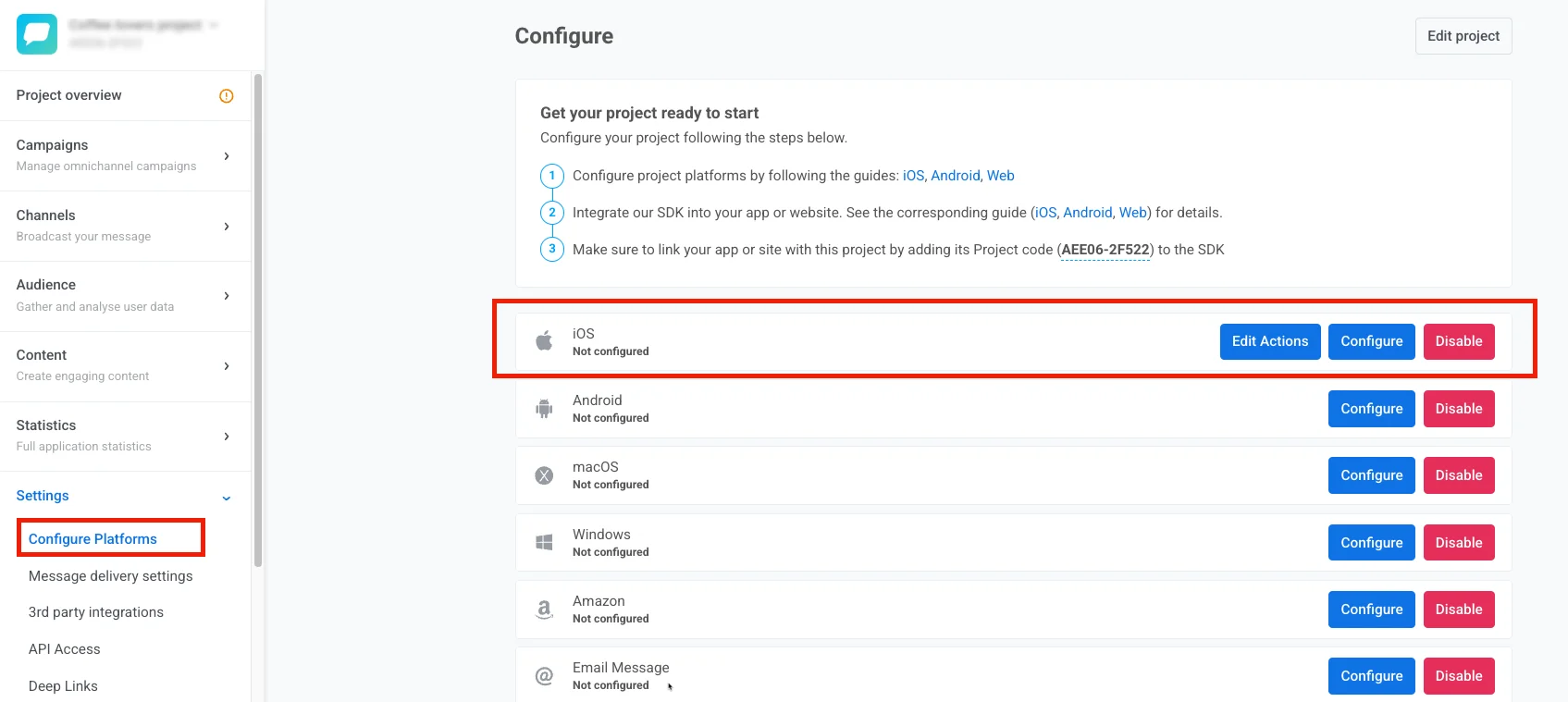
1. In your Pushwoosh project, go to the **Configure Platforms** section and click **Configure** next to the iOS platform.
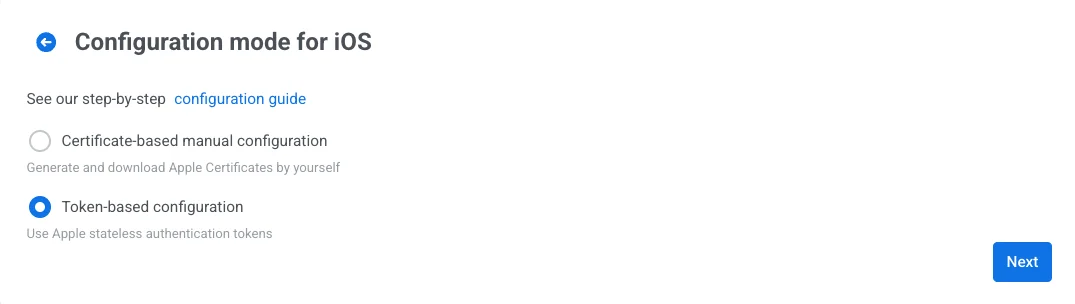
2. In the configuration form that opens, choose **Token-based manual configuration** and click **Next**.
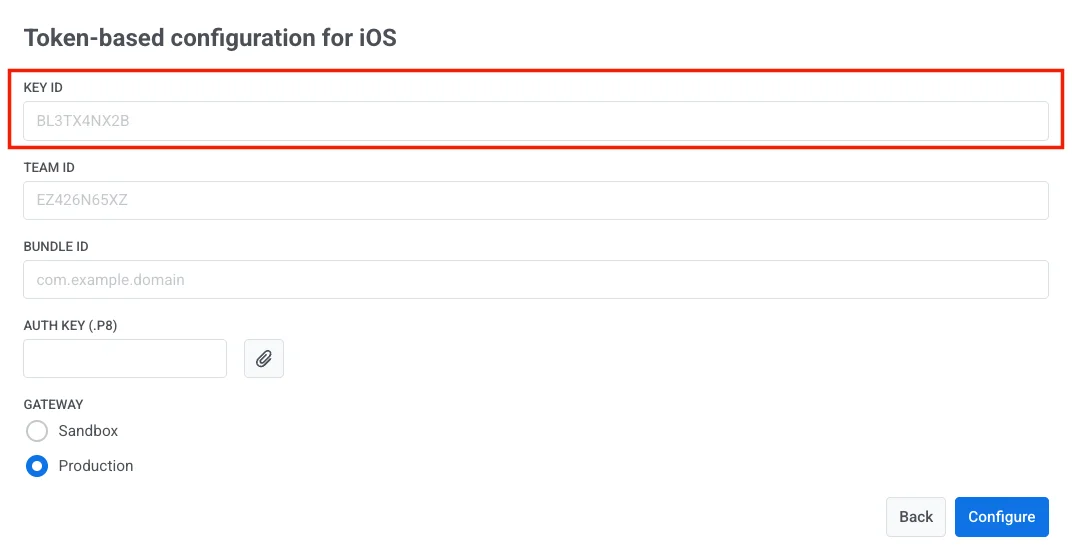
3. Paste the **Key ID** into the appropriate field.
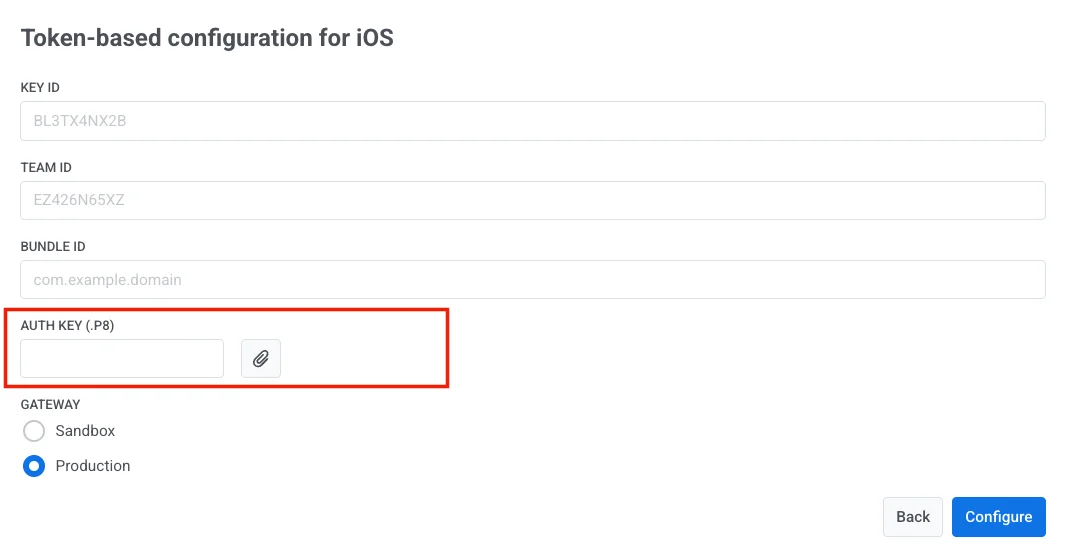
4. Upload the **.p8 signing key file** you downloaded from Apple in the **Auth Key** field.
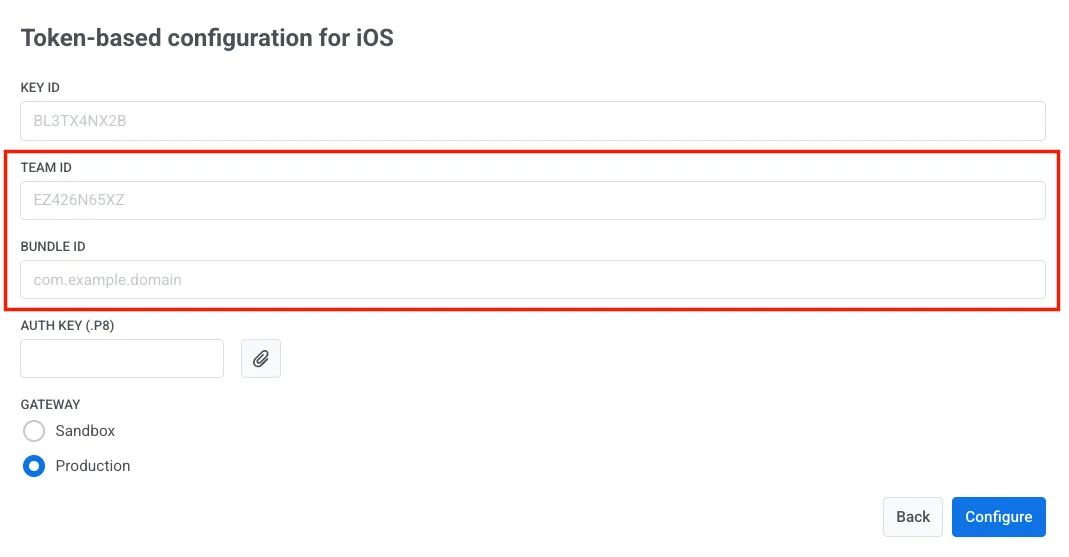
5. Enter your Apple Developer **Team ID** and **Bundle ID**.
> To get your Team ID, go to your Apple Developer account and navigate to the **Membership** section.
>
> You can find a Bundle ID in the **Certificates, Identifiers & Profiles** section of your Apple Developer console.
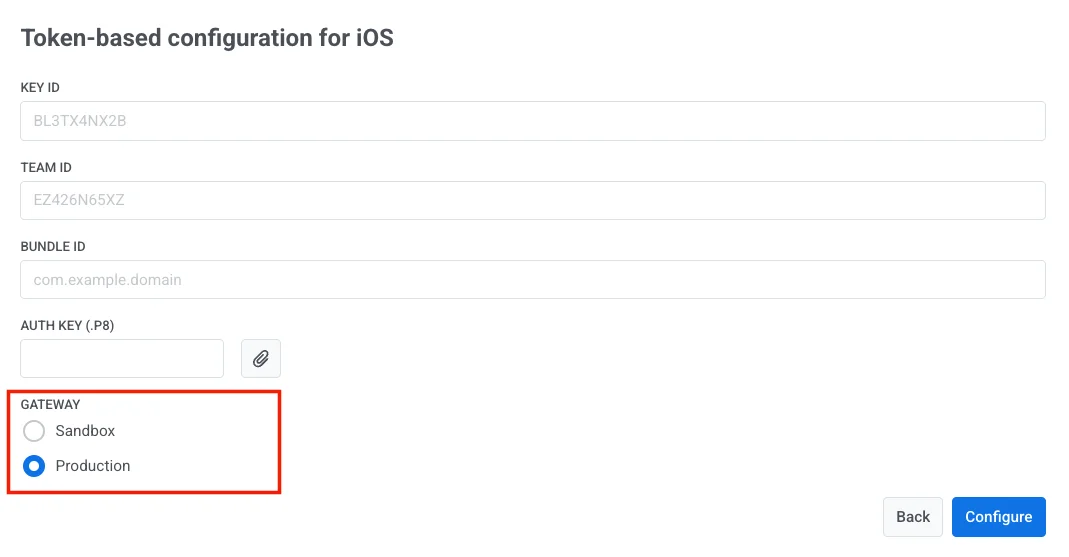
6. Choose the appropriate gateway: **Sandbox** or **Production**.
7. Click **Configure** to complete the setup.
 2. In the configuration form that opens, choose **Token-based manual configuration** and click **Next**.
 3. Paste the **Key ID** into the appropriate field.
 4. Upload the **.p8 signing key file** you downloaded from Apple in the **Auth Key** field.
 5. Enter your Apple Developer **Team ID** and **Bundle ID**.
 > To get your Team ID, go to your Apple Developer account and navigate to the **Membership** section.
>
> You can find a Bundle ID in the **Certificates, Identifiers & Profiles** section of your Apple Developer console.
6. Choose the appropriate gateway: **Sandbox** or **Production**.
> To get your Team ID, go to your Apple Developer account and navigate to the **Membership** section.
>
> You can find a Bundle ID in the **Certificates, Identifiers & Profiles** section of your Apple Developer console.
6. Choose the appropriate gateway: **Sandbox** or **Production**.
 7. Click **Configure** to complete the setup.