# iOS Live Activity schemas configuration
A Live Activity schema describes the content-state fields of one `ActivityAttributes` type your iOS app declares, so a journey's [Live Activity element](/product/customer-journey/journey-elements/channels/live-activity/) can build a form from named fields instead of raw JSON. Publish one version per widget in the Control Panel.
## Publish a schema version
1. Open the **Configure platforms** page of your application in Pushwoosh.
2. Click **Live Activity schemas** next to the iOS platform.

3. Click **Publish version**.
4. Enter the **Attributes type**: the exact name of the `ActivityAttributes` type in your app, for example `FlightAttributes`.
5. In **Content-state JSON Schema**, enter the JSON Schema for that type's `ContentState` — the fields that change while the activity runs, like a flight's gate or status. Don't include `ActivityAttributes`' own fixed fields here. See [Writing a schema](/developer/api-reference/live-activity-schemas-api/#writing-a-schema).
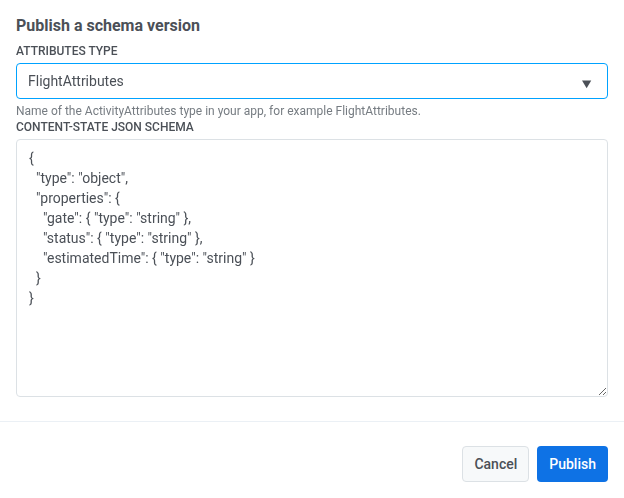
6. Click **Publish**.
## Manage existing schemas
On the same **Live Activity schemas** screen:
* Click **View JSON** next to a version to see its published schema.
* Click **Delete** to remove a version. This can't be undone, and a journey element still set to that version stops rendering its content-state fields.
## Use the schema in a journey
Once published, select it under **Widget** in a journey's [Live Activity element](/product/customer-journey/journey-elements/channels/live-activity/#set-up-the-element) — its content-state fields appear under **Card content**.