# iOS action buttons configuration
iOS interactive notifications let users take an action from the notification banner without opening the app. In Pushwoosh you set this up with **iOS categories**: each category holds one or two buttons that you create in the Control Panel and attach to a push.
## Create a category
1. Open the **Configure platforms** page of your application in Pushwoosh.
2. Click **Action buttons** next to the iOS platform. You can do this before or after the main iOS platform setup.
3. Enter a **Category name**. You will use this name to find the category later.
4. Specify the **Button label**. This is the text on the button. iOS shows up to two lines of text.
5. Select a **Button type**:
* **Destructive:** for actions such as delete, reject, or dismiss.
* **Non-destructive:** for positive or neutral actions.
6. Set a **Button ID**. It must be unique within the category. Your app receives this ID when the user taps the button. See the [Developers' Guide on iOS Interactive Push Notifications](/developer/guides/messaging-channels/ios-interactive-push) for how to read it in the notification delegate.
7. Optionally enable **Launch app on action** to open the app when the user taps the button.
8. To add a second button, click **+** next to the first button and repeat steps 4–7. A category supports up to two buttons. Use **−** to remove the second button.
9. Click **Create** to save the category. It appears in the list below with its **Category ID**.
## Use the category in a push
Once created, attach the category when you send a push via the API, pass the **Category ID** as `ios_category_id` in [`createMessage`](/developer/api-reference/messages-api/#createmessage).
## Example
For a fitness re-engagement push, you might define a category **fitness_reengagement** with:
* **Claim 20% Off** (`claim_offer`): Non-destructive, **Launch app on action** on
* **Maybe Later** (`dismiss`): Destructive, **Launch app on action** off
When the user taps **Claim 20% Off**, the app opens and your code receives `claim_offer`. **Maybe Later** dismisses the notification without opening the app.
 3. Enter a **Category name**. You will use this name to find the category later.
4. Specify the **Button label**. This is the text on the button. iOS shows up to two lines of text.
5. Select a **Button type**:
* **Destructive:** for actions such as delete, reject, or dismiss.
* **Non-destructive:** for positive or neutral actions.
6. Set a **Button ID**. It must be unique within the category. Your app receives this ID when the user taps the button. See the [Developers' Guide on iOS Interactive Push Notifications](/developer/guides/messaging-channels/ios-interactive-push) for how to read it in the notification delegate.
7. Optionally enable **Launch app on action** to open the app when the user taps the button.
8. To add a second button, click **+** next to the first button and repeat steps 4–7. A category supports up to two buttons. Use **−** to remove the second button.
9. Click **Create** to save the category. It appears in the list below with its **Category ID**.
## Use the category in a push
Once created, attach the category when you send a push via the API, pass the **Category ID** as `ios_category_id` in [`createMessage`](/developer/api-reference/messages-api/#createmessage).
## Example
For a fitness re-engagement push, you might define a category **fitness_reengagement** with:
* **Claim 20% Off** (`claim_offer`): Non-destructive, **Launch app on action** on
* **Maybe Later** (`dismiss`): Destructive, **Launch app on action** off
3. Enter a **Category name**. You will use this name to find the category later.
4. Specify the **Button label**. This is the text on the button. iOS shows up to two lines of text.
5. Select a **Button type**:
* **Destructive:** for actions such as delete, reject, or dismiss.
* **Non-destructive:** for positive or neutral actions.
6. Set a **Button ID**. It must be unique within the category. Your app receives this ID when the user taps the button. See the [Developers' Guide on iOS Interactive Push Notifications](/developer/guides/messaging-channels/ios-interactive-push) for how to read it in the notification delegate.
7. Optionally enable **Launch app on action** to open the app when the user taps the button.
8. To add a second button, click **+** next to the first button and repeat steps 4–7. A category supports up to two buttons. Use **−** to remove the second button.
9. Click **Create** to save the category. It appears in the list below with its **Category ID**.
## Use the category in a push
Once created, attach the category when you send a push via the API, pass the **Category ID** as `ios_category_id` in [`createMessage`](/developer/api-reference/messages-api/#createmessage).
## Example
For a fitness re-engagement push, you might define a category **fitness_reengagement** with:
* **Claim 20% Off** (`claim_offer`): Non-destructive, **Launch app on action** on
* **Maybe Later** (`dismiss`): Destructive, **Launch app on action** off
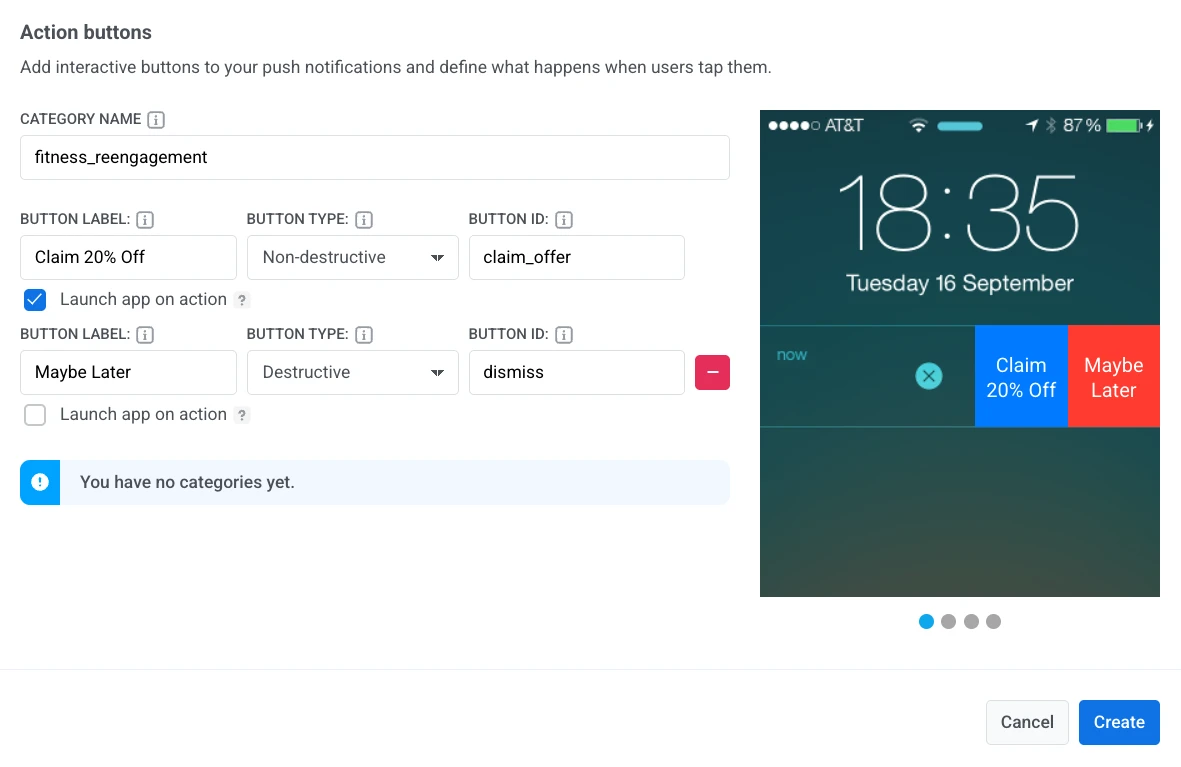 When the user taps **Claim 20% Off**, the app opens and your code receives `claim_offer`. **Maybe Later** dismisses the notification without opening the app.