# Android Firebase configuration
## Get the Firebase **API key**
1. Create a [**Firebase project**](https://firebase.google.com/docs/cloud-messaging/android/client#create_a_firebase_project).
2. Open your [**Firebase Console**](https://console.firebase.google.com/) and choose the project you created.
3. Go to **Your Project** > **Project settings.**
4. In **Service accounts** tab, press **Generate new private key:**
5. In the window opened, press **Generate key**. The JSON file will be downloaded.
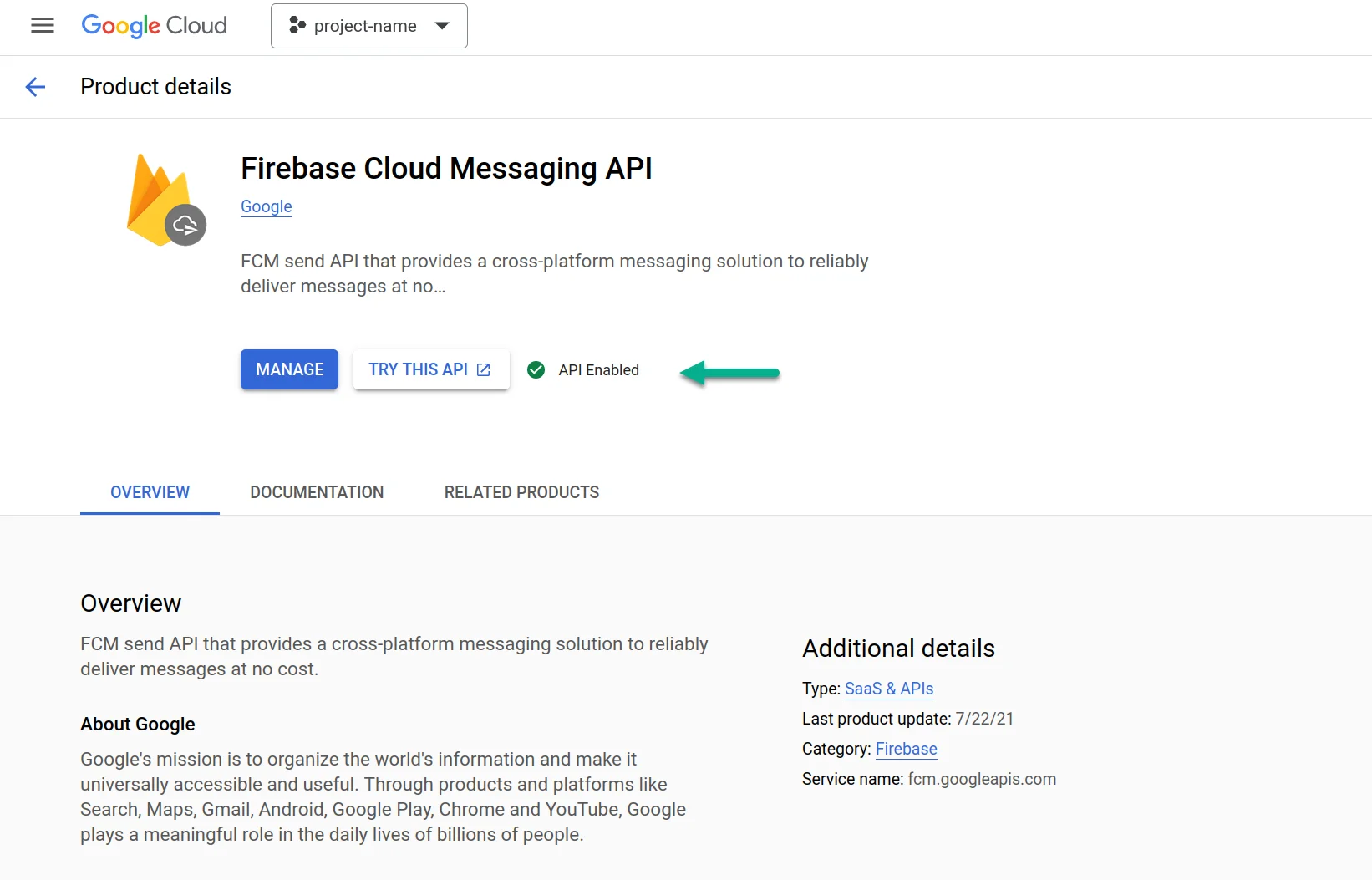
6. Please verify that the API is enabled. If not, please enable it.
1. Visit [https://console.cloud.google.com/apis/library/fcm.googleapis.com](https://console.cloud.google.com/apis/library/fcm.googleapis.com)
2. Select your project.
3. Press **Enable.**
## Configure Android in your Pushwoosh project
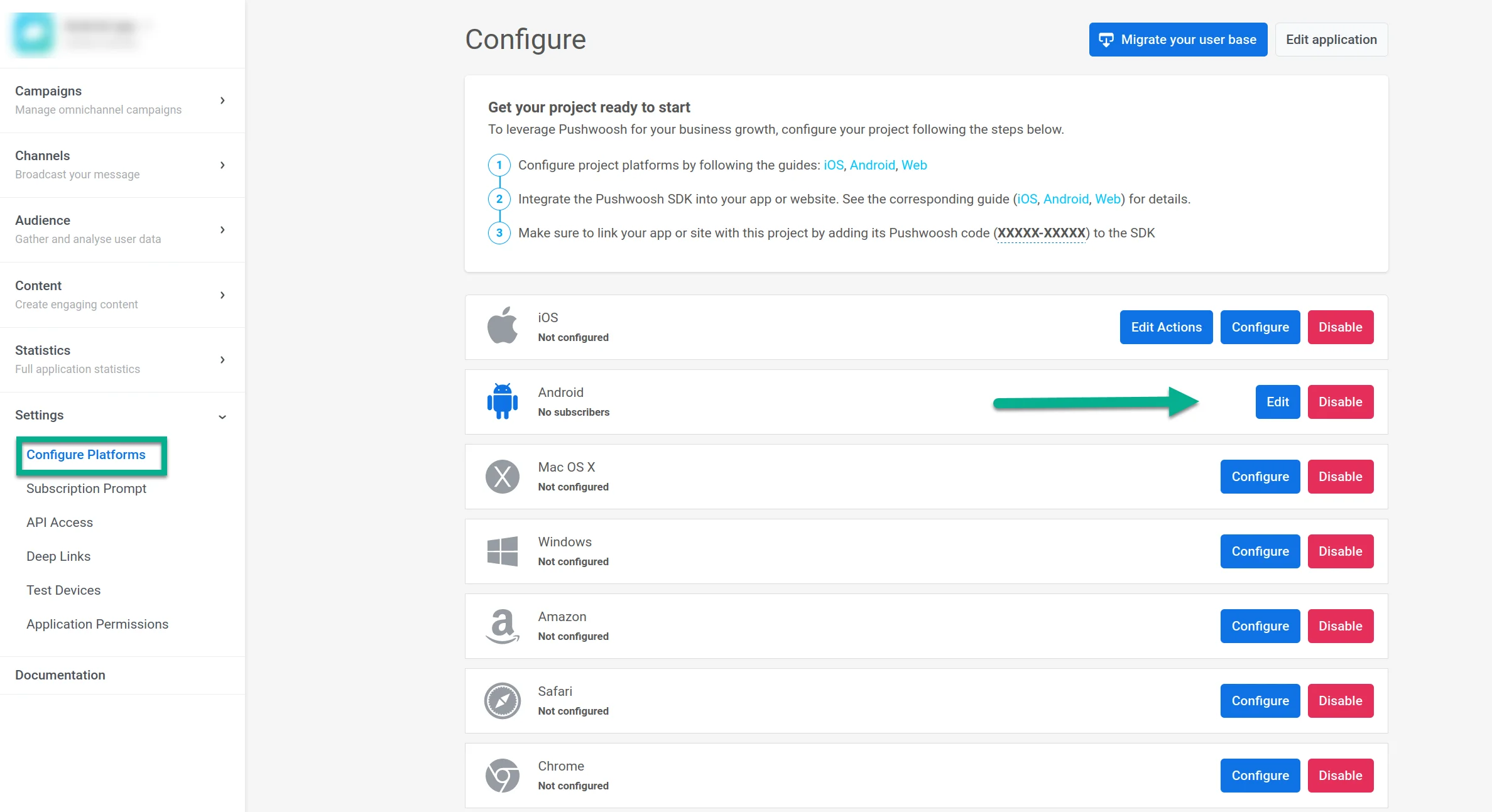
7. Go to your Pushwoosh project. Open **Settings → Configure platforms** and click **Connect** in the **Android** row.
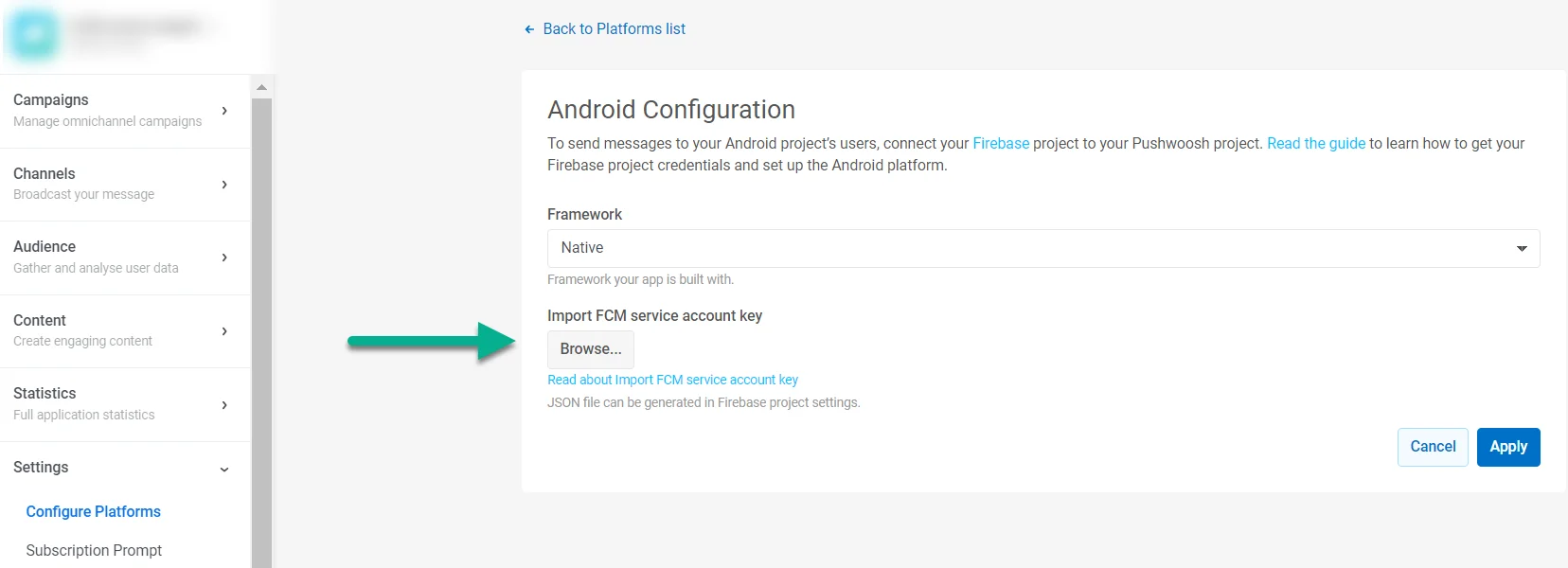
8. In **IMPORT FCM SERVICE ACCOUNT KEY**, upload the JSON private key you downloaded from your Firebase project settings.
9. Click **Apply**.
10. Now you can move on to [integrating the Pushwoosh SDK](/developer/pushwoosh-sdk/android-sdk/firebase-integration/integrate-pushwoosh-android-sdk/)
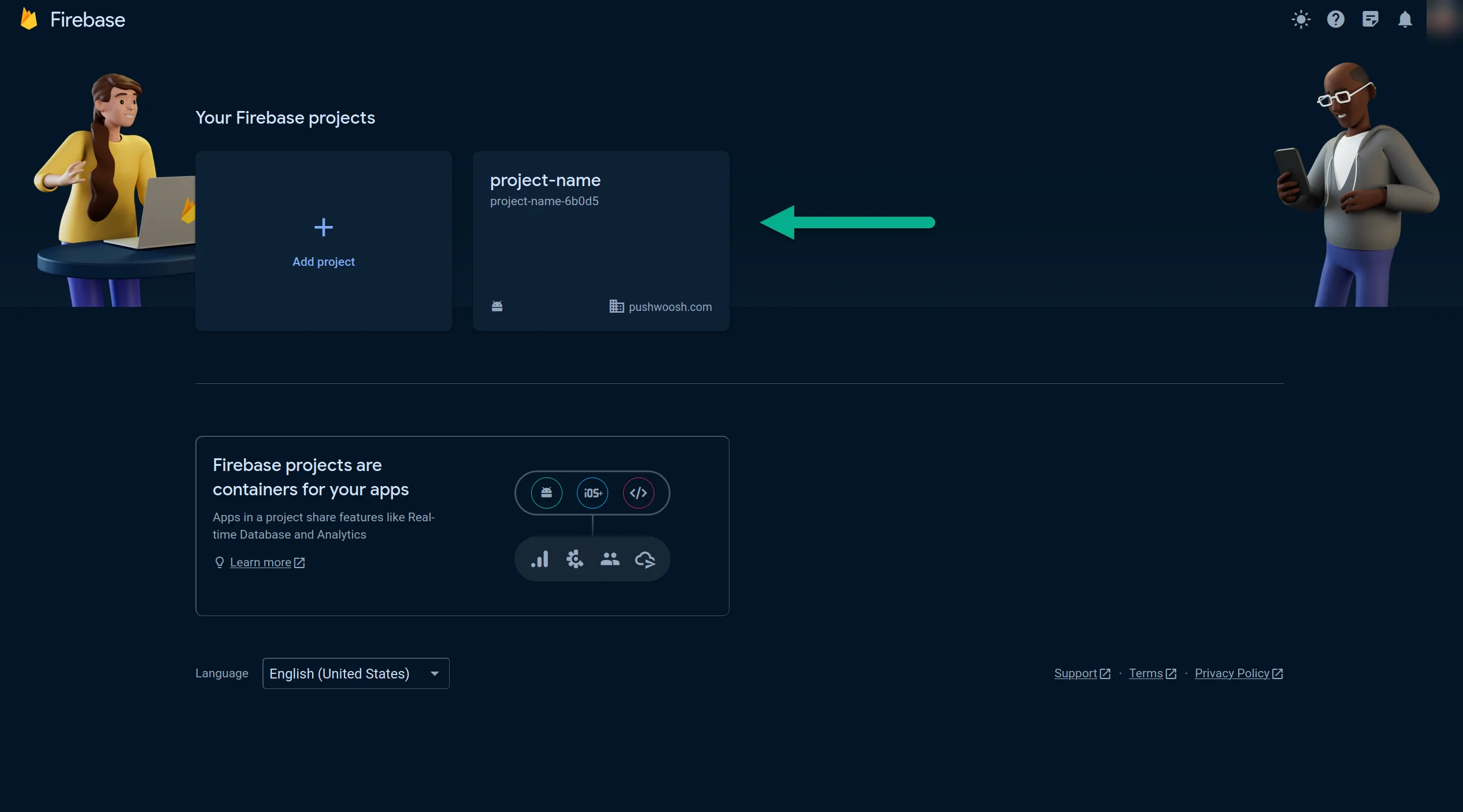 3. Go to **Your Project** > **Project settings.**
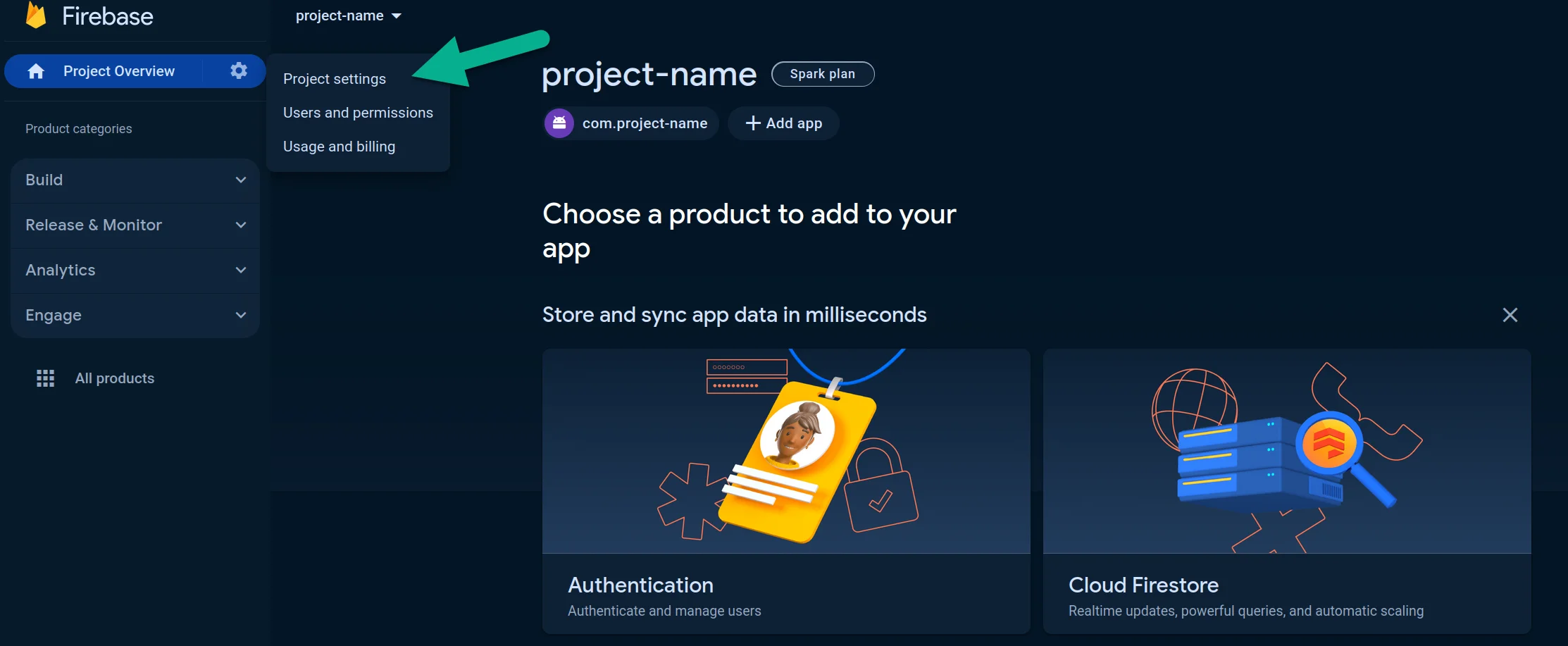 4. In **Service accounts** tab, press **Generate new private key:**
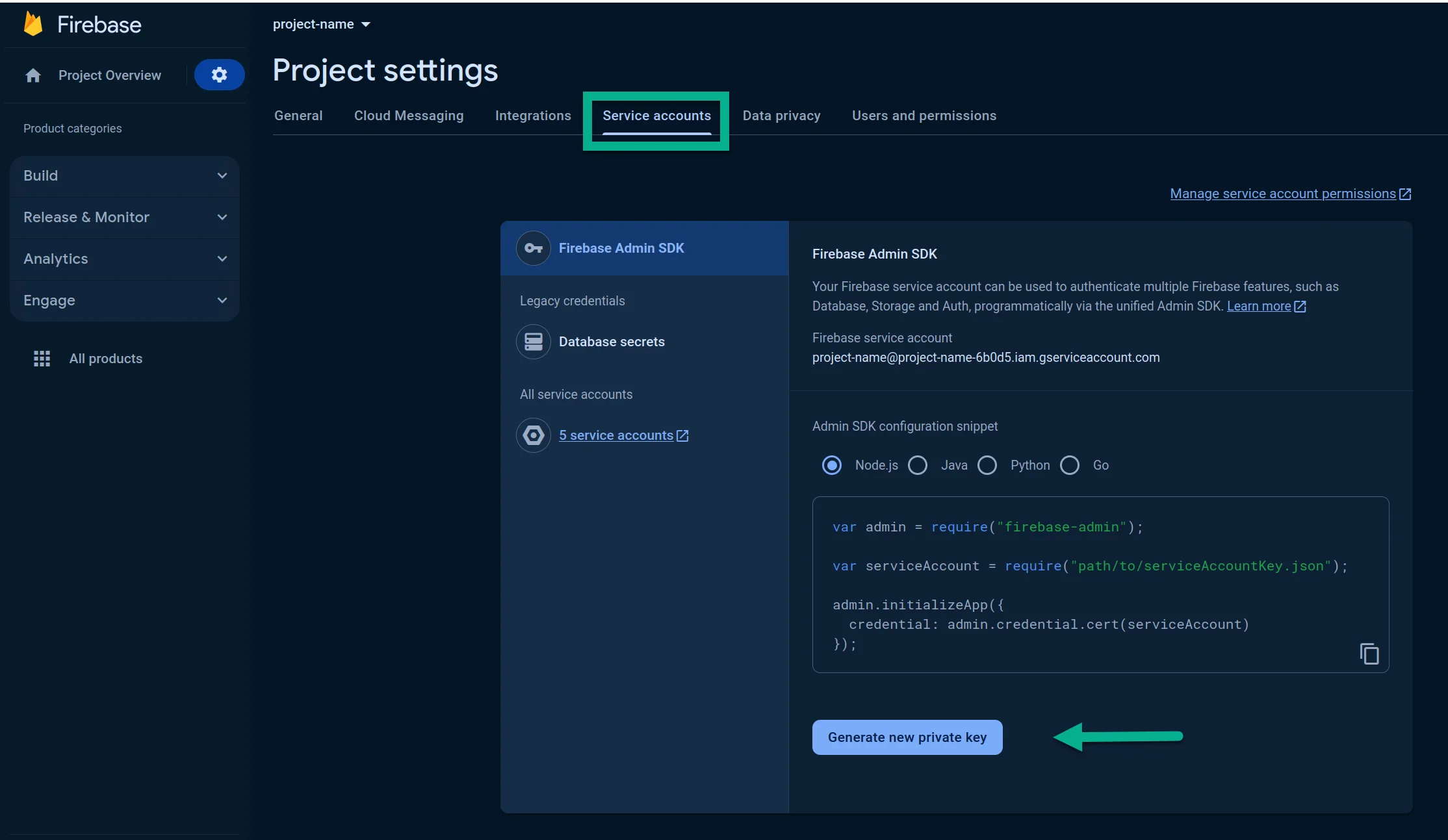 5. In the window opened, press **Generate key**. The JSON file will be downloaded.
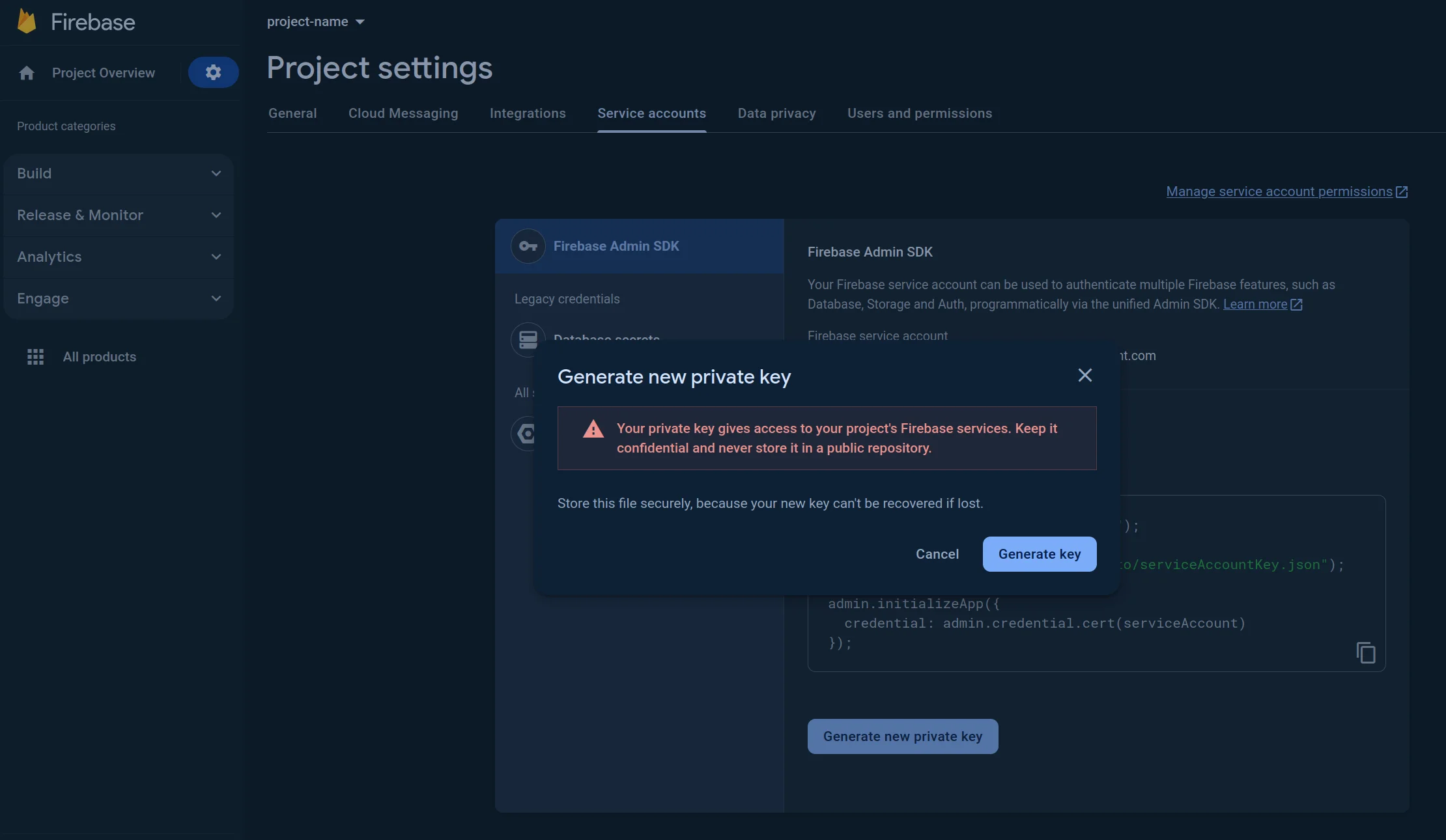 6. Please verify that the API is enabled. If not, please enable it.
1. Visit [https://console.cloud.google.com/apis/library/fcm.googleapis.com](https://console.cloud.google.com/apis/library/fcm.googleapis.com)
2. Select your project.
3. Press **Enable.**
6. Please verify that the API is enabled. If not, please enable it.
1. Visit [https://console.cloud.google.com/apis/library/fcm.googleapis.com](https://console.cloud.google.com/apis/library/fcm.googleapis.com)
2. Select your project.
3. Press **Enable.**
 ## Configure Android in your Pushwoosh project
7. Go to your Pushwoosh project. Open **Settings → Configure platforms** and click **Connect** in the **Android** row.
## Configure Android in your Pushwoosh project
7. Go to your Pushwoosh project. Open **Settings → Configure platforms** and click **Connect** in the **Android** row.
 8. In **IMPORT FCM SERVICE ACCOUNT KEY**, upload the JSON private key you downloaded from your Firebase project settings.
 9. Click **Apply**.
10. Now you can move on to [integrating the Pushwoosh SDK](/developer/pushwoosh-sdk/android-sdk/firebase-integration/integrate-pushwoosh-android-sdk/)
9. Click **Apply**.
10. Now you can move on to [integrating the Pushwoosh SDK](/developer/pushwoosh-sdk/android-sdk/firebase-integration/integrate-pushwoosh-android-sdk/)