# Amazon Device Messaging configuration
To send push notifications to Amazon devices, configure the Amazon platform in Pushwoosh with your ADM OAuth credentials.
## Get Client ID and Client Secret from Amazon
1. Sign in to the [Amazon Developer Console](https://developer.amazon.com/dashboard) and open **My Apps**.
2. Select your app (or create one) and go to **App Services**.
3. Under **Device Messaging**, select your security profile or create a new one.
4. Click **View Security Profile**, then open the **Web Settings** tab.
5. Copy **Client ID** and click **Show Secret** to reveal **Client Secret**.
For details on security profiles and API keys for your app, see [Obtain credentials (Amazon Device Messaging)](https://developer.amazon.com/docs/adm/obtain-credentials.html).
## Configure Amazon in your Pushwoosh project
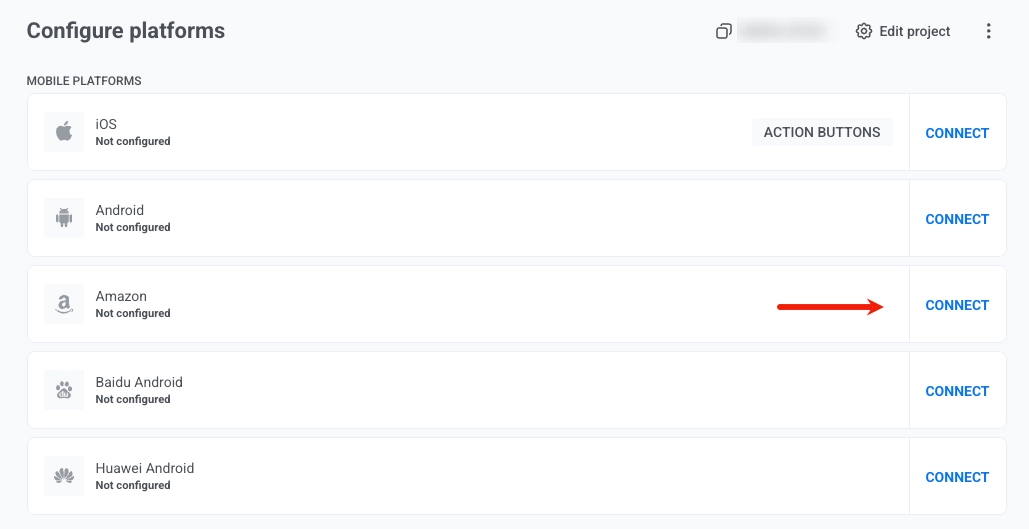
1. In your Pushwoosh project, go to **Configure Platforms** and click **Connect** next to **Amazon**.
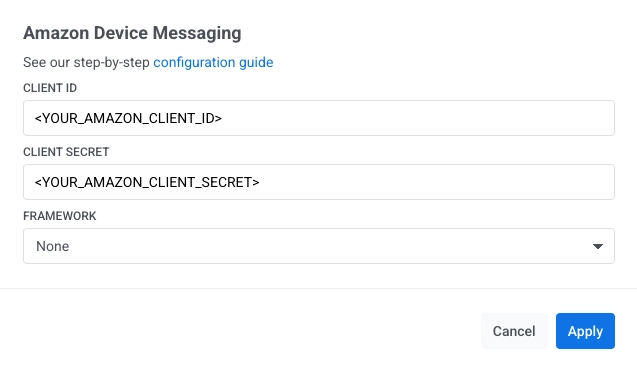
2. In the **Amazon Device Messaging** form, enter your credentials:
* **CLIENT ID:** paste the Client ID from Amazon Developer Console.
* **CLIENT SECRET:** paste the Client Secret from Amazon Developer Console.
* **FRAMEWORK:** select **None**, **Native**, **Unity**, **Adobe AIR**, or **React Native** depending on how you integrate the SDK.
3. Click **Apply**.
To integrate the Pushwoosh SDK into your Amazon app:
 2. In the **Amazon Device Messaging** form, enter your credentials:
* **CLIENT ID:** paste the Client ID from Amazon Developer Console.
* **CLIENT SECRET:** paste the Client Secret from Amazon Developer Console.
* **FRAMEWORK:** select **None**, **Native**, **Unity**, **Adobe AIR**, or **React Native** depending on how you integrate the SDK.
2. In the **Amazon Device Messaging** form, enter your credentials:
* **CLIENT ID:** paste the Client ID from Amazon Developer Console.
* **CLIENT SECRET:** paste the Client Secret from Amazon Developer Console.
* **FRAMEWORK:** select **None**, **Native**, **Unity**, **Adobe AIR**, or **React Native** depending on how you integrate the SDK.
 3. Click **Apply**.
To integrate the Pushwoosh SDK into your Amazon app:
3. Click **Apply**.
To integrate the Pushwoosh SDK into your Amazon app: