# InboxUI mit Swift Package Manager einrichten
1\. Öffnen Sie Ihr Projekt in Xcode und navigieren Sie zu den Projekteinstellungen -> Package Dependencies und klicken Sie dann auf die Schaltfläche „+“.
2\. Geben Sie die folgende Paket-URL ein:
```bash
https://github.com/Pushwoosh/PushwooshInboxUI-XCFramework
```
3\. Stellen Sie die „Dependency Rule“ auf **Branch** und **main** ein. Klicken Sie dann auf die Schaltfläche „**Add Package**“.
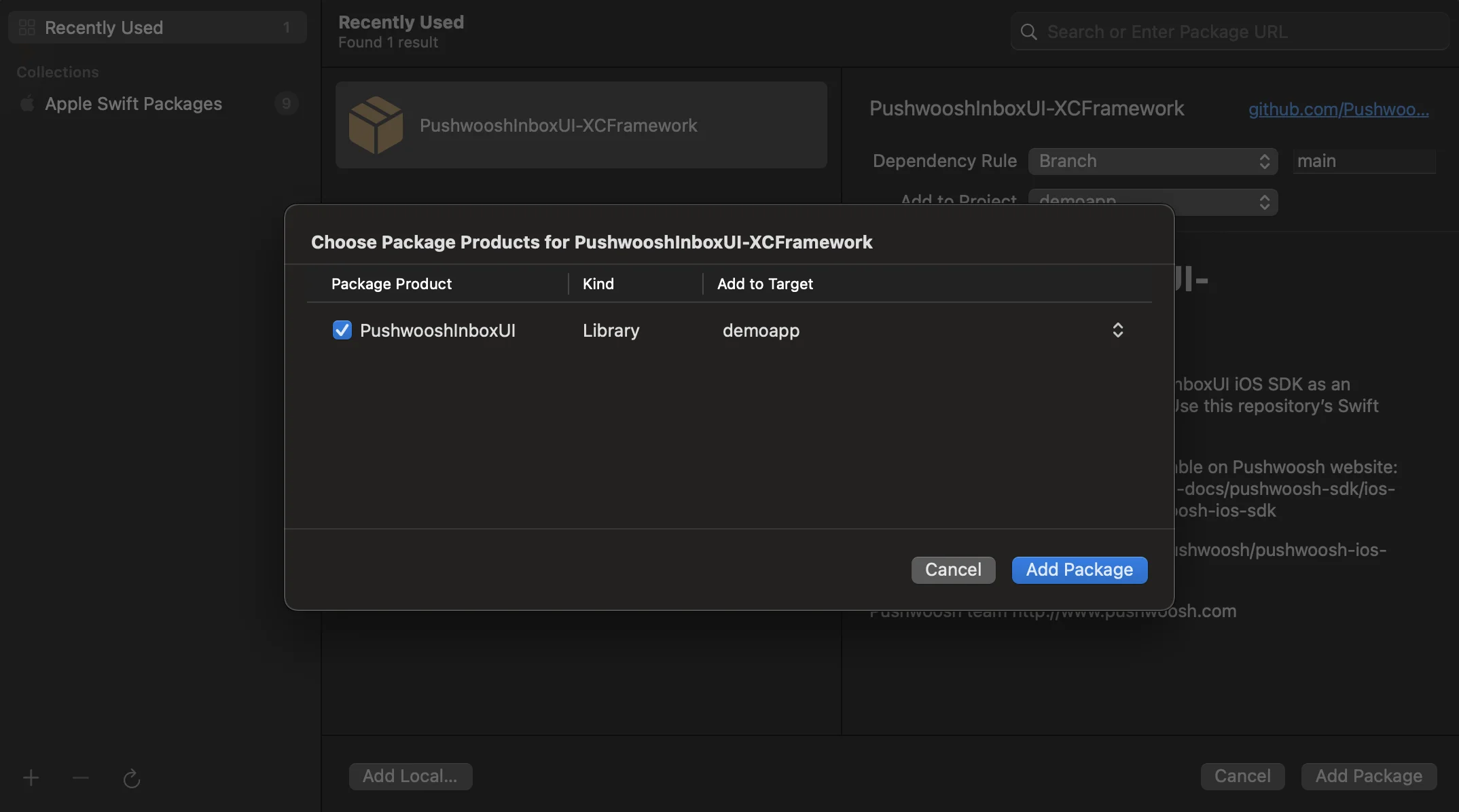
4\. Wählen Sie auf dem nächsten Bildschirm zur Auswahl Ihres Pakets das Pushwoosh-Paket aus und fügen Sie das **Paket** zu Ihrem Haupt-App-Ziel hinzu.
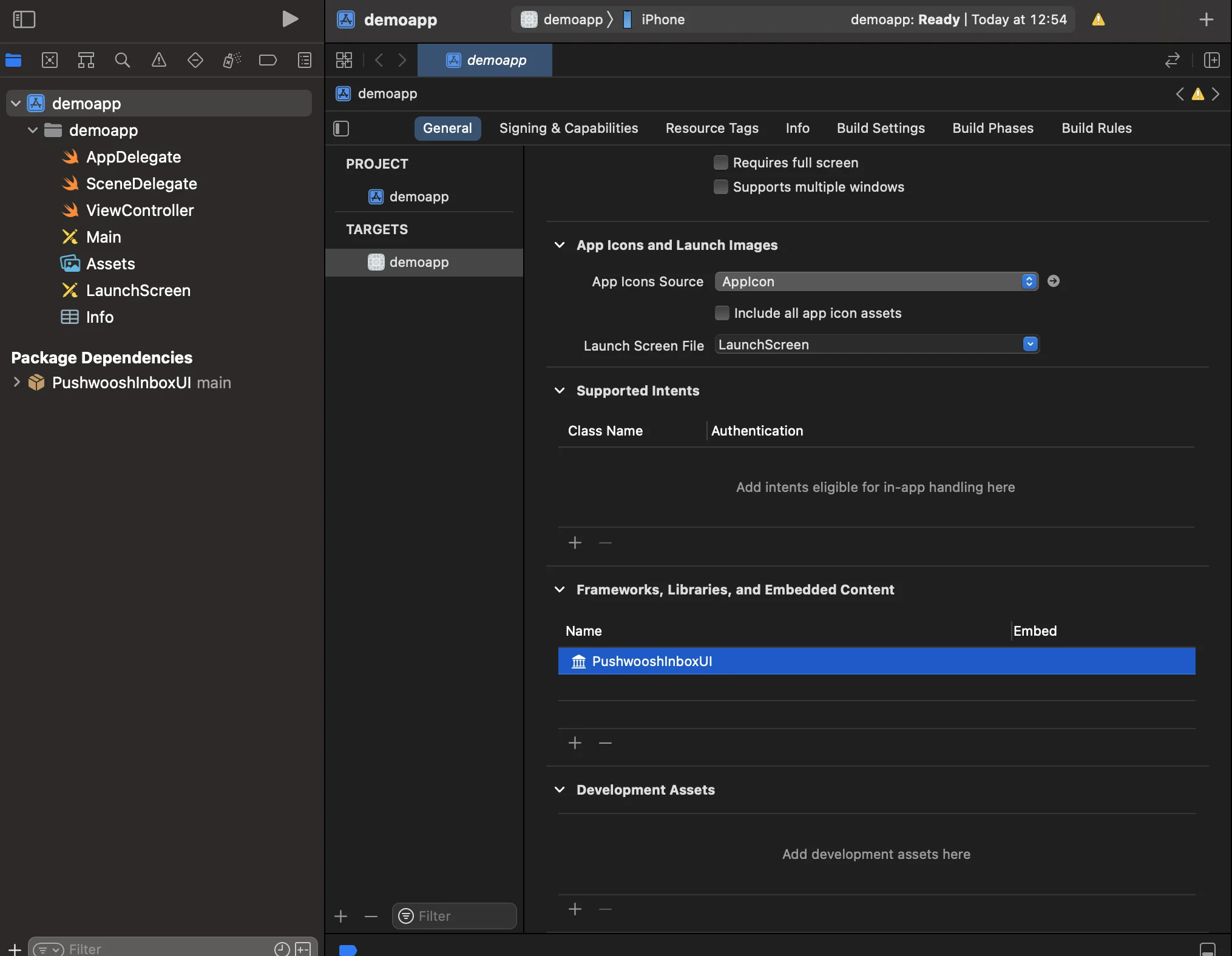
5\. Öffnen Sie Ihr Haupt-App-Ziel und stellen Sie unter „Frameworks, Libraries, and Embedded Content“ sicher, dass PushwooshInboxUI hinzugefügt wurde.
6\. Das war's! Sie haben gerade das Pushwoosh InboxUI SDK in Ihr Projekt integriert.
## Pushwoosh InboxUI-Code hinzufügen
Um die Inbox-Benutzeroberfläche in Ihrer App anzuzeigen, fügen Sie den Inbox-View-Controller hinzu:
```swift
self.navigationController?.pushViewController(PWIInboxUI.createInboxController(with: PWIInboxStyle.default()), animated: true)
```
```objective-c
[self.navigationController pushViewController:[PWIInboxUI createInboxControllerWithStyle:[PWIInboxStyle defaultStyle]] animated:YES];
```
Um die Inbox an das Erscheinungsbild Ihrer App anzupassen, ändern Sie die Parameter von `PWIInboxStyle`. Sie können Parameter wie Schriftart, Hintergrundfarbe usw. anpassen.
```swift
//creating a new Inbox style
let inboxStyle = PWIInboxStyle.customStyle(withDefaultImageIcon: UIImage.init(named: "custom_image"),
textColor: UIColor.darkText,
accentColor: UIColor.blue,
font: UIFont.systemFont(ofSize: 17))
inboxStyle?.backgroundColor = UIColor.init(white: 1, alpha: 1)
inboxStyle?.listErrorMessage = NSLocalizedString("Custom error message", comment: "Custom error message")
inboxStyle?.listEmptyMessage = NSLocalizedString("Custom empty message", comment: "Custom empty message")
PWIInboxStyle.setupDefaultStyle(inboxStyle)
```
```objective-c
//creating a new Inbox style
PWIInboxStyle *inboxStyle = [PWIInboxStyle customStyleWithDefaultImageIcon:[UIImage imageNamed:@"custom_image"]
textColor:UIColor.darkTextColor
accentColor:UIColor.blueColor
font:[UIFont systemFontOfSize:17]];
inboxStyle.backgroundColor = [UIColor colorWithWhite:1 alpha:1];
inboxStyle.listErrorMessage = NSLocalizedString(@"Custom error message", @"Custom error message");
inboxStyle.listEmptyMessage = NSLocalizedString(@"Custom empty message", @"Custom empty message");
[PWIInboxStyle setupDefaultStyle:inboxStyle];
```
## Anpassung
Informationen zur Anpassung des Stils der Inbox-Benutzeroberfläche finden Sie unter:
Weitere Details finden Sie im [Inbox-Beispiel](https://github.com/Pushwoosh/pushwoosh-quickstart-ios/tree/main/inbox).
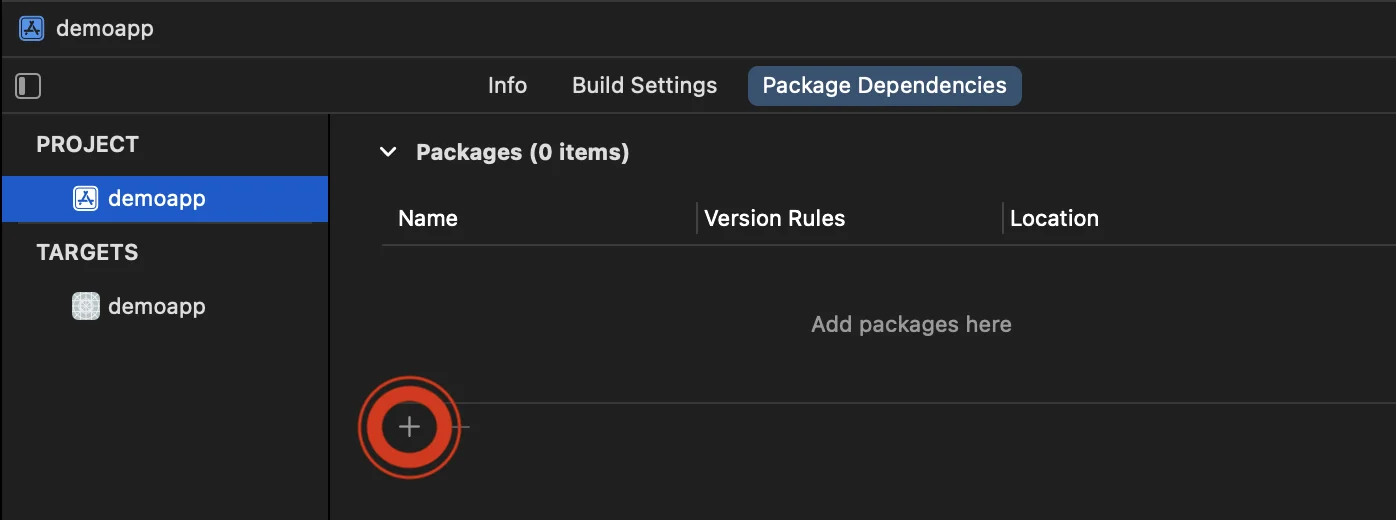 2\. Geben Sie die folgende Paket-URL ein:
```bash
https://github.com/Pushwoosh/PushwooshInboxUI-XCFramework
```
3\. Stellen Sie die „Dependency Rule“ auf **Branch** und **main** ein. Klicken Sie dann auf die Schaltfläche „**Add Package**“.
2\. Geben Sie die folgende Paket-URL ein:
```bash
https://github.com/Pushwoosh/PushwooshInboxUI-XCFramework
```
3\. Stellen Sie die „Dependency Rule“ auf **Branch** und **main** ein. Klicken Sie dann auf die Schaltfläche „**Add Package**“.
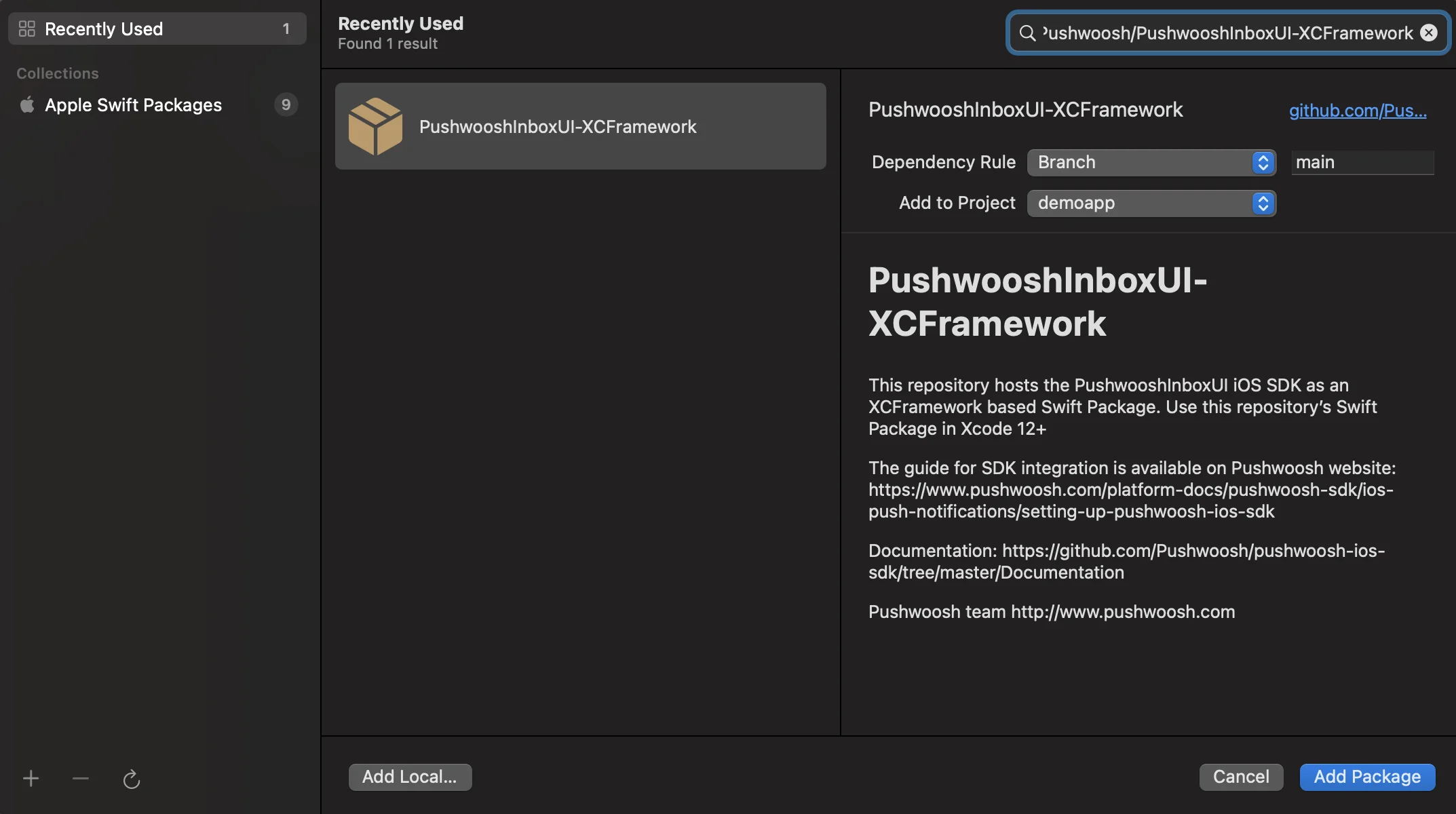 4\. Wählen Sie auf dem nächsten Bildschirm zur Auswahl Ihres Pakets das Pushwoosh-Paket aus und fügen Sie das **Paket** zu Ihrem Haupt-App-Ziel hinzu.
 5\. Öffnen Sie Ihr Haupt-App-Ziel und stellen Sie unter „Frameworks, Libraries, and Embedded Content“ sicher, dass PushwooshInboxUI hinzugefügt wurde.
 6\. Das war's! Sie haben gerade das Pushwoosh InboxUI SDK in Ihr Projekt integriert.
## Pushwoosh InboxUI-Code hinzufügen
Um die Inbox-Benutzeroberfläche in Ihrer App anzuzeigen, fügen Sie den Inbox-View-Controller hinzu:
6\. Das war's! Sie haben gerade das Pushwoosh InboxUI SDK in Ihr Projekt integriert.
## Pushwoosh InboxUI-Code hinzufügen
Um die Inbox-Benutzeroberfläche in Ihrer App anzuzeigen, fügen Sie den Inbox-View-Controller hinzu: