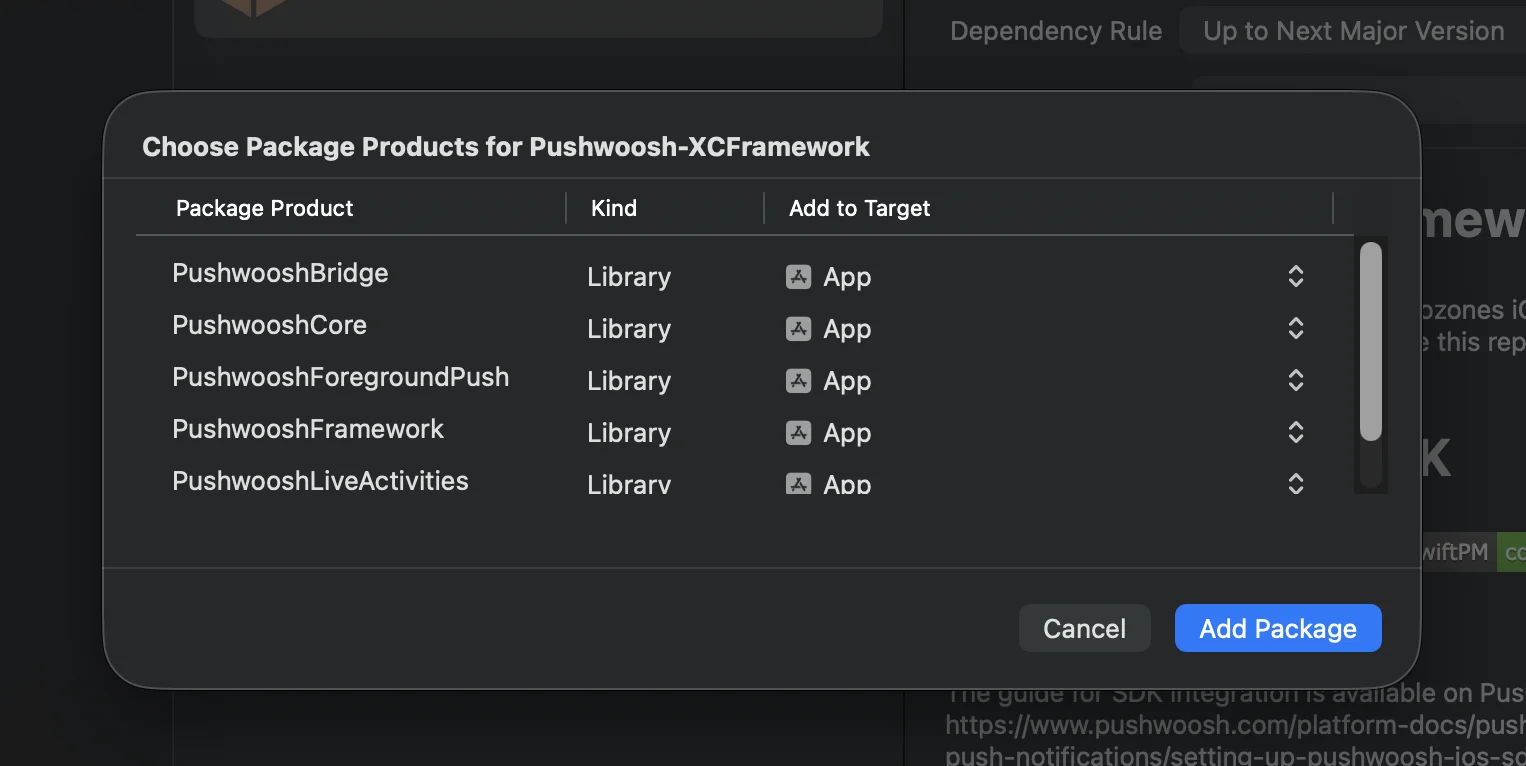
 **কোকোপডস**
```bash
# Uncomment the next line to define a global platform for your project
# platform :ios, '13.0'
target 'MyApp' do
# Comment the next line if you don't want to use dynamic frameworks
use_frameworks!
pod 'PushwooshXCFramework'
pod 'PushwooshFramework/PushwooshForegroundPush'
end
```
### ৩. AppDelegate-এ `PushwooshForegroundPush` কনফিগারেশন যোগ করুন
```swift
import UIKit
import PushwooshFramework
import PushwooshForegroundPush
@main
class AppDelegate: UIResponder, UIApplicationDelegate, PWMessagingDelegate, PWForegroundPushDelegate {
func application(_ application: UIApplication, didFinishLaunchingWithOptions launchOptions: [UIApplication.LaunchOptionsKey: Any]?) -> Bool {
Pushwoosh.ForegroundPush.foregroundNotificationWith(style: .style1,
duration: 5,
vibration: .notification,
disappearedPushAnimation: .balls)
Pushwoosh.ForegroundPush.delegate = self
return true
}
func pushwoosh(_ pushwoosh: Pushwoosh, onMessageReceived message: PWMessage) {
if let payload = message.payload {
// Pushwoosh method
Pushwoosh.ForegroundPush.showForegroundPush(userInfo: payload)
}
}
}
```
`foregroundNotificationWith` মেথড ব্যবহার করে
`foregroundNotificationWith` মেথডটি আপনাকে কনফিগারযোগ্য স্টাইল, সময়কাল এবং হ্যাপটিক ফিডব্যাক সহ একটি কাস্টম ফোরগ্রাউন্ড পুশ নোটিফিকেশন প্রদর্শন করতে দেয়।
মেথড সিগনেচার (সুইফট / অবজেক্টিভ-সি):
```swift
@objc
static func foregroundNotificationWith(
style: PWForegroundPushStyle,
duration: Int,
vibration: PWForegroundPushHapticFeedback,
disappearedPushAnimation: PWForegroundPushDisappearedAnimation
)
```
`প্যারামিটার:`
1. `style` (`PWForegroundPushStyle`)
* বর্তমানে, শুধুমাত্র `style1` উপলব্ধ।
2. `duration` (`Int`)
* নোটিফিকেশনটি অদৃশ্য হওয়ার আগে কতক্ষণ প্রদর্শিত হবে তা নির্দিষ্ট করে (সেকেন্ডে)।
3. `vibration` (`PWForegroundPushHapticFeedback`)
* নোটিফিকেশন প্রদর্শিত হলে হ্যাপটিক ফিডব্যাক নিয়ন্ত্রণ করে। উপলব্ধ বিকল্পগুলি:
```swift
case none // কোনো ভাইব্রেশন নেই
case light // হালকা ভাইব্রেশন
case medium // মাঝারি ভাইব্রেশন
case heavy // ভারী ভাইব্রেশন
case soft // নরম ভাইব্রেশন
case rigid // অনমনীয় ভাইব্রেশন
case notification // স্ট্যান্ডার্ড নোটিফিকেশন ভাইব্রেশন
```
4. `disappearedPushAnimation` (`PWForegroundPushDisappearedAnimation`)
* পুশ অদৃশ্য হওয়ার অ্যানিমেশন
```swift
case balls = 0
case regularPush
```
### ৪. `didTapForegroundPush` ডেলিগেট মেথড প্রয়োগ করা
কাস্টম ফোরগ্রাউন্ড পুশ নোটিফিকেশনে ব্যবহারকারীর ট্যাপ পরিচালনা করতে, `PWForegroundPushDelegate` প্রোটোকল মেথডটি প্রয়োগ করুন:
```swift
// ফোরগ্রাউন্ড পুশে ট্যাপ হ্যান্ডেল করুন
func didTapForegroundPush(_ userInfo: [AnyHashable : Any]) {
print("Foreground custom push: \(userInfo)")
// যেকোনো অ্যাকশন সম্পাদন করুন, যেমন, একটি নির্দিষ্ট স্ক্রিনে নেভিগেট করুন
// navigateToScreen(for: userInfo)
}
```
নোট:
* ব্যবহারকারী যখন একটি কাস্টম ফোরগ্রাউন্ড পুশে ট্যাপ করে তখন এই মেথডটি কল করা হয়।
* `userInfo`-তে নোটিফিকেশনের পেলোড থাকে।
* কনফিগারেশনের পরে `Pushwoosh.ForegroundPush.delegate = self` সেট করতে ভুলবেন না।
### ৫. ফোরগ্রাউন্ড পুশ নোটিফিকেশন কাস্টমাইজ করার জন্য ঐচ্ছিক প্যারামিটার
`PushwooshForegroundPush` মডিউলটি আপনার ফোরগ্রাউন্ড পুশ নোটিফিকেশনের চেহারা এবং আচরণ কাস্টমাইজ করার জন্য বেশ কিছু ঐচ্ছিক প্যারামিটার সরবরাহ করে। এগুলি স্ট্যাটিক প্রপার্টির মাধ্যমে বিশ্বব্যাপী সেট করা যেতে পারে।
**কোকোপডস**
```bash
# Uncomment the next line to define a global platform for your project
# platform :ios, '13.0'
target 'MyApp' do
# Comment the next line if you don't want to use dynamic frameworks
use_frameworks!
pod 'PushwooshXCFramework'
pod 'PushwooshFramework/PushwooshForegroundPush'
end
```
### ৩. AppDelegate-এ `PushwooshForegroundPush` কনফিগারেশন যোগ করুন
```swift
import UIKit
import PushwooshFramework
import PushwooshForegroundPush
@main
class AppDelegate: UIResponder, UIApplicationDelegate, PWMessagingDelegate, PWForegroundPushDelegate {
func application(_ application: UIApplication, didFinishLaunchingWithOptions launchOptions: [UIApplication.LaunchOptionsKey: Any]?) -> Bool {
Pushwoosh.ForegroundPush.foregroundNotificationWith(style: .style1,
duration: 5,
vibration: .notification,
disappearedPushAnimation: .balls)
Pushwoosh.ForegroundPush.delegate = self
return true
}
func pushwoosh(_ pushwoosh: Pushwoosh, onMessageReceived message: PWMessage) {
if let payload = message.payload {
// Pushwoosh method
Pushwoosh.ForegroundPush.showForegroundPush(userInfo: payload)
}
}
}
```
`foregroundNotificationWith` মেথড ব্যবহার করে
`foregroundNotificationWith` মেথডটি আপনাকে কনফিগারযোগ্য স্টাইল, সময়কাল এবং হ্যাপটিক ফিডব্যাক সহ একটি কাস্টম ফোরগ্রাউন্ড পুশ নোটিফিকেশন প্রদর্শন করতে দেয়।
মেথড সিগনেচার (সুইফট / অবজেক্টিভ-সি):
```swift
@objc
static func foregroundNotificationWith(
style: PWForegroundPushStyle,
duration: Int,
vibration: PWForegroundPushHapticFeedback,
disappearedPushAnimation: PWForegroundPushDisappearedAnimation
)
```
`প্যারামিটার:`
1. `style` (`PWForegroundPushStyle`)
* বর্তমানে, শুধুমাত্র `style1` উপলব্ধ।
2. `duration` (`Int`)
* নোটিফিকেশনটি অদৃশ্য হওয়ার আগে কতক্ষণ প্রদর্শিত হবে তা নির্দিষ্ট করে (সেকেন্ডে)।
3. `vibration` (`PWForegroundPushHapticFeedback`)
* নোটিফিকেশন প্রদর্শিত হলে হ্যাপটিক ফিডব্যাক নিয়ন্ত্রণ করে। উপলব্ধ বিকল্পগুলি:
```swift
case none // কোনো ভাইব্রেশন নেই
case light // হালকা ভাইব্রেশন
case medium // মাঝারি ভাইব্রেশন
case heavy // ভারী ভাইব্রেশন
case soft // নরম ভাইব্রেশন
case rigid // অনমনীয় ভাইব্রেশন
case notification // স্ট্যান্ডার্ড নোটিফিকেশন ভাইব্রেশন
```
4. `disappearedPushAnimation` (`PWForegroundPushDisappearedAnimation`)
* পুশ অদৃশ্য হওয়ার অ্যানিমেশন
```swift
case balls = 0
case regularPush
```
### ৪. `didTapForegroundPush` ডেলিগেট মেথড প্রয়োগ করা
কাস্টম ফোরগ্রাউন্ড পুশ নোটিফিকেশনে ব্যবহারকারীর ট্যাপ পরিচালনা করতে, `PWForegroundPushDelegate` প্রোটোকল মেথডটি প্রয়োগ করুন:
```swift
// ফোরগ্রাউন্ড পুশে ট্যাপ হ্যান্ডেল করুন
func didTapForegroundPush(_ userInfo: [AnyHashable : Any]) {
print("Foreground custom push: \(userInfo)")
// যেকোনো অ্যাকশন সম্পাদন করুন, যেমন, একটি নির্দিষ্ট স্ক্রিনে নেভিগেট করুন
// navigateToScreen(for: userInfo)
}
```
নোট:
* ব্যবহারকারী যখন একটি কাস্টম ফোরগ্রাউন্ড পুশে ট্যাপ করে তখন এই মেথডটি কল করা হয়।
* `userInfo`-তে নোটিফিকেশনের পেলোড থাকে।
* কনফিগারেশনের পরে `Pushwoosh.ForegroundPush.delegate = self` সেট করতে ভুলবেন না।
### ৫. ফোরগ্রাউন্ড পুশ নোটিফিকেশন কাস্টমাইজ করার জন্য ঐচ্ছিক প্যারামিটার
`PushwooshForegroundPush` মডিউলটি আপনার ফোরগ্রাউন্ড পুশ নোটিফিকেশনের চেহারা এবং আচরণ কাস্টমাইজ করার জন্য বেশ কিছু ঐচ্ছিক প্যারামিটার সরবরাহ করে। এগুলি স্ট্যাটিক প্রপার্টির মাধ্যমে বিশ্বব্যাপী সেট করা যেতে পারে।
| প্রপার্টি | টাইপ | বিবরণ | ডিফল্ট |
|---|---|---|---|
| useLiquidView | Bool | iOS 26-এ লিকুইড গ্লাস ভিউ ব্যবহার করুন। | false |
| gradientColors | [UIColor]? | গ্রেডিয়েন্ট ব্যাকগ্রাউন্ডের জন্য রঙের ঐচ্ছিক অ্যারে। | nil |
| backgroundColor | UIColor? | পুশের জন্য ব্যাকগ্রাউন্ডের রঙ। যদি nil হয় এবং gradientColors সেট করা না থাকে, তাহলে ডিফল্ট গ্রেডিয়েন্ট ব্যবহৃত হয়। | ডিফল্ট সিস্টেম গ্রেডিয়েন্ট |
| usePushAnimation | Bool | পুশ প্রদর্শিত হওয়ার সময় অ্যানিমেট করা হবে কিনা। | true |
| titlePushColor | UIColor? | নোটিফিকেশন শিরোনামের টেক্সটের রঙ। nil হলে ডিফল্ট সিস্টেম সাদা রঙ ব্যবহৃত হয়। | white |
| messagePushColor | UIColor? | নোটিফিকেশন বার্তার টেক্সটের রঙ। nil হলে ডিফল্ট সিস্টেম সাদা রঙ ব্যবহৃত হয়। | white |
| titlePushFont | UIFont? | নোটিফিকেশন শিরোনামের টেক্সটের ফন্ট। nil হলে ডিফল্ট সিস্টেম ফন্ট ব্যবহৃত হয়। | ডিফল্ট সিস্টেম ফন্ট |
| messagePushFont | UIFont? | নোটিফিকেশন বার্তার টেক্সটের ফন্ট। nil হলে ডিফল্ট সিস্টেম ফন্ট ব্যবহৃত হয়। | ডিফল্ট সিস্টেম ফন্ট |