# Snapchat Ads integration
[Snapchat Ads](https://ads.snapchat.com/) integration lets you sync Pushwoosh audiences to a Snapchat ad account as customer list audiences. Use it to target or exclude users in Snapchat ad campaigns and add paid ads as another channel in your customer journey.
## Use cases
Use this integration to:
* target high-value users in multiple channels to increase purchases or engagement
* retarget users who are less responsive in other channels
* build suppression audiences so loyal customers do not receive unnecessary ads
## Prerequisites
Before you connect Snapchat Ads, make sure:
* You have a [Snapchat Ads](https://ads.snapchat.com/) account with access to at least one ad account.
* The **Snapchat Ads** card is shown in **Settings** > **3rd party integrations**. The card appears only when Snapchat Ads is available for your Pushwoosh account. If you don't see it, contact your Pushwoosh account manager.
## Set up Snapchat Ads in Pushwoosh
1. In Pushwoosh, go to **Settings** > **3rd party integrations**.
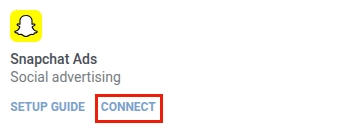
2. In the Snapchat Ads card, click **Connect**.
3. Sign in to Snapchat and allow the permissions Pushwoosh requests.
4. After you return to **3rd party integrations**, click **Settings** on the Snapchat Ads card to open the **Snapchat Ads** page.
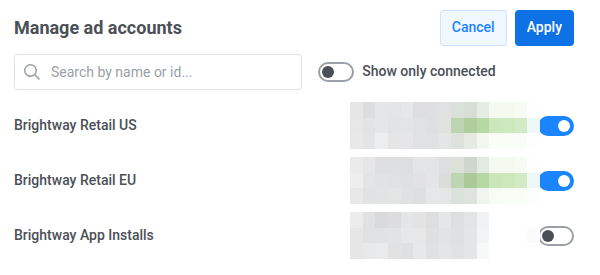
5. Click **Manage accounts**, turn on the ad accounts you want to use in journeys, and click **Apply**.
The list shows every ad account in the Snapchat organizations the user you signed in with belongs to.
### Review connection status
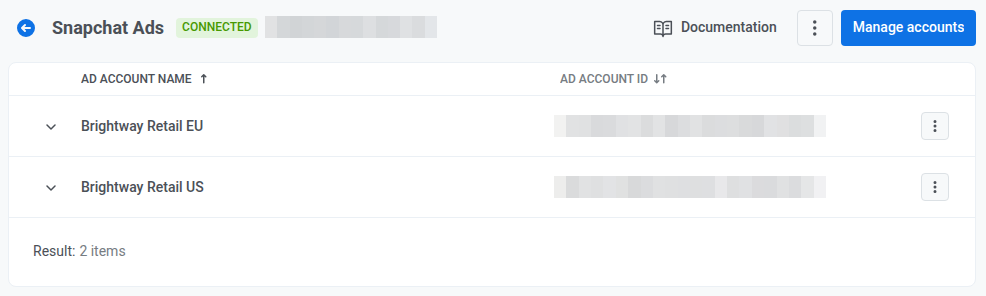
The **Snapchat Ads** page lists the connected ad accounts with their name and ID.
Open the three dots at the end of a row and choose:
* **Create audience:** add a customer list audience (see [Manage customer list audiences](#manage-customer-list-audiences))
* **Remove ad account:** remove that ad account from your project. Journeys that sync to it stop.
To disconnect Snapchat Ads completely, open the menu next to **Manage accounts** and choose **Disconnect Snapchat Ads**. Every journey with an **Audience sync** step on Snapchat Ads stops.
### Manage customer list audiences
A journey's **Audience sync** step needs an existing customer list audience to target. Pushwoosh does not create one for you automatically.
1. On the **Snapchat Ads** page, click the expand arrow on an ad account row to open **Customer list audiences**.
2. Click **Create audience** (also available from the row's three dots).
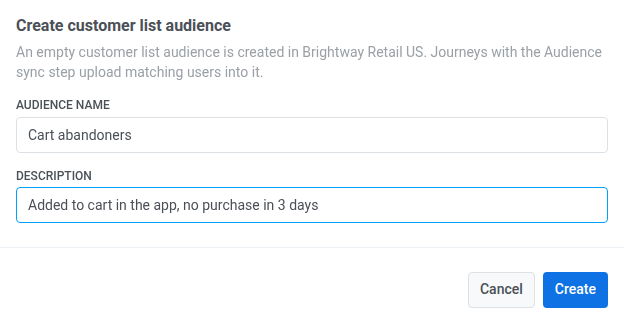
3. Enter an **Audience name**. **Description** is optional.
4. Click **Create**.
This creates an empty customer list audience in that ad account. Users stay in it until a journey removes them. Journeys with an **Audience sync** step upload matching users into it.
In **Customer list audiences**, check each audience's name, ID, and size. The list shows only customer list audiences, not other Snapchat audience types.
To delete an audience, click the trash icon on its row, then click **Delete** to confirm.
## How users are matched
Snapchat Ads has no field-mapping step. Snapchat can match a user only if their Pushwoosh profile has at least one of: email, phone number, or mobile advertising ID (**MAID**). Pushwoosh sends every identifier the profile has, so a user with both an email and a phone number has two chances to match.
Pushwoosh normalizes each identifier the way Snapchat expects and hashes it with SHA-256 before sending:
* **Email:** trimmed and lowercased.
* **Phone number:** digits only, with the country code and without `+` or a leading `00`. Store phone numbers with the country code, or Snapchat cannot match them.
* **MAID:** lowercased. An all-zero advertising ID, which a device reports when the user opted out of ad tracking, is not sent.
If a profile has none of these, that user is skipped at **Audience sync** and continues the journey.
## Sync audiences in journeys
The **Audience sync** step in **Journey Builder** links your journey to a Snapchat customer list audience. Every time a user reaches that step, Pushwoosh adds them to the audience or removes them from it.
To configure audience sync:
1. Open [**Journey Builder**](/product/customer-journey/pushwoosh-journey-overview/).
2. Add an [**Audience-based entry**](/product/customer-journey/journey-elements/entry-elements/audience-based-entry/). In **Audience source**, choose a Pushwoosh segment or list that defines who enters this journey.
3. Add the **Audience sync** step.
4. Under **How to sync users with Snapchat Ads audience**, pick one option:
* **Add users to audience**. Adds each user who reaches this step to the audience you select.
* **Remove users from audience**. Removes each user who reaches this step from that audience.
5. In **AD PLATFORM**, choose **Snapchat Ads**.
6. In **Snapchat Ads Account**, select the connected ad account.
7. In **Audience**, select the customer list audience. [Create one first](#manage-customer-list-audiences) if none exists yet.
8. Click **Apply**.
9. Finish configuring the journey, then launch it.
## Behavior and error handling
* Pushwoosh collects users who reach **Audience sync** into batches and uploads each batch to Snapchat.
* Snapchat matches uploaded users on its side. A delay of up to 48 hours between a user reaching the step and the audience size changing is expected.
* If Snapchat Ads is disconnected or the selected ad account is removed when a user reaches **Audience sync**, Pushwoosh pauses that journey version.
* If Snapchat rejects an upload, for example because the audience was deleted or the connection expired, Pushwoosh pauses that journey version. In the step's statistics, these users get an audience-sync-failure status. Reconnect Snapchat Ads or pick another audience, then resume the journey.
## Audience sync statistics
After launch, check that sync is working:
1. Open statistics for the **Audience sync** step. Check entry volume, adds and removals, and skipped profiles.
2. On the **Snapchat Ads** page in Pushwoosh, open **Customer list audiences** and check the audience size. Size can stay 0 for up to 48 hours while Snapchat matches users.
For metric details, see [**Audience sync**](/product/statistics-and-analytics/journey-statistics/journey-element-statistics/#audience-sync) in **Customer Journey statistics**.
 3. Sign in to Snapchat and allow the permissions Pushwoosh requests.
4. After you return to **3rd party integrations**, click **Settings** on the Snapchat Ads card to open the **Snapchat Ads** page.
5. Click **Manage accounts**, turn on the ad accounts you want to use in journeys, and click **Apply**.
 The list shows every ad account in the Snapchat organizations the user you signed in with belongs to.
### Review connection status
The **Snapchat Ads** page lists the connected ad accounts with their name and ID.
 Open the three dots at the end of a row and choose:
* **Create audience:** add a customer list audience (see [Manage customer list audiences](#manage-customer-list-audiences))
* **Remove ad account:** remove that ad account from your project. Journeys that sync to it stop.
To disconnect Snapchat Ads completely, open the menu next to **Manage accounts** and choose **Disconnect Snapchat Ads**. Every journey with an **Audience sync** step on Snapchat Ads stops.
### Manage customer list audiences
A journey's **Audience sync** step needs an existing customer list audience to target. Pushwoosh does not create one for you automatically.
1. On the **Snapchat Ads** page, click the expand arrow on an ad account row to open **Customer list audiences**.
2. Click **Create audience** (also available from the row's three dots).
3. Enter an **Audience name**. **Description** is optional.
4. Click **Create**.
 This creates an empty customer list audience in that ad account. Users stay in it until a journey removes them. Journeys with an **Audience sync** step upload matching users into it.
In **Customer list audiences**, check each audience's name, ID, and size. The list shows only customer list audiences, not other Snapchat audience types.
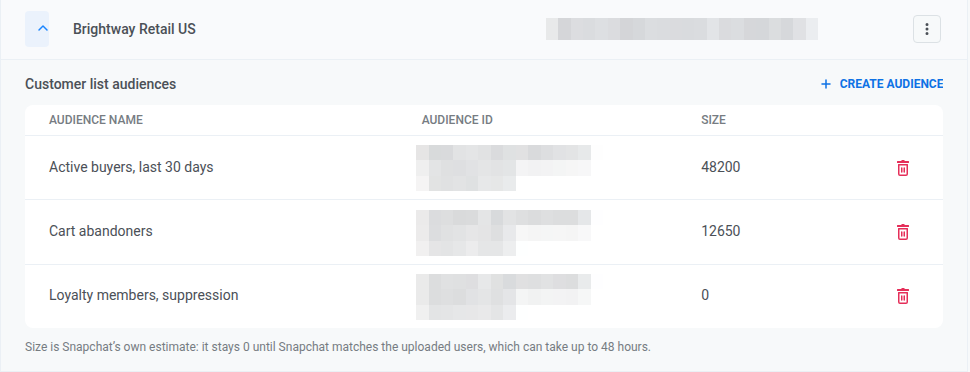 To delete an audience, click the trash icon on its row, then click **Delete** to confirm.
## How users are matched
Snapchat Ads has no field-mapping step. Snapchat can match a user only if their Pushwoosh profile has at least one of: email, phone number, or mobile advertising ID (**MAID**). Pushwoosh sends every identifier the profile has, so a user with both an email and a phone number has two chances to match.
Pushwoosh normalizes each identifier the way Snapchat expects and hashes it with SHA-256 before sending:
* **Email:** trimmed and lowercased.
* **Phone number:** digits only, with the country code and without `+` or a leading `00`. Store phone numbers with the country code, or Snapchat cannot match them.
* **MAID:** lowercased. An all-zero advertising ID, which a device reports when the user opted out of ad tracking, is not sent.
If a profile has none of these, that user is skipped at **Audience sync** and continues the journey.
## Sync audiences in journeys
The **Audience sync** step in **Journey Builder** links your journey to a Snapchat customer list audience. Every time a user reaches that step, Pushwoosh adds them to the audience or removes them from it.
To configure audience sync:
1. Open [**Journey Builder**](/product/customer-journey/pushwoosh-journey-overview/).
2. Add an [**Audience-based entry**](/product/customer-journey/journey-elements/entry-elements/audience-based-entry/). In **Audience source**, choose a Pushwoosh segment or list that defines who enters this journey.
3. Add the **Audience sync** step.
4. Under **How to sync users with Snapchat Ads audience**, pick one option:
* **Add users to audience**. Adds each user who reaches this step to the audience you select.
* **Remove users from audience**. Removes each user who reaches this step from that audience.
5. In **AD PLATFORM**, choose **Snapchat Ads**.
6. In **Snapchat Ads Account**, select the connected ad account.
7. In **Audience**, select the customer list audience. [Create one first](#manage-customer-list-audiences) if none exists yet.
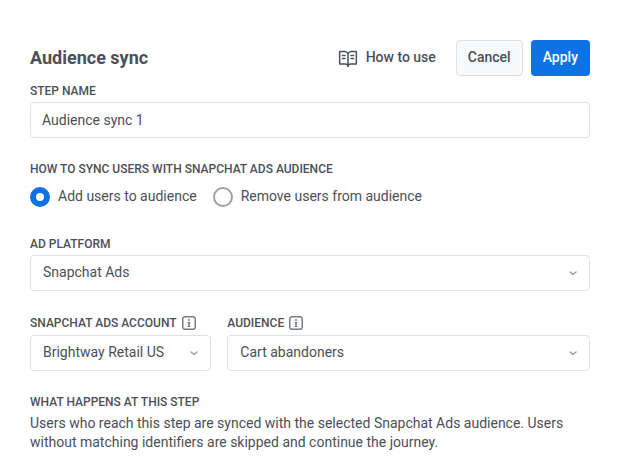 8. Click **Apply**.
9. Finish configuring the journey, then launch it.
## Behavior and error handling
* Pushwoosh collects users who reach **Audience sync** into batches and uploads each batch to Snapchat.
* Snapchat matches uploaded users on its side. A delay of up to 48 hours between a user reaching the step and the audience size changing is expected.
* If Snapchat Ads is disconnected or the selected ad account is removed when a user reaches **Audience sync**, Pushwoosh pauses that journey version.
* If Snapchat rejects an upload, for example because the audience was deleted or the connection expired, Pushwoosh pauses that journey version. In the step's statistics, these users get an audience-sync-failure status. Reconnect Snapchat Ads or pick another audience, then resume the journey.
## Audience sync statistics
After launch, check that sync is working:
1. Open statistics for the **Audience sync** step. Check entry volume, adds and removals, and skipped profiles.
2. On the **Snapchat Ads** page in Pushwoosh, open **Customer list audiences** and check the audience size. Size can stay 0 for up to 48 hours while Snapchat matches users.
For metric details, see [**Audience sync**](/product/statistics-and-analytics/journey-statistics/journey-element-statistics/#audience-sync) in **Customer Journey statistics**.