# Turn on the sunset policy
Back to [Email setup overview](/product/first-steps/start-with-your-project/configure-platforms/email-configuration/).
The sunset policy stops marketing emails to contacts who haven't opened or clicked your emails for a period you choose. It's set for each project and is off by default. For how Pushwoosh decides a contact is inactive and which emails the policy skips, see [Stop marketing emails to inactive contacts](/product/messaging-channels/emails/email-deliverability/#stop-marketing-emails-to-inactive-contacts).
To turn on the sunset policy:
1. Go to **Settings** → **Configure platforms** and click **Platform settings** in the **Emails** row.
2. On the **Sunset policy** card, click **Enable**.
 3. In **What counts as activity?**, choose **Click or open**, **Click**, or **Open**.
4. In **How long before a contact becomes inactive?**, choose 30, 90, 180, 365, or 730 days. The default is 180 days.
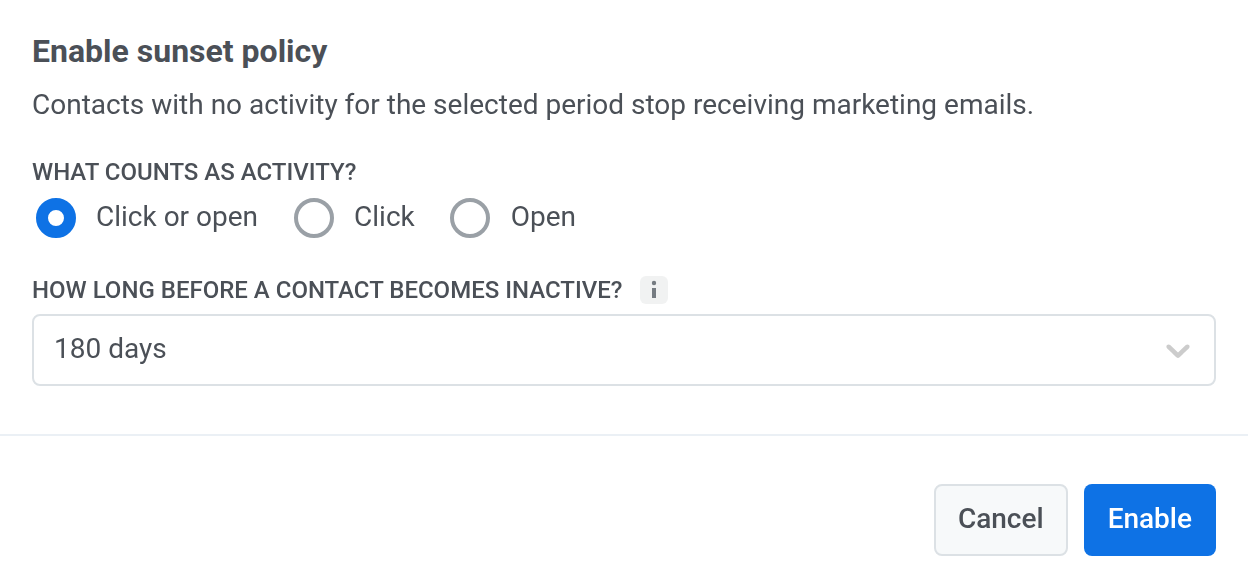 5. Click **Enable**.
The card now shows how many of your subscribed email contacts are inactive. The number updates once a day at 03:00 UTC and after each change to the settings.
## Export inactive contacts
To download the contacts the policy currently skips:
1. On the **Sunset policy** card, open the menu.
2. Click **Export inactive contacts**.
A ZIP archive with the CSV file downloads when the export is ready. If no contacts are inactive, there's nothing to export, and a message says so.
## Change the sunset policy settings
1. On the **Sunset policy** card, click **Settings**.
2. Change which activity keeps a contact active (**Click or open**, **Click**, or **Open**), the number of days without activity before a contact becomes inactive (30, 90, 180, 365, or 730), or both.
3. Click **Save**.
## Turn off the sunset policy
1. On the **Sunset policy** card, open the menu.
2. Click **Disable…**.
3. In the confirmation window, click **Disable**.
Marketing emails then go to all subscribed contacts again, including inactive ones.