# Set up a custom tracking domain
Back to [Email setup overview](/product/first-steps/start-with-your-project/configure-platforms/email-configuration/).
The **Click Tracking Domain (CTD)** is the domain part of a tracked link URL shown in an email message. It combines a subdomain with your main domain, for example, `click.yourdomain.com`. The subdomain is created in your domain's DNS settings with your domain provider, usually by adding a CNAME record. With a CTD, you can wrap email links for click tracking on your own subdomain and keep deliverability and deep links working as expected.
A CTD only changes which domain those tracked links use. It doesn't change what's tracked: click statistics and the [click map](/product/statistics-and-analytics/messaging-statistics/email-statistics/#clicks-tab) work the same with or without one.
To set up a custom tracking domain:
1. Decide which subdomain you will use as your CTD (for example, `click.yourdomain.com`).
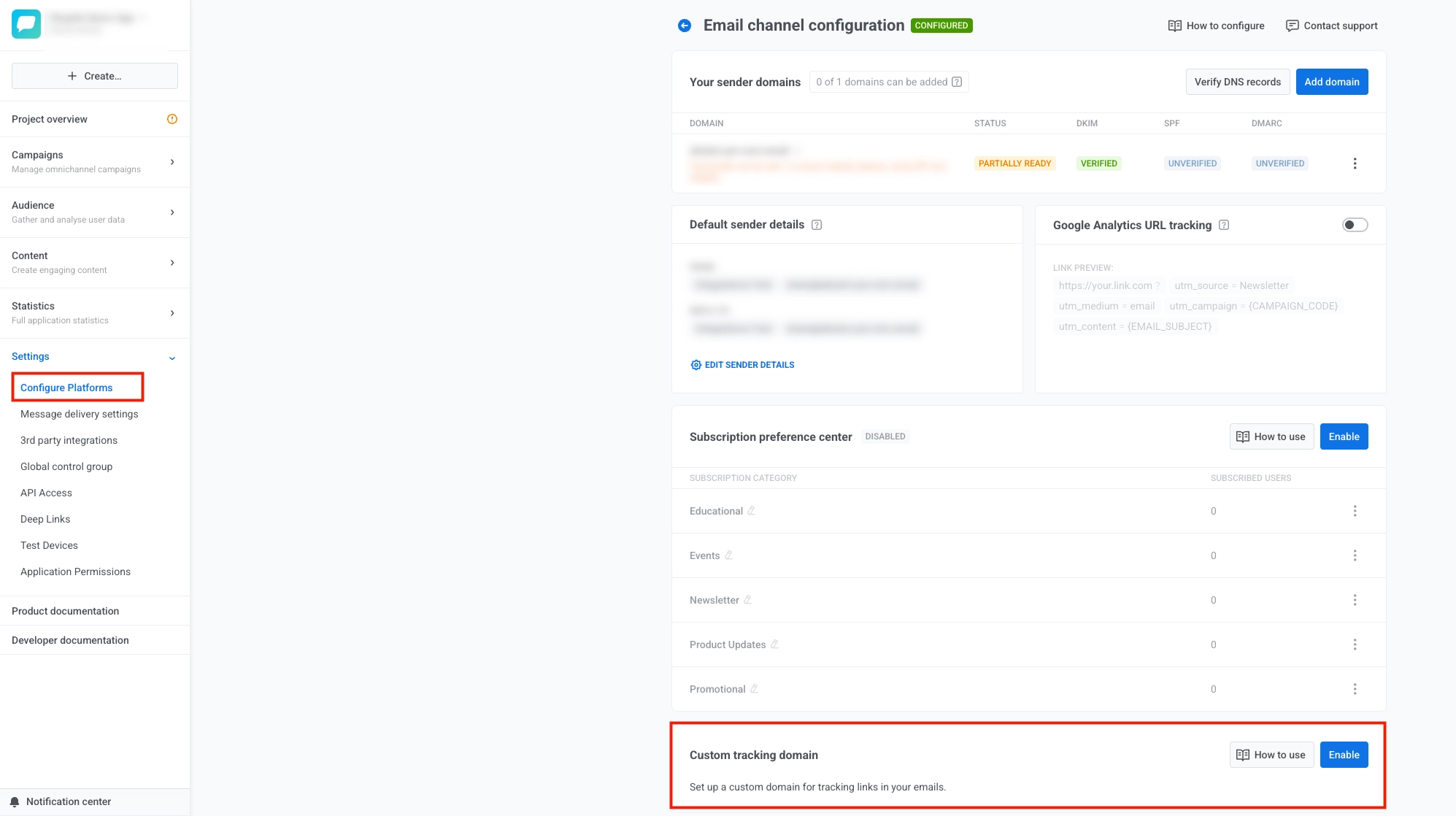
2. In Pushwoosh, open **Settings**, select **Configure platforms**, and click **Platform settings** next to **Emails**.
3. On the **Email channel configuration** page, scroll to **Custom tracking domain** and select **Enable**.
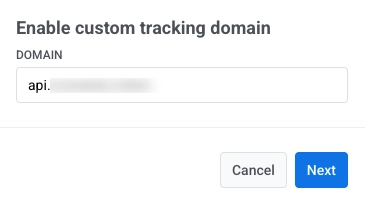
4. Enter your CTD in the **Domain** field and select **Next**.
5. Outside Pushwoosh, open the service where you manage public DNS for the domain of your CTD (typically your domain registrar, a DNS host, or your hosting account). In its DNS or zone editor for that domain, add the **CNAME** Pushwoosh shows on this step so your CTD points to `api.pushwoosh.com`.
6. In Pushwoosh, select **Verify**.
7. When verification succeeds, select **Save**.
8. If you need to change the **Domain** or DNS record, select **Back** and adjust the earlier steps.
9. After you click **Save**, your CTD appears on the **Custom tracking domain** card in **Email channel configuration**.
To disable it later, select `...` next to your CTD, then select **Disable custom tracking domain…** and confirm with **Disable**.
 4. Enter your CTD in the **Domain** field and select **Next**.
 5. Outside Pushwoosh, open the service where you manage public DNS for the domain of your CTD (typically your domain registrar, a DNS host, or your hosting account). In its DNS or zone editor for that domain, add the **CNAME** Pushwoosh shows on this step so your CTD points to `api.pushwoosh.com`.
6. In Pushwoosh, select **Verify**.
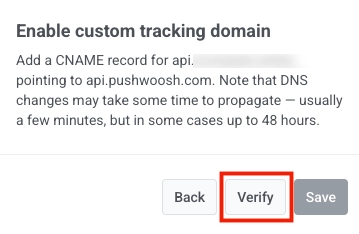 7. When verification succeeds, select **Save**.
8. If you need to change the **Domain** or DNS record, select **Back** and adjust the earlier steps.
9. After you click **Save**, your CTD appears on the **Custom tracking domain** card in **Email channel configuration**.
 To disable it later, select `...` next to your CTD, then select **Disable custom tracking domain…** and confirm with **Disable**.